Integrate with HubSpot
Roles
These roles reflect the default DreamApply setup.
You can define custom roles based on your
institution's needs. Learn more →:
You can define custom roles based on your
institution's needs. Learn more →
DreamApply utilizes the HubSpot private apps to integrate with HubSpot. Private apps provide a secure way to connect to your HubSpot account using access tokens generated in the HubSpot portal.
During the export process, DreamApply sends the following data:
- Email address
- Full name
- Location/citizenship
- Phone number (if entered correctly with the country code)
- Language preference (if available)
- Registration date
- DreamApply applicant ID
- DreamApply applicant reference code
- DreamApply applicant matriculation number
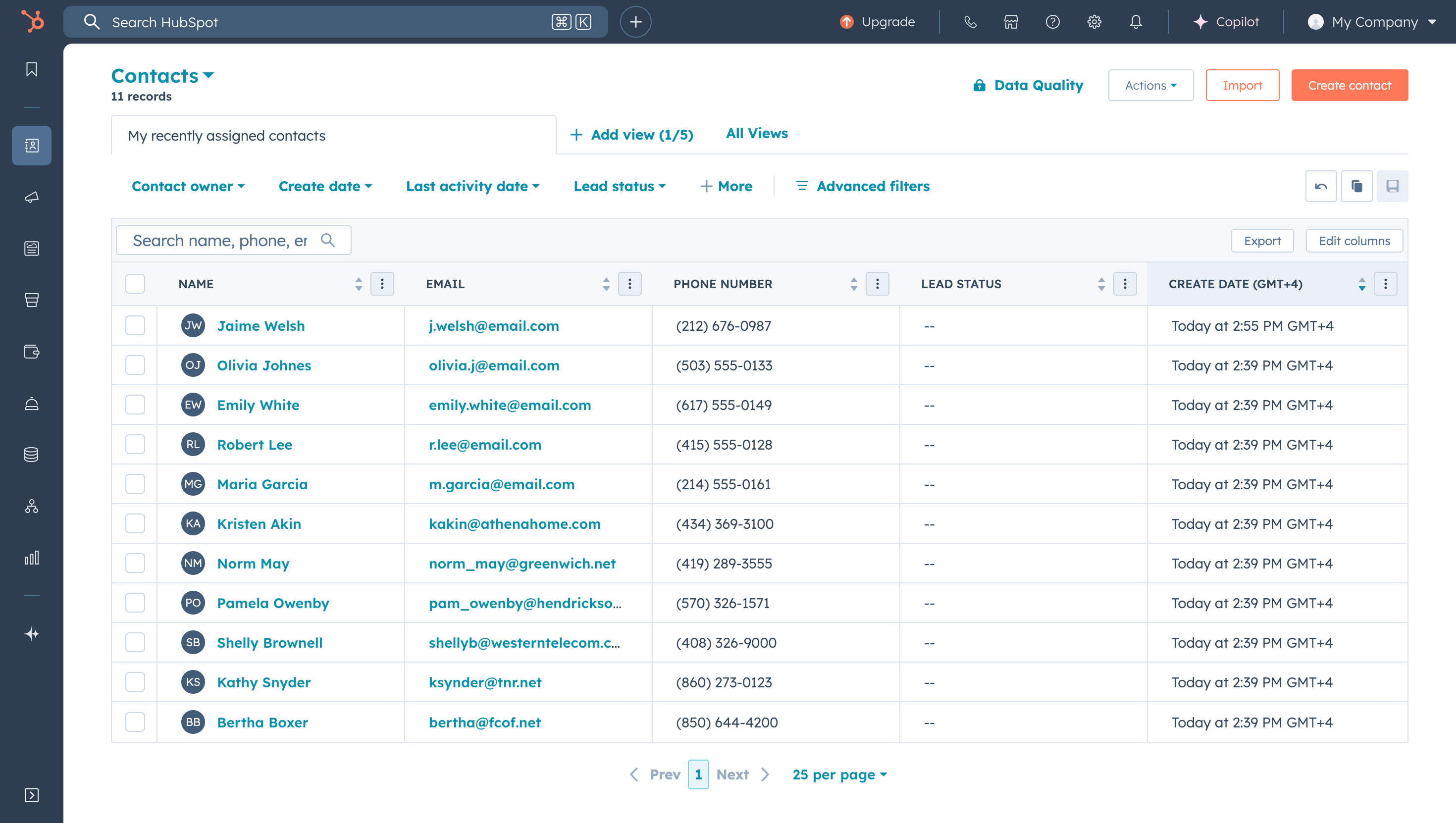
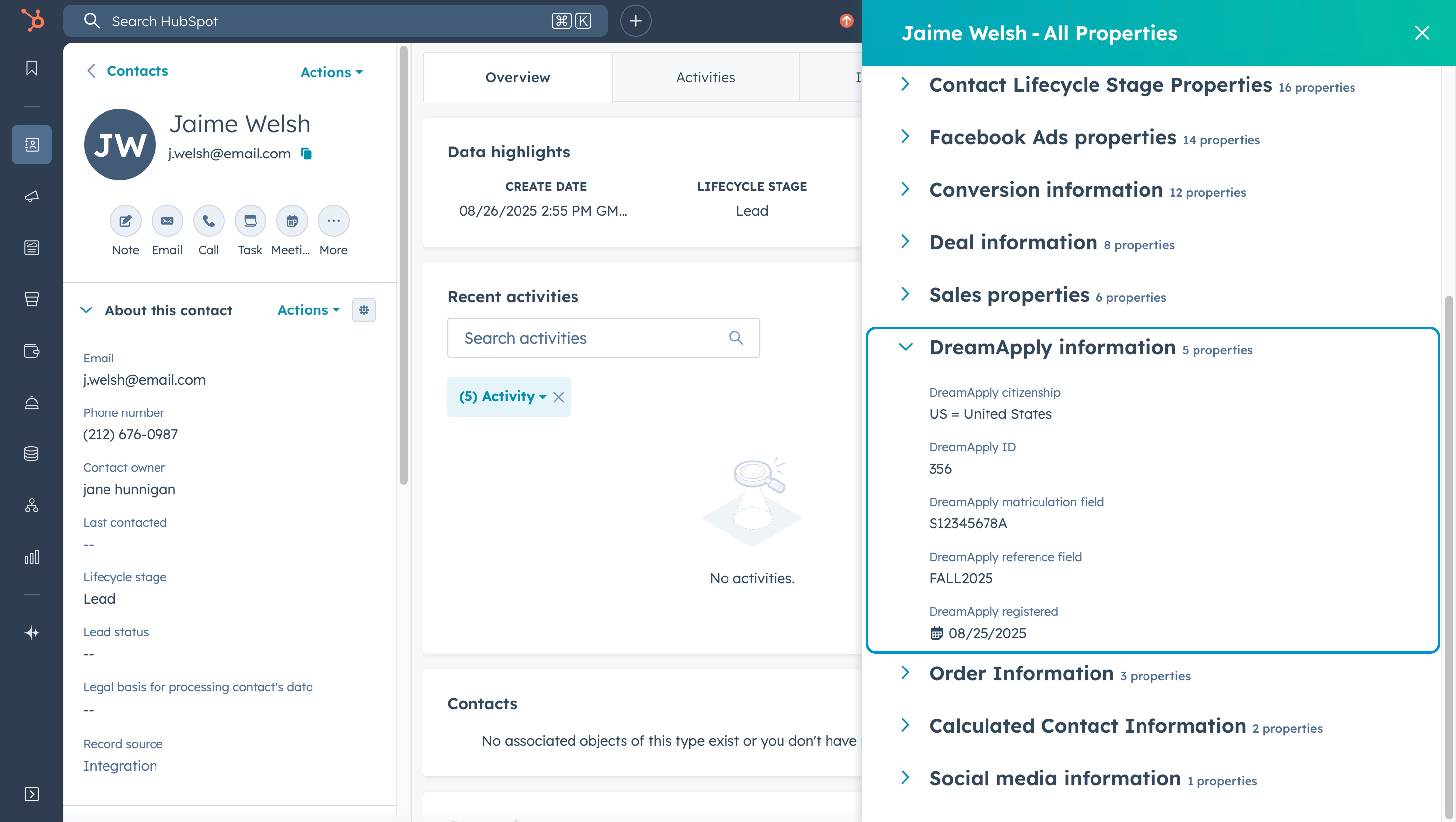
The exported data is registered as contact records in HubSpot and linked to a specific contact owner. To store DreamApply-specific information, such as applicant ID, citizenship and registration date, DreamApply creates custom properties in the contact record and displays them under the DreamApply information properties group.
To export applicant data, perform the following tasks:
Before you begin
To integrate with DreamApply, your account must have the Superuser role or the integrations permission.
Create a private app
To enable the integration with DreamApply, you must create a private app in your HubSpot account.
Private apps have been migrated to the Legacy apps module in HubSpot. For details, see the HubSpot documentation.
In your HubSpot account, in the left menu, select Development > Legacy Apps.
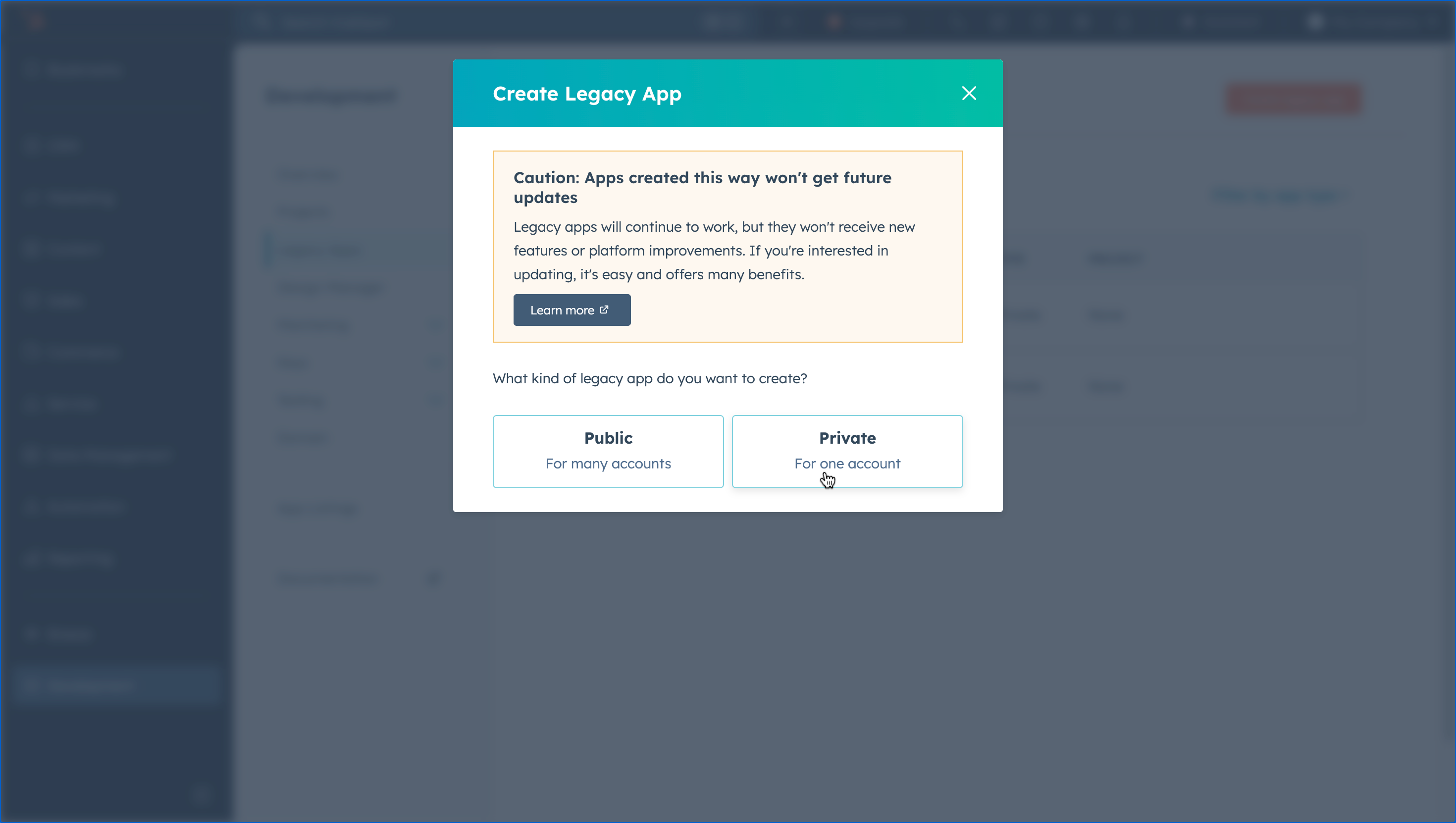
In the top right corner, click Create legacy app.
Select to create a private app.
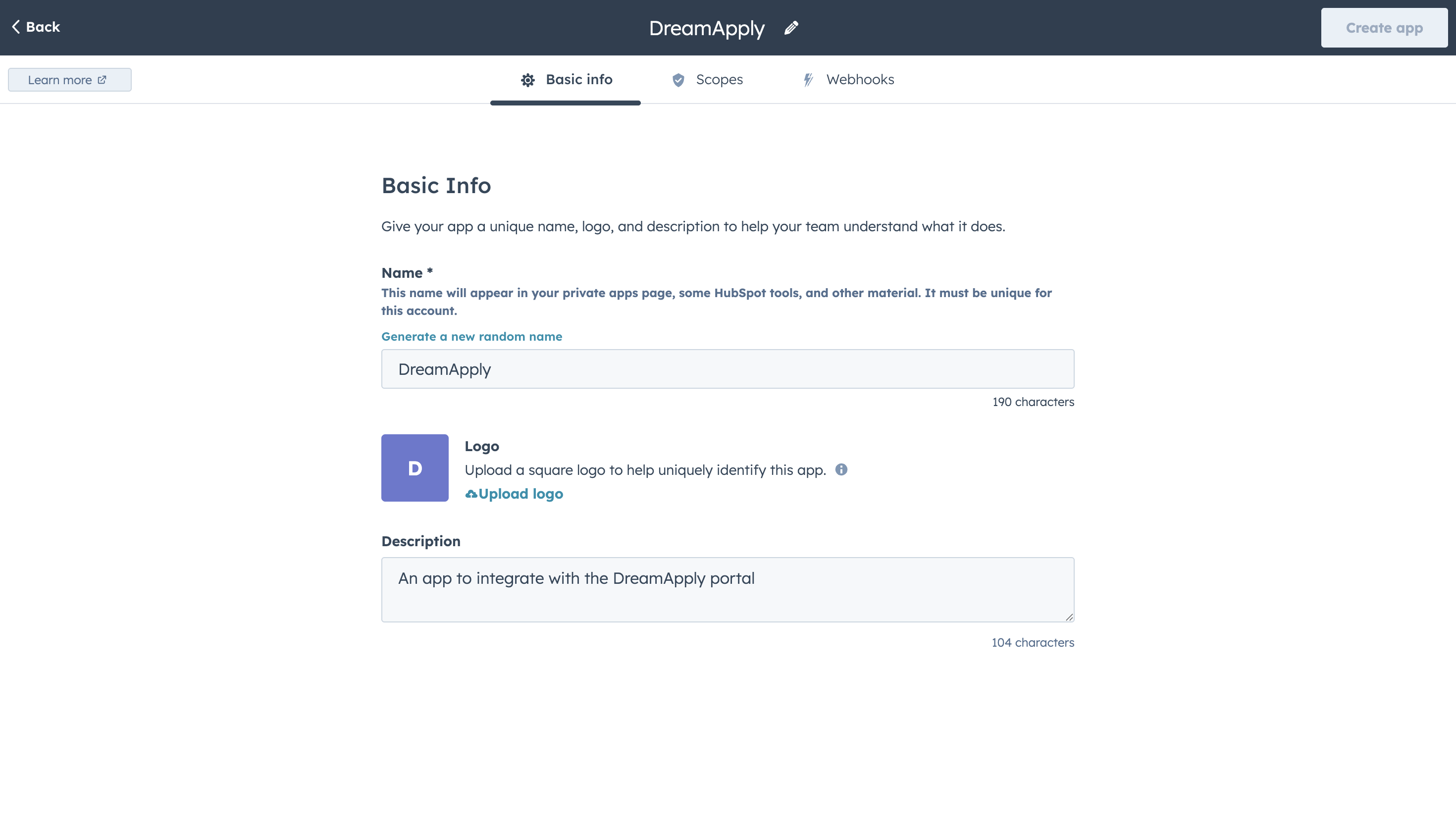
On the Basic info tab, specify the app name and description.
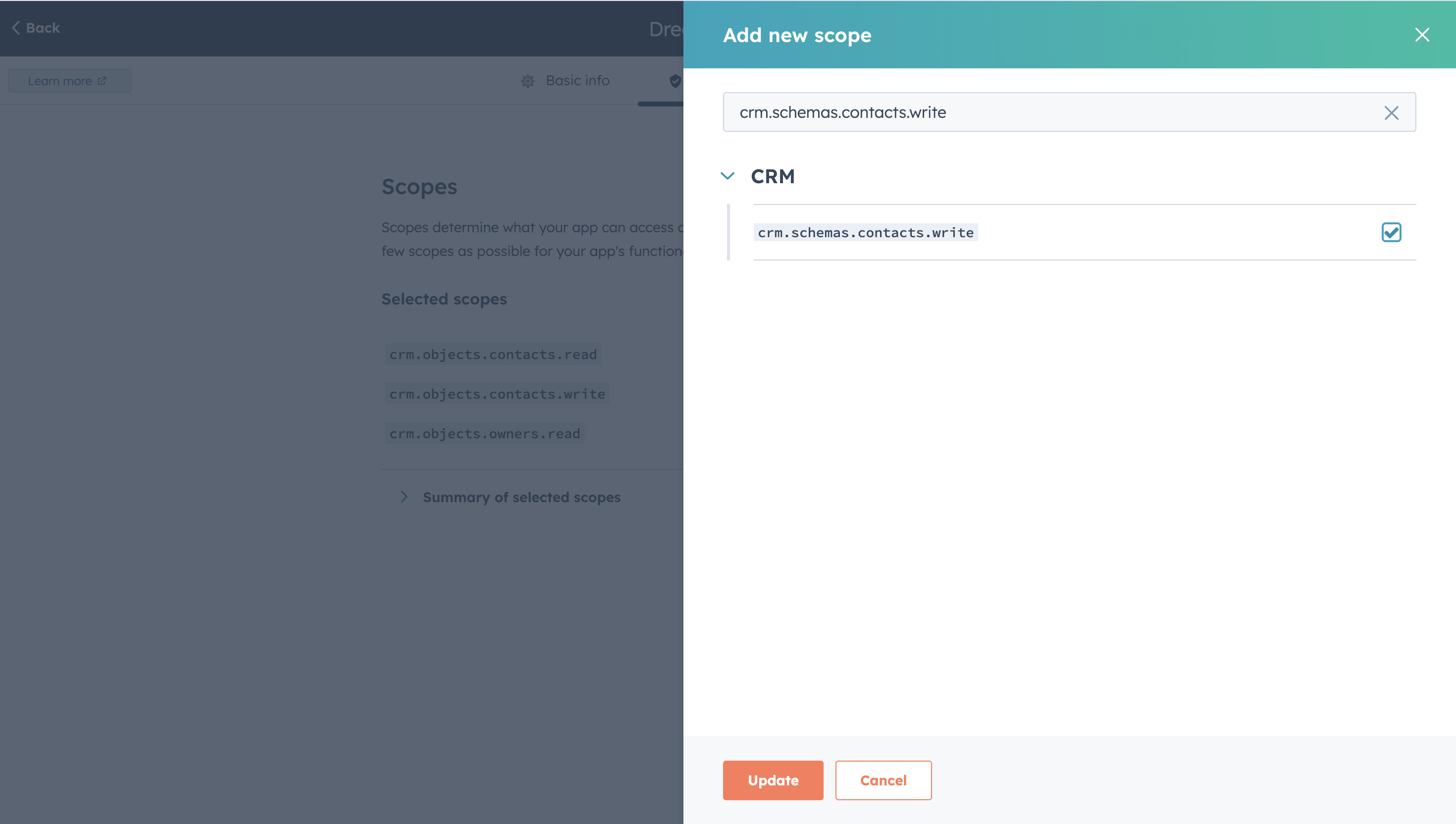
On the Scopes tab, add the following scopes:
crm.objects.contacts.readcrm.objects.contacts.writecrm.objects.owners.readcrm.schemas.contacts.write
In the top right corner, click Create app.
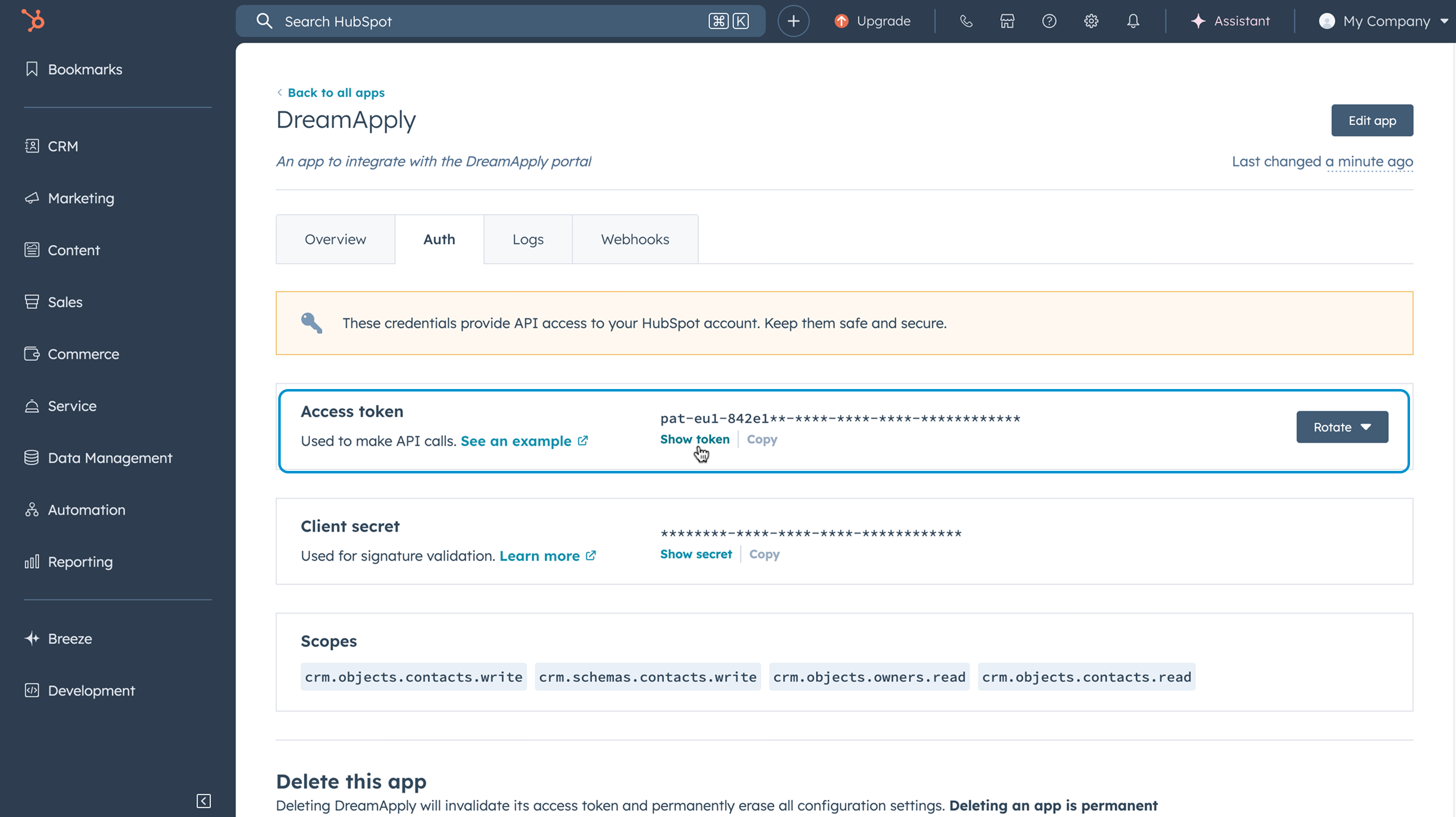
On the Auth tab, make note of and copy the access token for the app.
Configure integration settings
To connect to HubSpot in DreamApply:
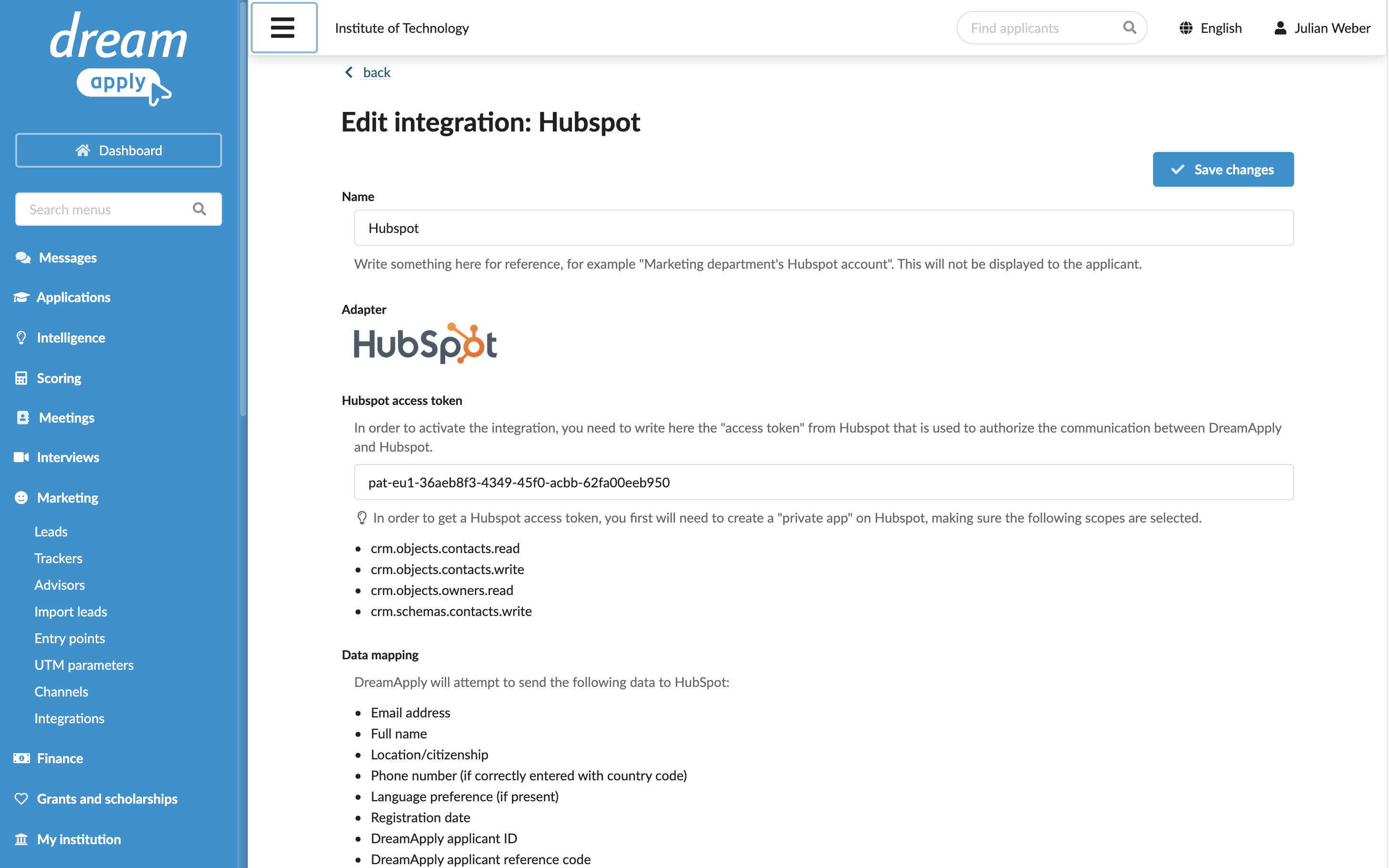
In the main menu, under Marketing, select Integrations.
Select Outgoing integrations > HubSpot.
In the HubSpot access token field, specify the access token you copied earlier.
At the top of the form, click Save changes.
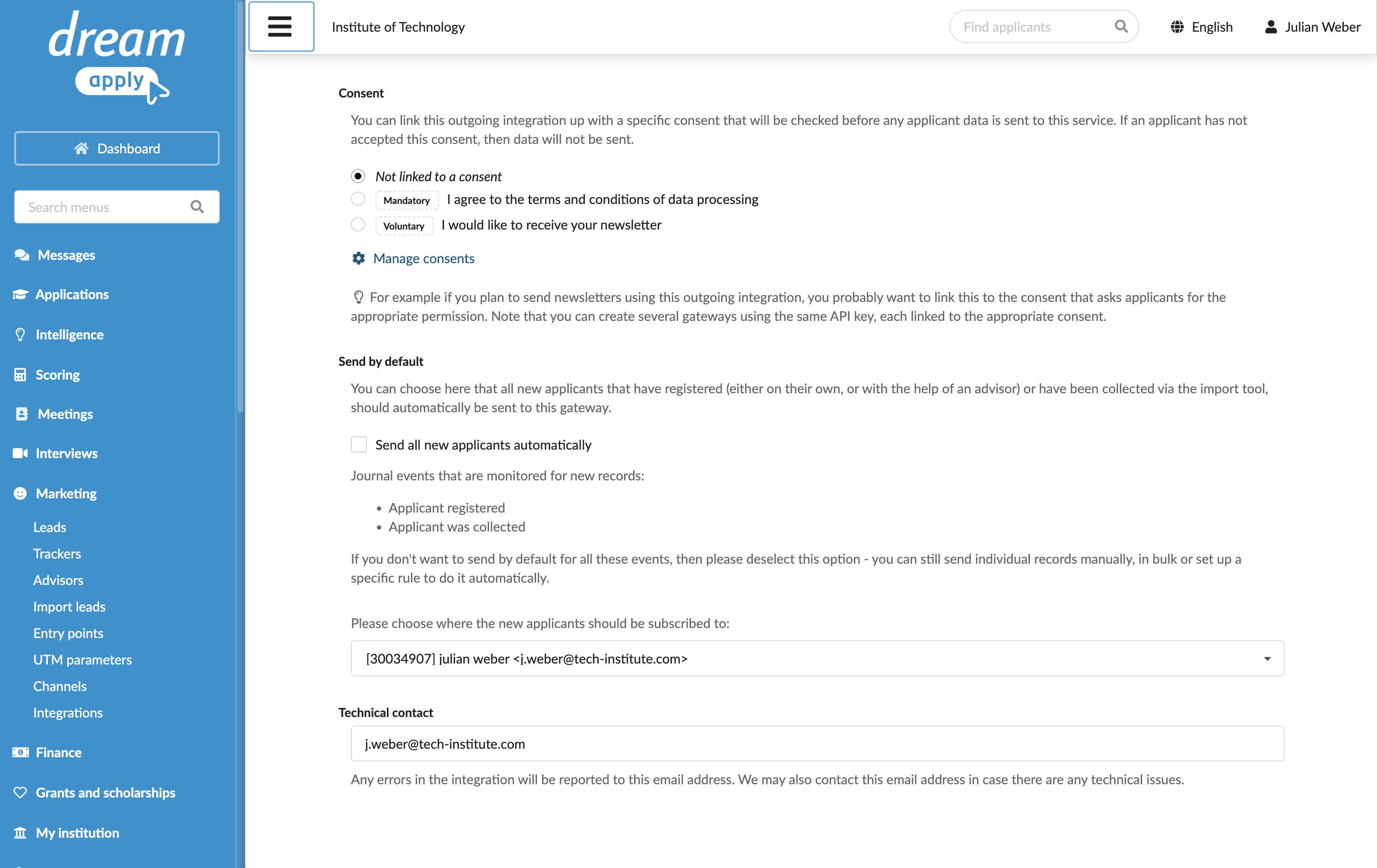
In the Consent section, specify if applicant consent is required to send data to HubSpot.
In the Send by default section, select the Send all new applicants automatically check box to enable continuous integration between DreamApply and HubSpot. If you do not enable this option, you will need to set up rules or send applicant data manually. For details, see Send applicant data.
From the list below, select a contact owner to which created records must be linked.
In the Technical contact field, specify an email address for technical support. DreamApply will send error descriptions to this address if any integration issues occur.
At the top of the form, click Save changes.