Integrate with Microsoft Dynamics 365
Roles
These roles reflect the default DreamApply setup.
You can define custom roles based on your
institution's needs. Learn more →:
You can define custom roles based on your
institution's needs. Learn more →
DreamApply utilizes the Microsoft Dynamics 365 Customer Engagement Web API to integrate with Microsoft Dynamics 365.
During the export process, DreamApply can send the following data:
- Applicant data: ID, name, first name, last name, email, phone, registration date, citizenship, reference and matriculation
- Lead data: Lead stage and stage change date
- Programme data: Programme IDs
- Academic term data: Name, year, type and start date
- Dates: Dates and UTC dates values
The exported data is registered as lead records in Microsoft Dynamics 365 and linked to a specific contact owner. You can map DreamApply applicant fields to corresponding fields of Microsoft Dynamics 365 records.
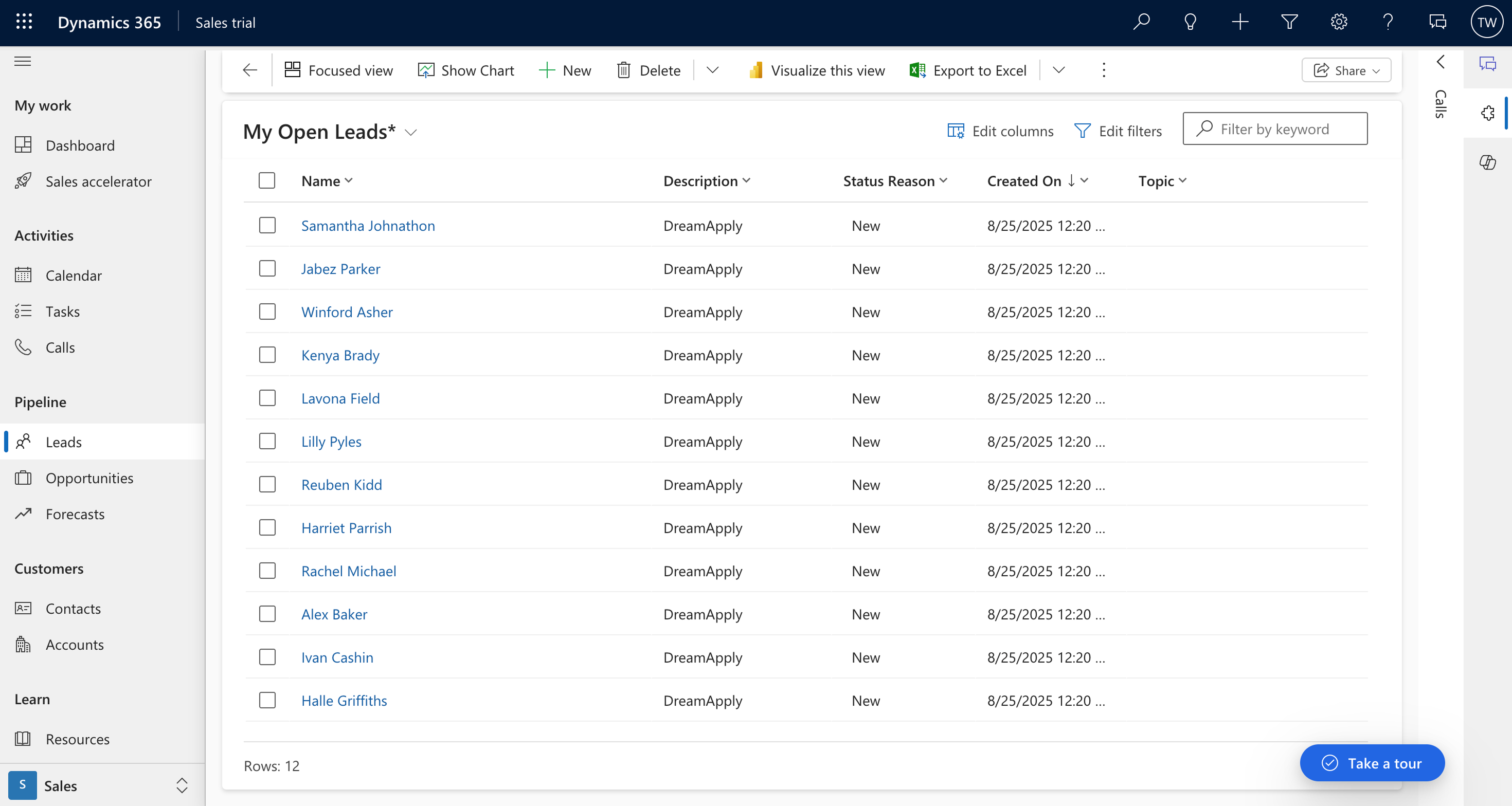
To export applicant data, perform the following tasks:
- Create an app registration in Microsoft Entra ID
- Create an application user
- Configure integration settings
Before you begin
To integrate with DreamApply, your account must have the Superuser role or the integrations permission.
Create an app registration in Microsoft Entra ID
To enable the integration with DreamApply, you must create a new app registration in Microsoft Entra ID (formerly Azure Active Directory).
In Microsoft Entra ID, go to Manage > App registrations.
At the top of the page, click New registration.
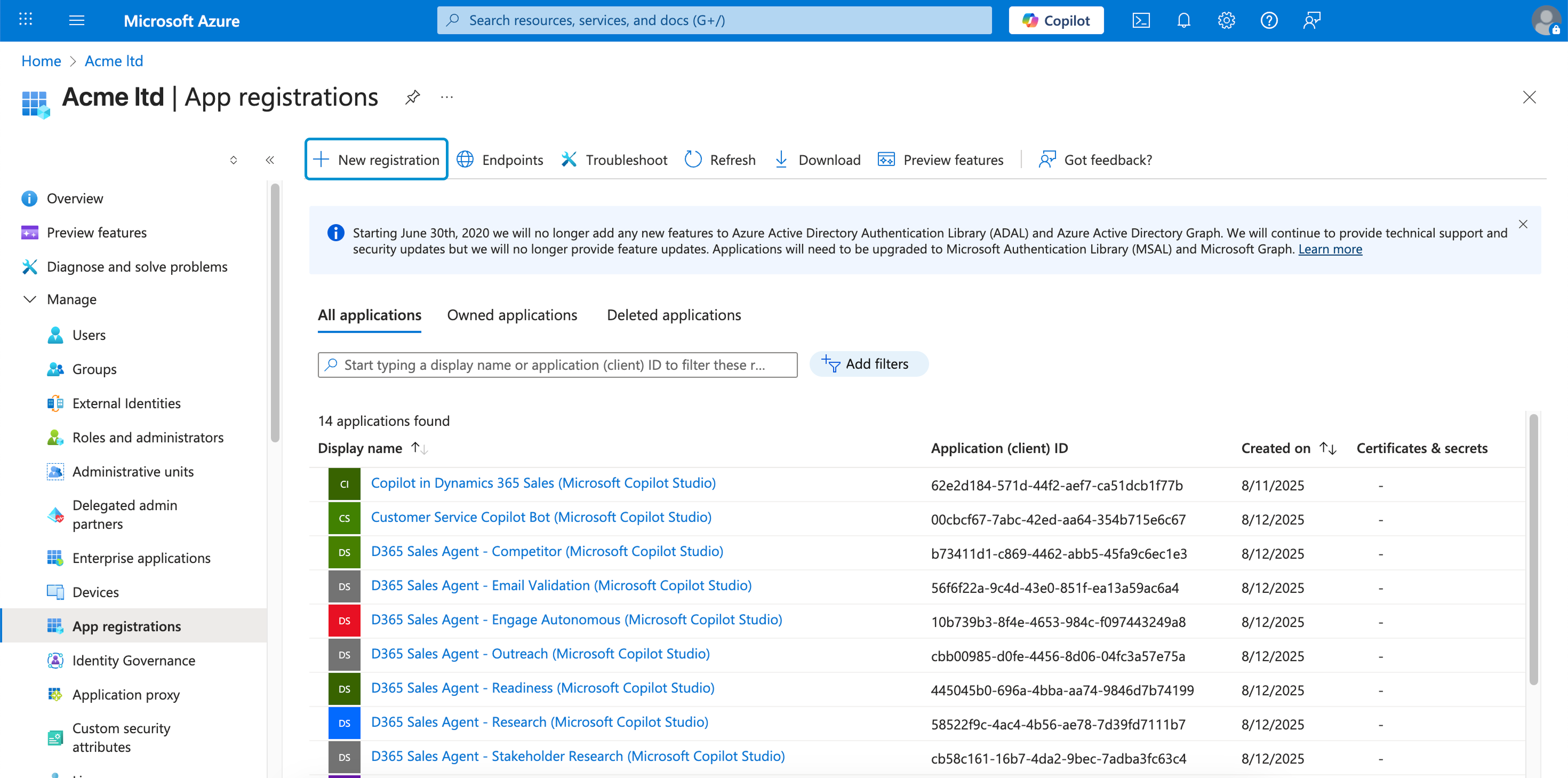
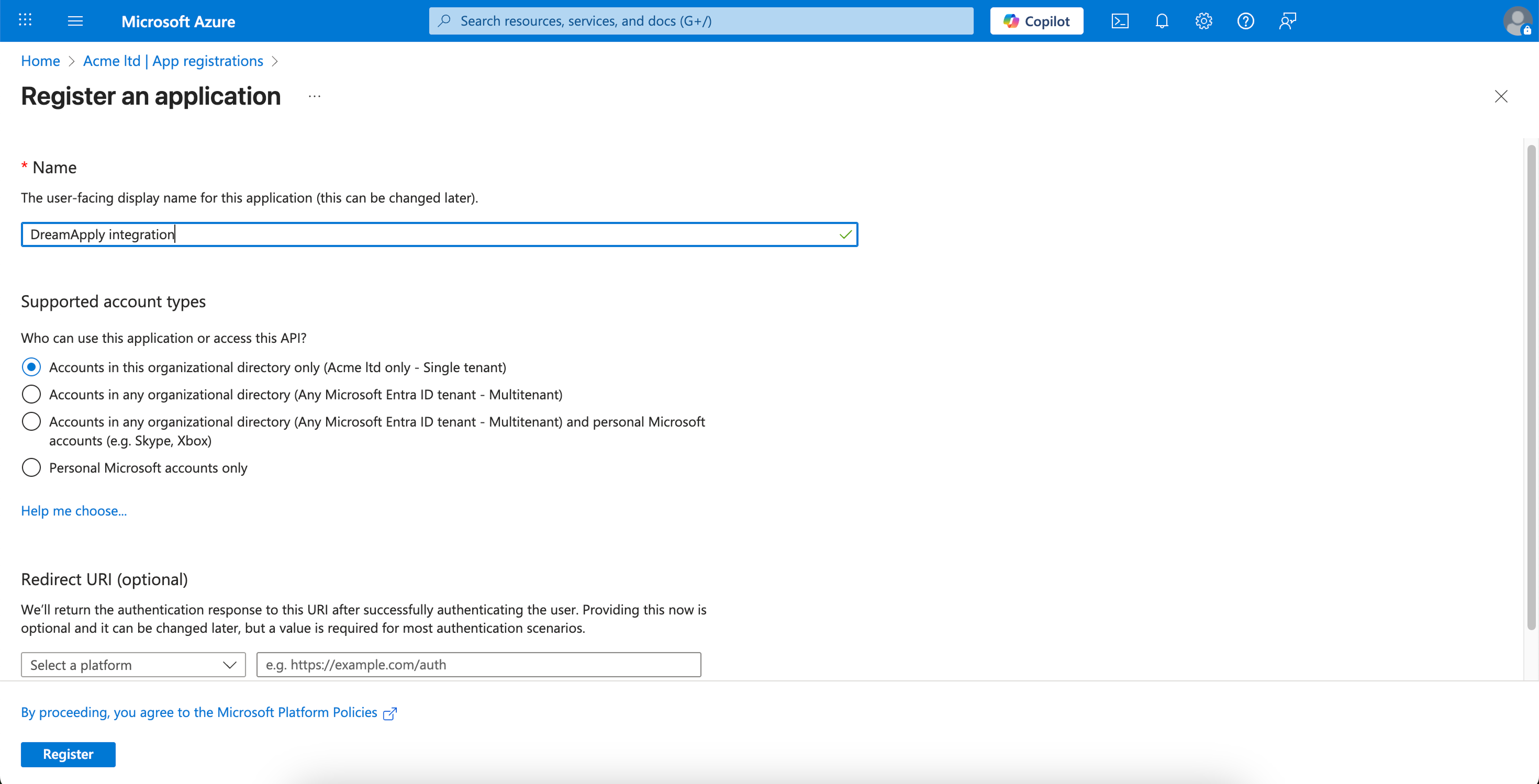
In the Name field, specify the registration name and click Register.
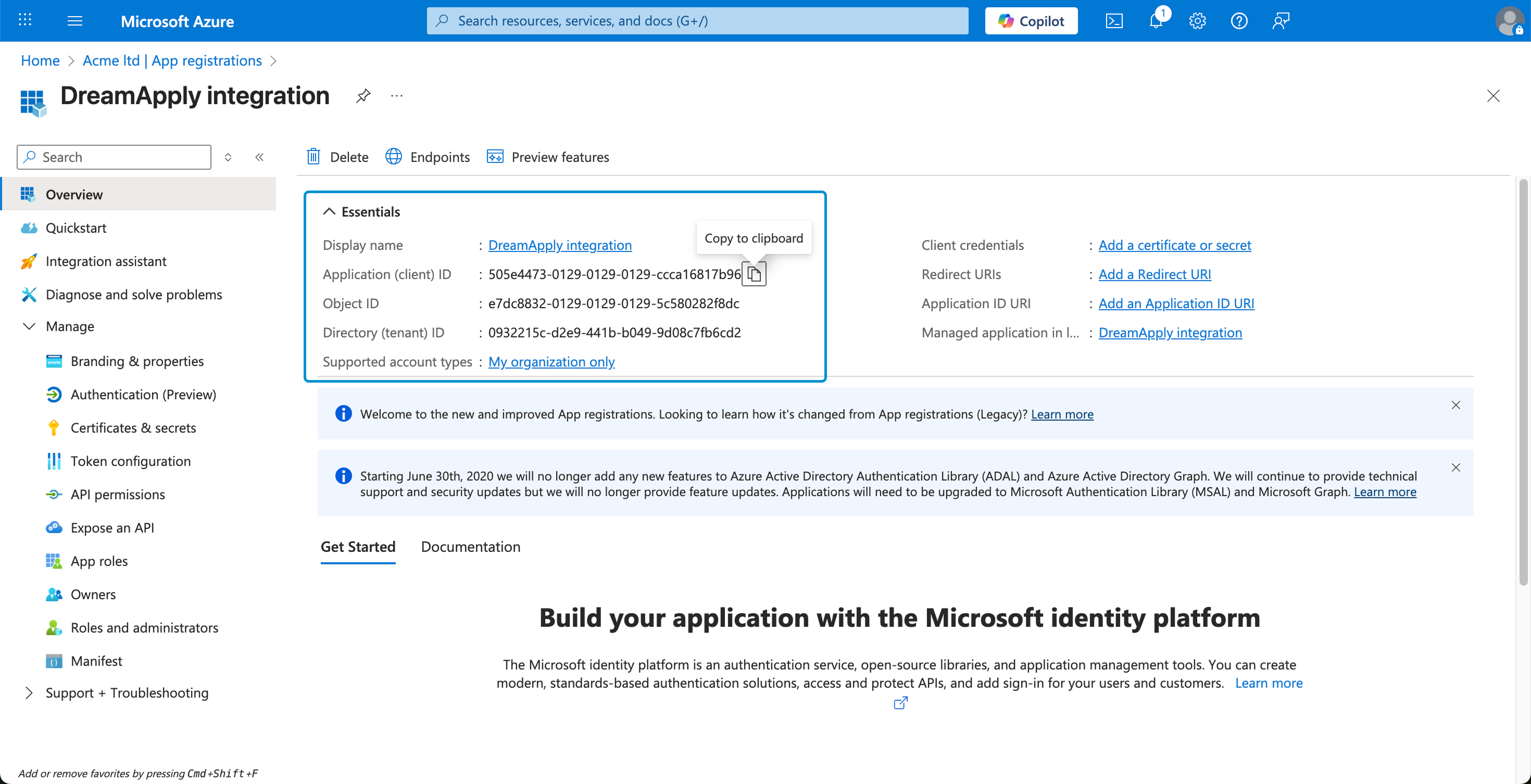
On the displayed page, make note of and copy the Application (client) ID.
Under Manage, select Certificates and secrets.
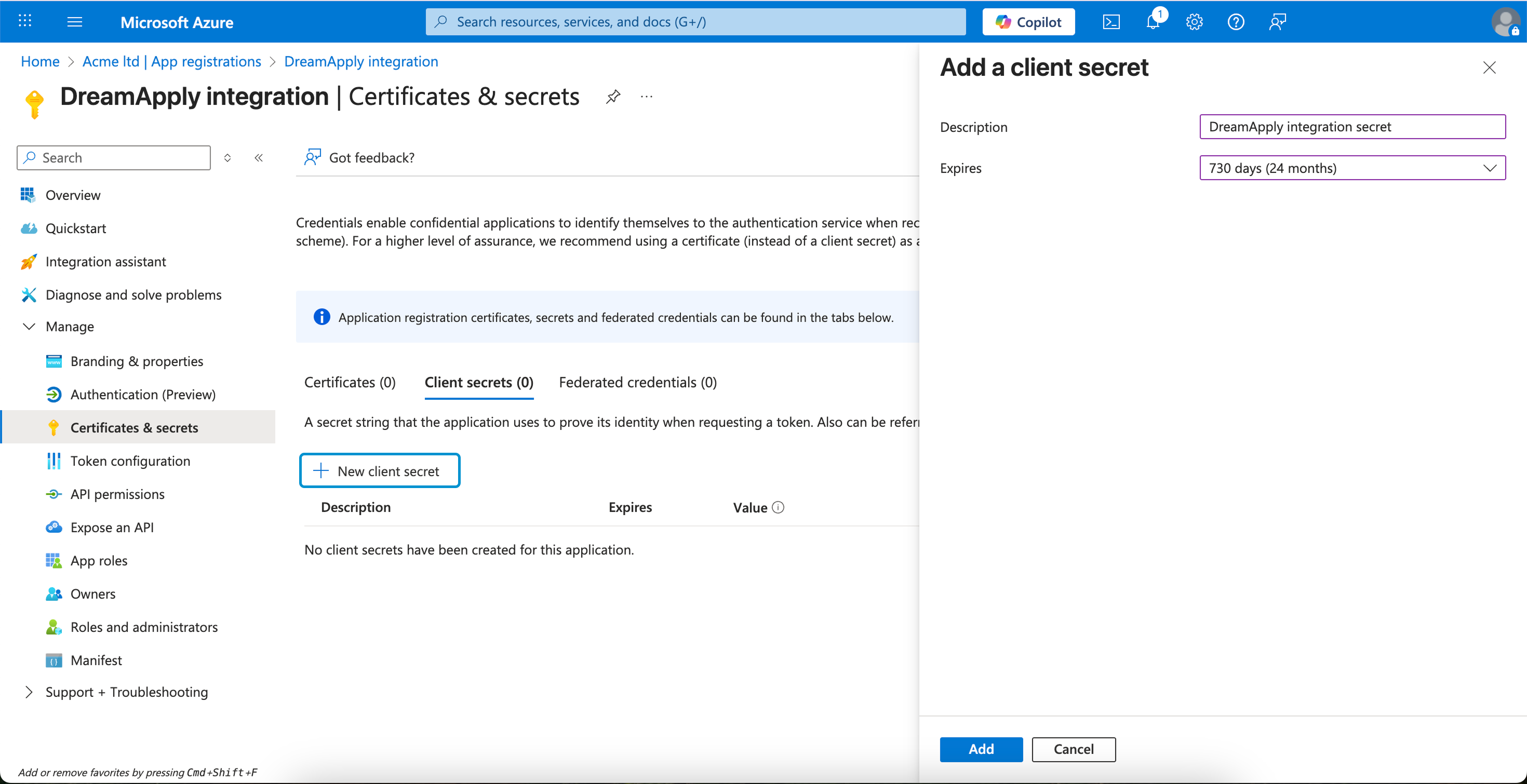
On the Client secrets tab, click New client secret.
Specify the secret name, choose the longest expiration period and click Add.
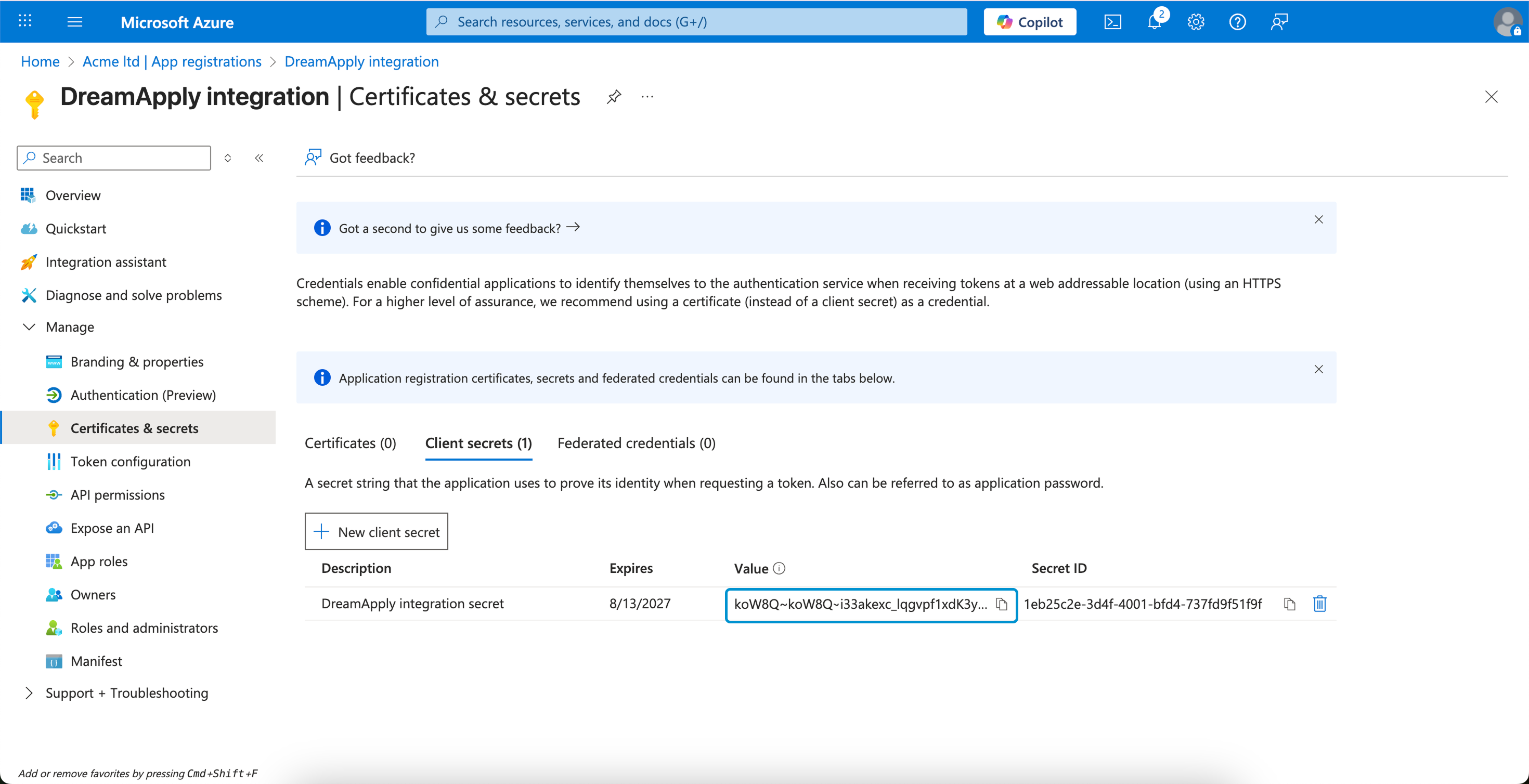
Make note of and copy the client secret value.
Create an application user
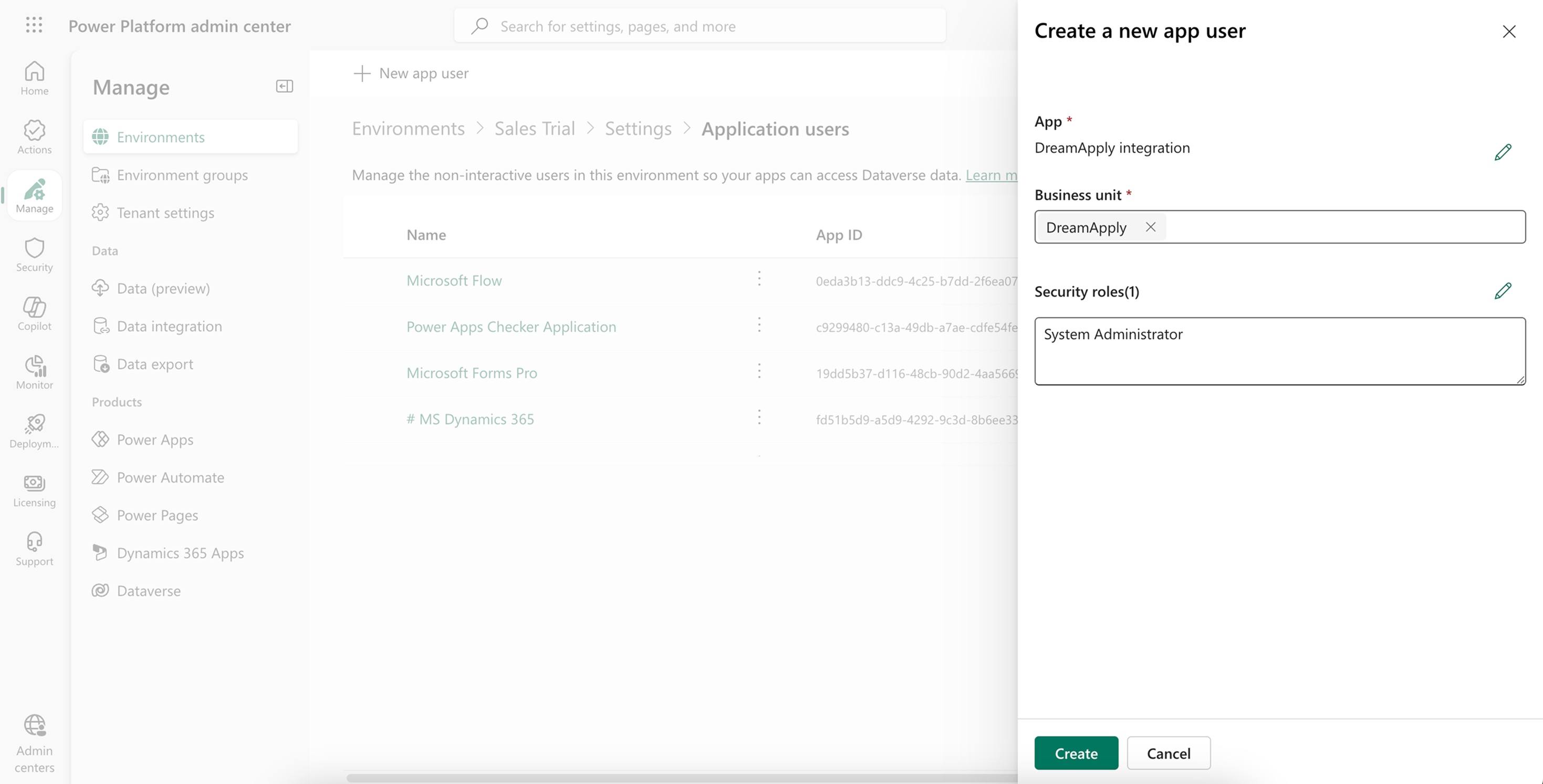
You must create an application user in the Power Platform admin center. This user is linked to the Microsoft Entry ID app you registered at the previous step and is required to enable secure communication between Microsoft Dynamics 365 and DreamApply.
In the left menu of the Power Platform admin center, select Manage > Environments and choose the environment that contains your Microsoft Dynamics 365 instance.
At the top of the view, select Settings > Users + permissions > Application users.
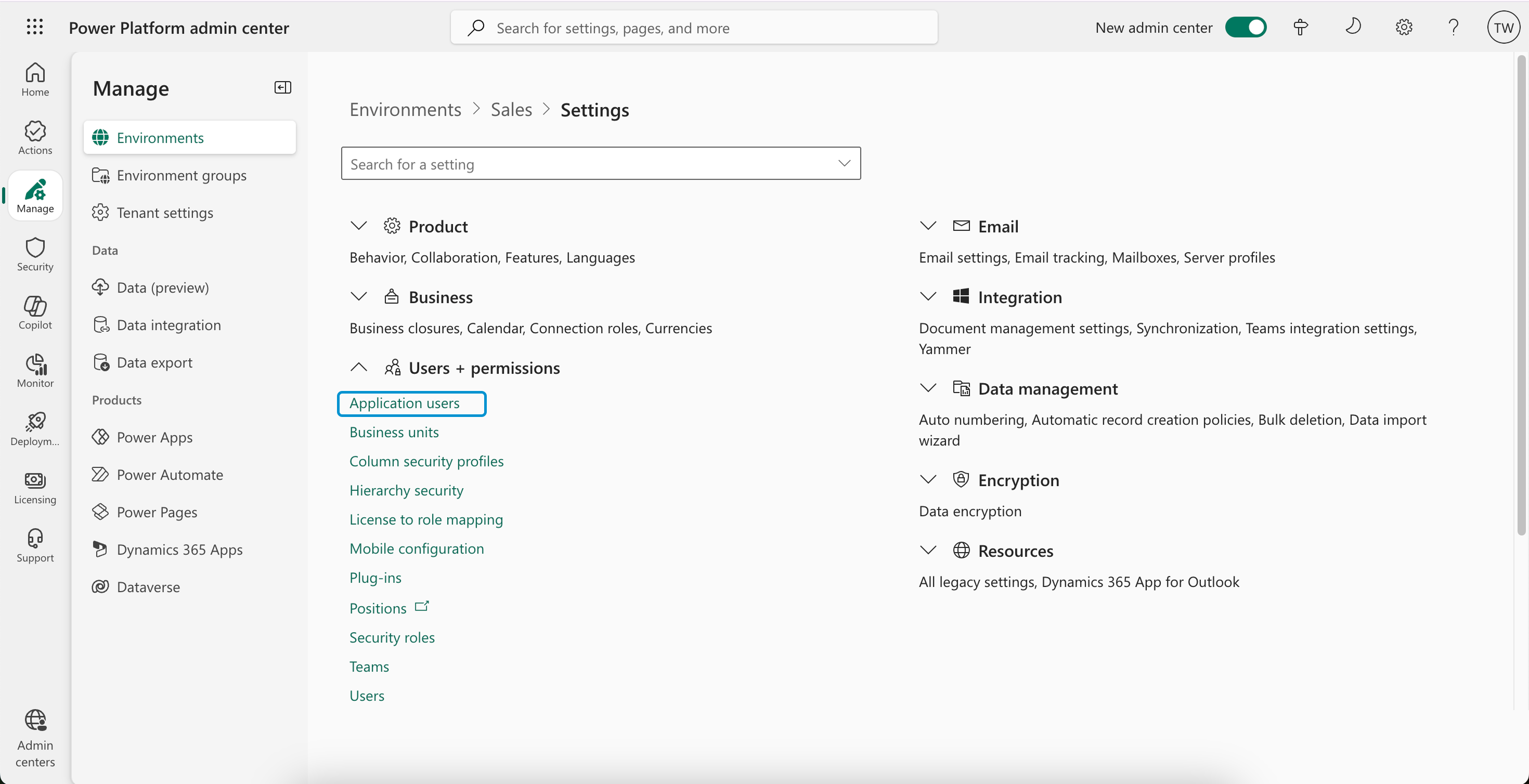
Click New app user.
In the App field, choose the application you registered in Microsoft Entra ID.
Specify the business unit for the user.
In the Security roles field, specify System administrator or set up a custom security role with the following permissions:
Area Sub-Area Permissions Actions Core Records Lead Read, Write, Create Create new leads and check for duplicates Activity Read Read lead data Business Management User Read Retrieve the list of users/contact owners to populate the list Customization Entity Read Retrieve metadata about mappable fields Field Read Relationship Read Field Read, Write Add new options to Picklists on the fly Option Set Read, Write Click Create.
Configure integration settings
To connect to Microsoft Dynamics 365 in DreamApply:
In the main menu, under Marketing, select Integrations.
Select Outgoing integrations > Microsoft Dynamics 365.
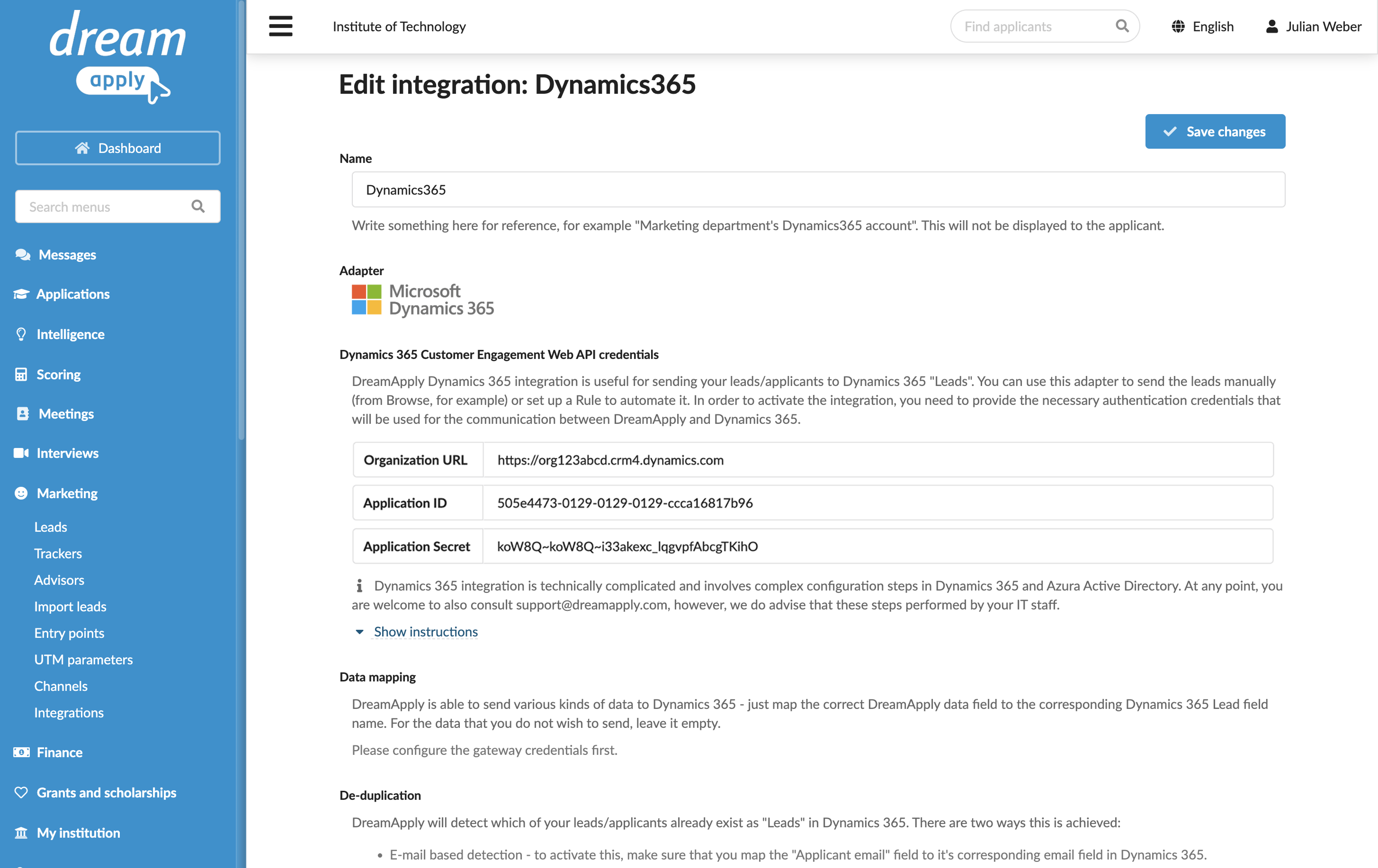
Specify the details to connect to your Microsoft Dynamics 365 instance:
- Organization URL: The URL where your instance is hosted, for example:
https://org123abcd.crm4.dynamics.com - Application ID: The application (client) ID you copied earlier
- Application Secret: The application secret value you copied earlier
- Organization URL: The URL where your instance is hosted, for example:
At the top of the form, click Save changes.
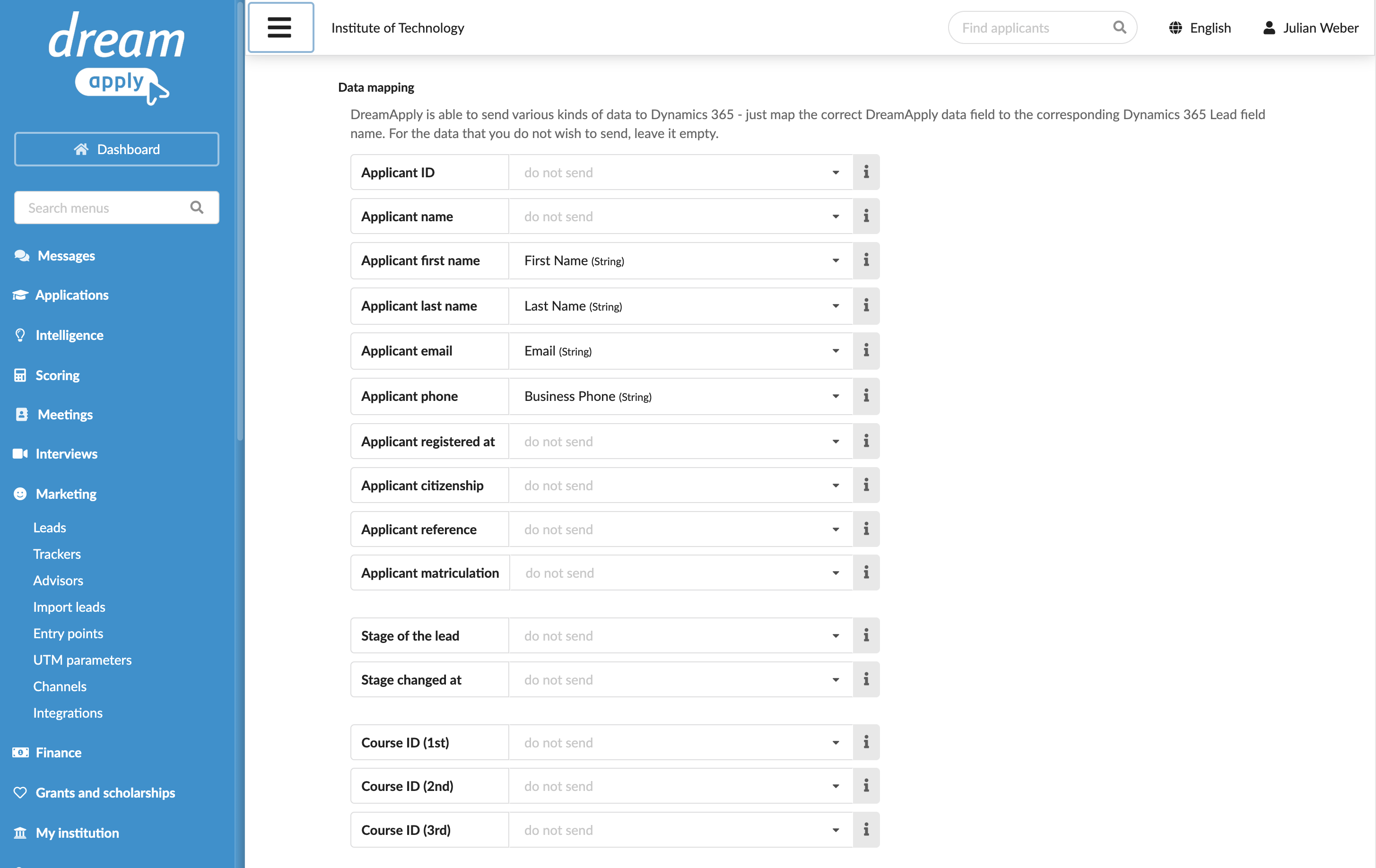
In the Data mapping section, specify how DreamApply applicant data must map to Microsoft Dynamics 365 lead fields.
In the Consent section, specify if applicant consent is required to send data to Microsoft Dynamics 365.
In the Send by default section, select the Send all new applicants automatically check box to enable continuous integration between DreamApply and Microsoft Dynamics 365. If you do not enable this option, you will need to set up rules or send applicant data manually. For details, see Send applicant data.
From the list below, select a contact owner to which created lead records must be linked.
In the Automatic updates section, select the Update applicant records automatically check box to keep lead records in sync with the DreamApply system. For details, see Send applicant data.
In the Technical contact field, specify an email address for technical support. DreamApply will send error descriptions to this address if any integration issues occur.
At the top of the form, click Save changes.