Send applicant data
Roles
These roles reflect the default DreamApply setup.
You can define custom roles based on your
institution's needs. Learn more →:
You can define custom roles based on your
institution's needs. Learn more →
You can configure DreamApply to send applicant data to connected systems in the following ways:
Automatically send applicant data
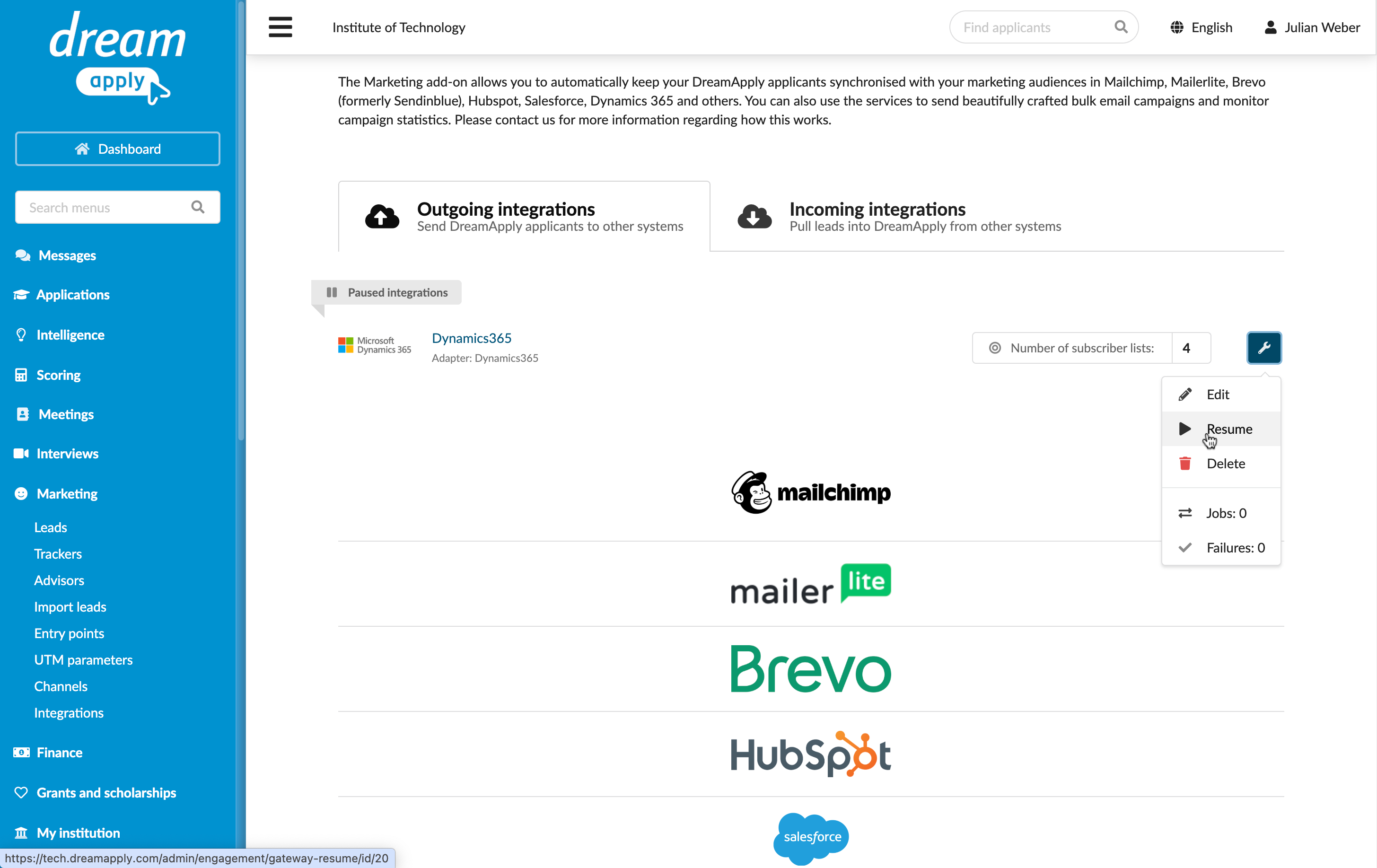
You can set up DreamApply to automatically send new applicant data to a connected system. To do this, enable the Update applicant records automatically option and select a contact owner or group/audience to which exported records must be linked or placed.
With this option enabled, DreamApply will continuously scan for new applicants who register themselves, are registered by an Advisor or are collected through the Import tool. When a new record is detected, DreamApply will send its data to the connected system. The data transfer is triggered by specific journal events such as:
- Applicant registered
- Applicant was collected
- Application was created
- Application was created by cloning
- Application was submitted and others
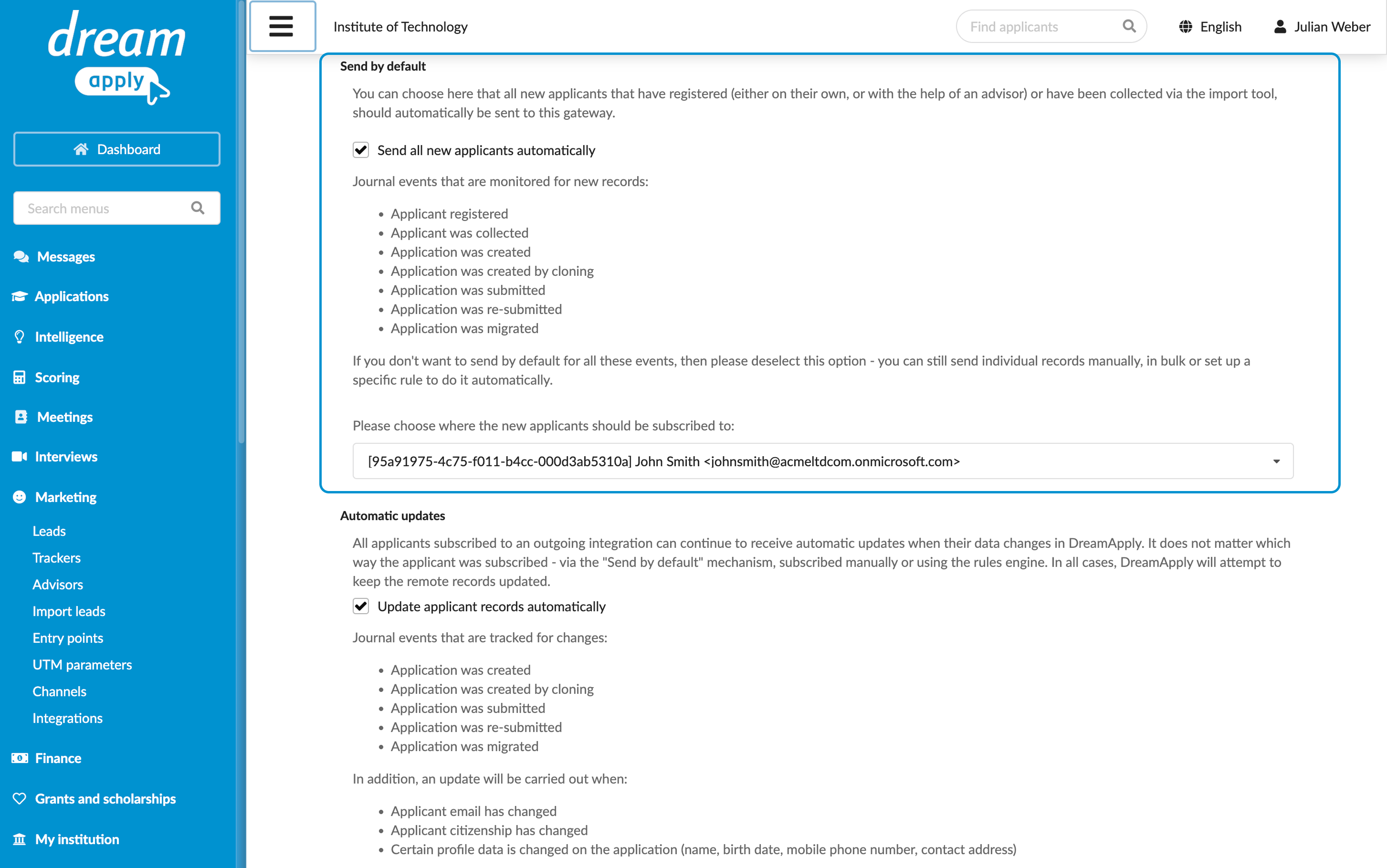
You can pause this automatic data export at any time if you need to temporarily stop sending data.
- To pause data export, in the integrations list, to the right of the integration gateway, click the wrench icon and select Pause.
- To resume data export, in the integrations list, to the right of the integration gateway, click the wrench icon and select Resume.
Automatically update applicant data
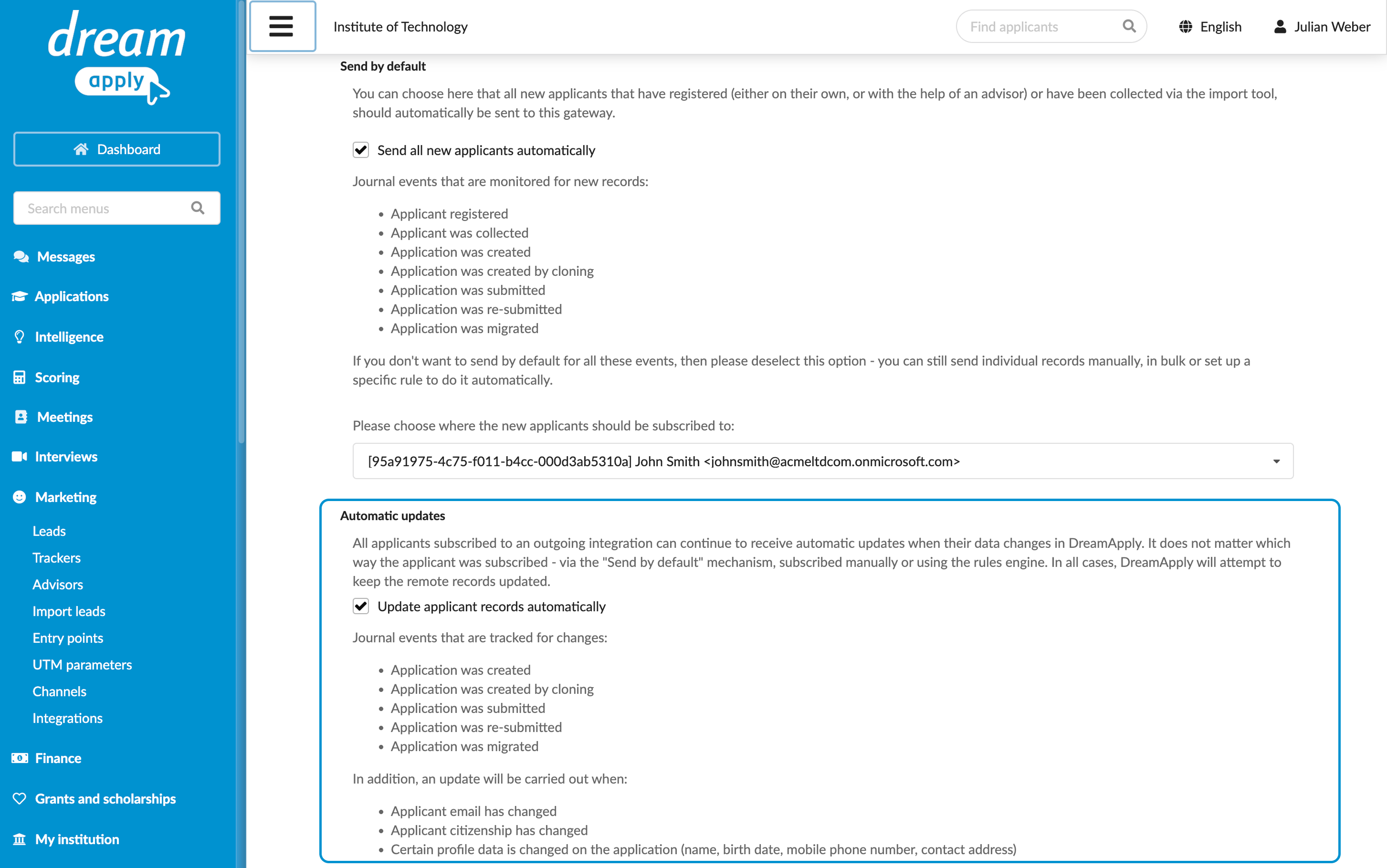
To keep applicant data consistent and up to date between systems, you can enable the Update applicant records automatically option. With this option enabled, DreamApply will automatically update records in the connected system whenever the applicant data changes.
This option only updates records that DreamApply has already transferred to the connected system — either automatically, using rules or manually. It does not update records that existed in the connected system before the initial data transfer.
The data transfer is triggered by specific journal events, for example:
- Application was created
- Application was created by cloning
- Application was submitted and others
In addition, DreamApply triggers the data transfer when the applicant profile data changes, for example:
- Citizenship
- Name
- Birth date
- Mobile phone number
- Contact address
The Update applicant records automatically option is available for Cobra CRM, Mailchimp, Microsoft Dynamics 365 and Salesforce.
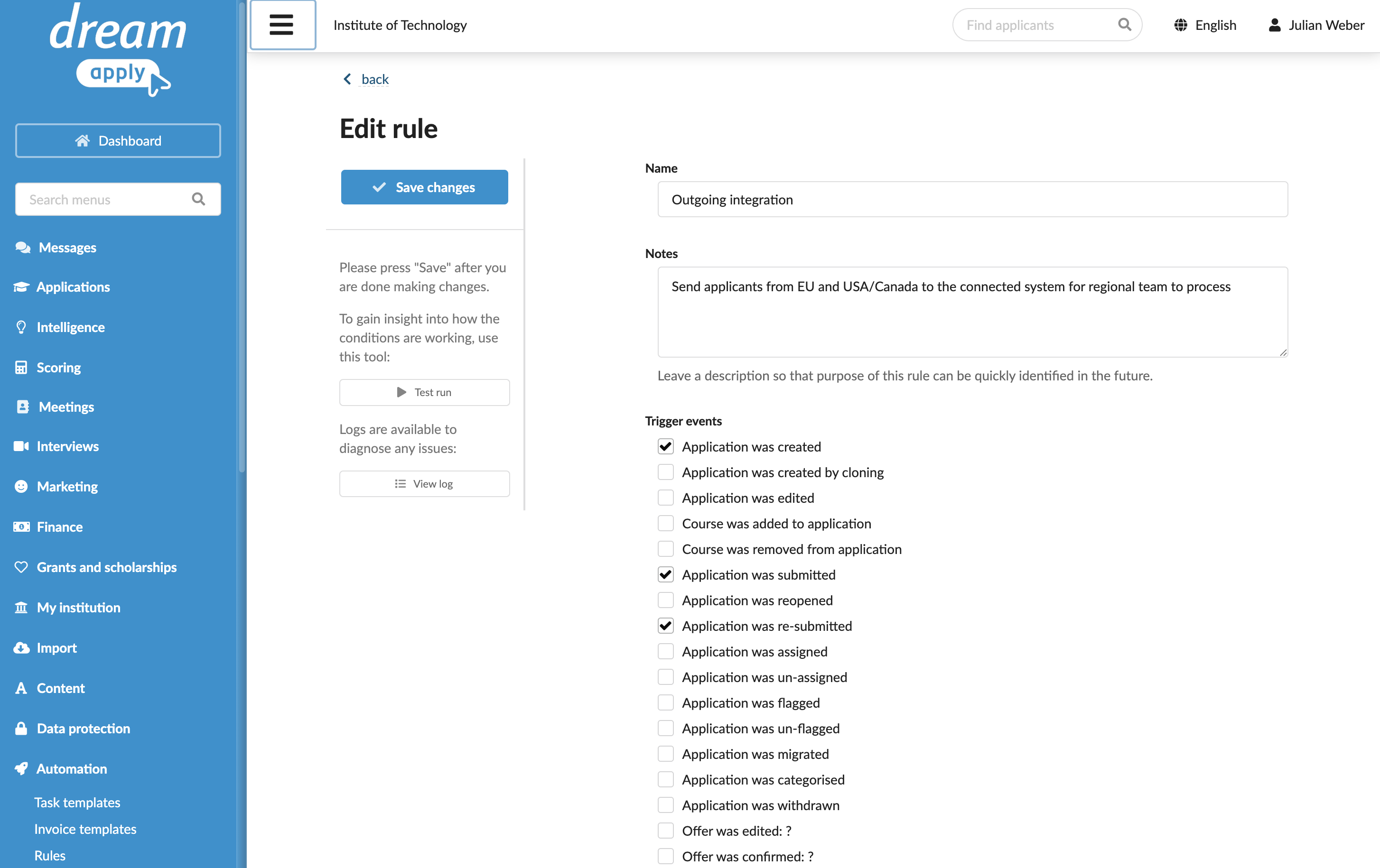
Configure rules to send applicant data
To configure an automatic rule to send applicant data to the connected system:
- In the main menu, under Automation, select Rules.
- At the bottom of the rule list, click New rule and specify the rule name.
- In the Trigger events section, select events that must activate the rule. For example, you can choose to manage all newly created, submitted or re-opened applications.
- In the Conditions section, specify granular conditions for the rule.
- In the Action section, select the Subscribe the matched applicant to an outgoing integration check box and choose an integration gateway and contact owner or group/audience to which the exported applicant records must be linked or placed.
- At the top of the form, click Save changes.
- In the rule list, set the rule status to Active.
Send applicant data manually
Administrators can manually send applicant data to the connected system when needed.
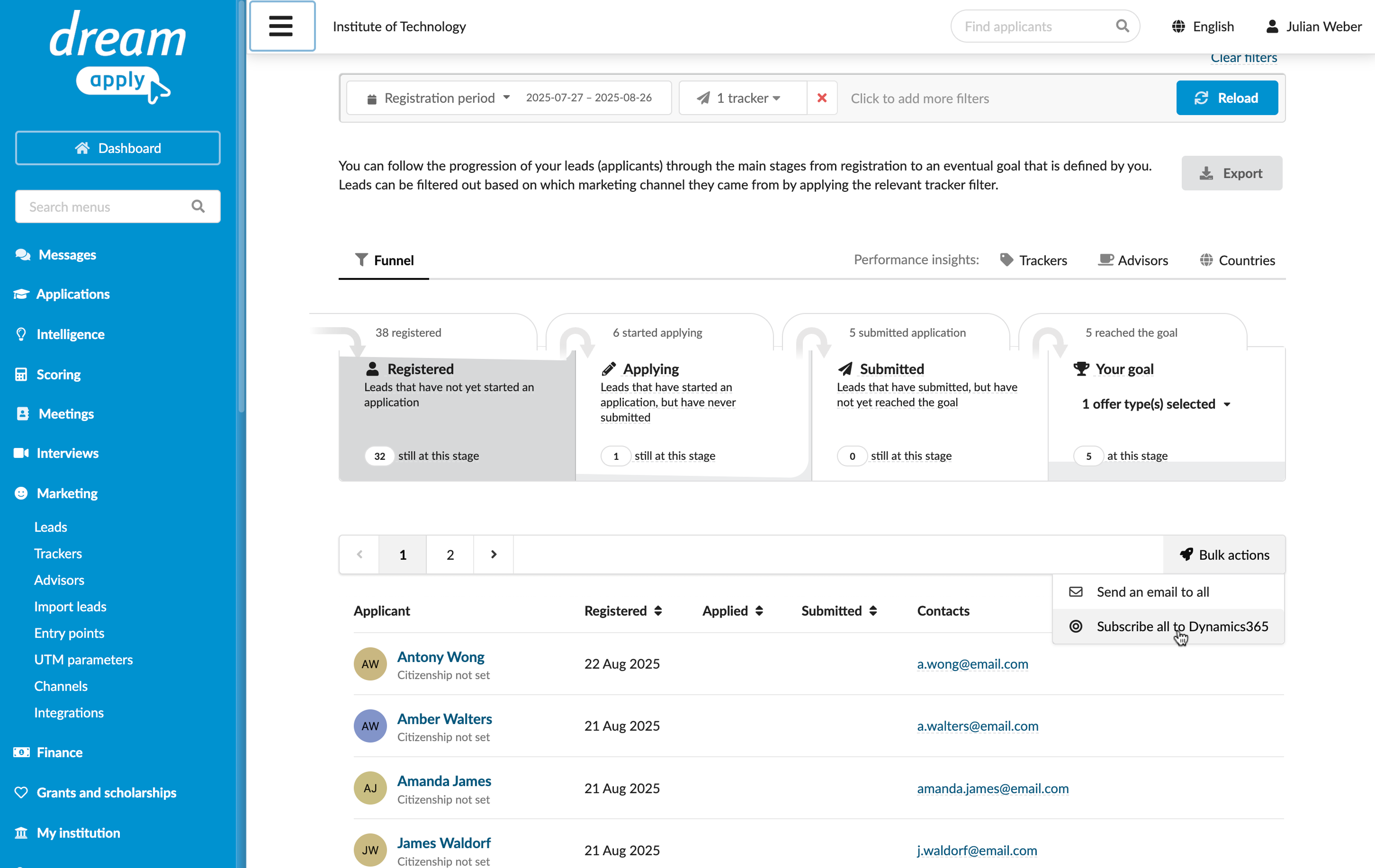
- In the main menu, under Marketing, select Leads. Alternatively, under Applications, select Browse.
- Use filters to select the applicant records you want to send.
- At the top of the lead/applicant list, select Bulk actions > Subscribe all to the connected system.
- Choose a contact owner or group/audience to which the exported applicant records must be linked or placed and click Subscribe.