Integrate with SimplePay
Roles
These roles reflect the default DreamApply setup.
You can define custom roles based on your
institution's needs. Learn more →:
You can define custom roles based on your
institution's needs. Learn more →
SimplePay is an online payment platform that allows businesses to accept payments via debit and credit cards. SimplePay is widely used by Hungarian businesses to process e-commerce payments.
To enable payments using SimplePay, perform the following tasks:
Before you begin
To integrate with DreamApply, your account must have the Superuser role or the accounting-gateways permission.
Obtain the SimplePay API credentials
To start using SimplePay with DreamApply, you need to obtain the following SimplePay API credentials:
- Merchant ID: A unique identifier for your SimplePay account
- Secret Key: A key used by DreamApply for secure authentication and to sign API requests
SimplePay API credentials are provided by OTP Mobil as part of the onboarding process. To obtain them, visit the SimplePay website and submit a merchant application request. To sign a merchant contract, your business must be registered in Hungary with a valid Hungarian company registration ID and tax number.
Ensure the credentials you receive are for the production (live) environment. Sandbox (test) credentials cannot be used for live payment transactions in DreamApply.
Configure the SimplePay gateway
To configure a SimplePay payment gateway in DreamApply:
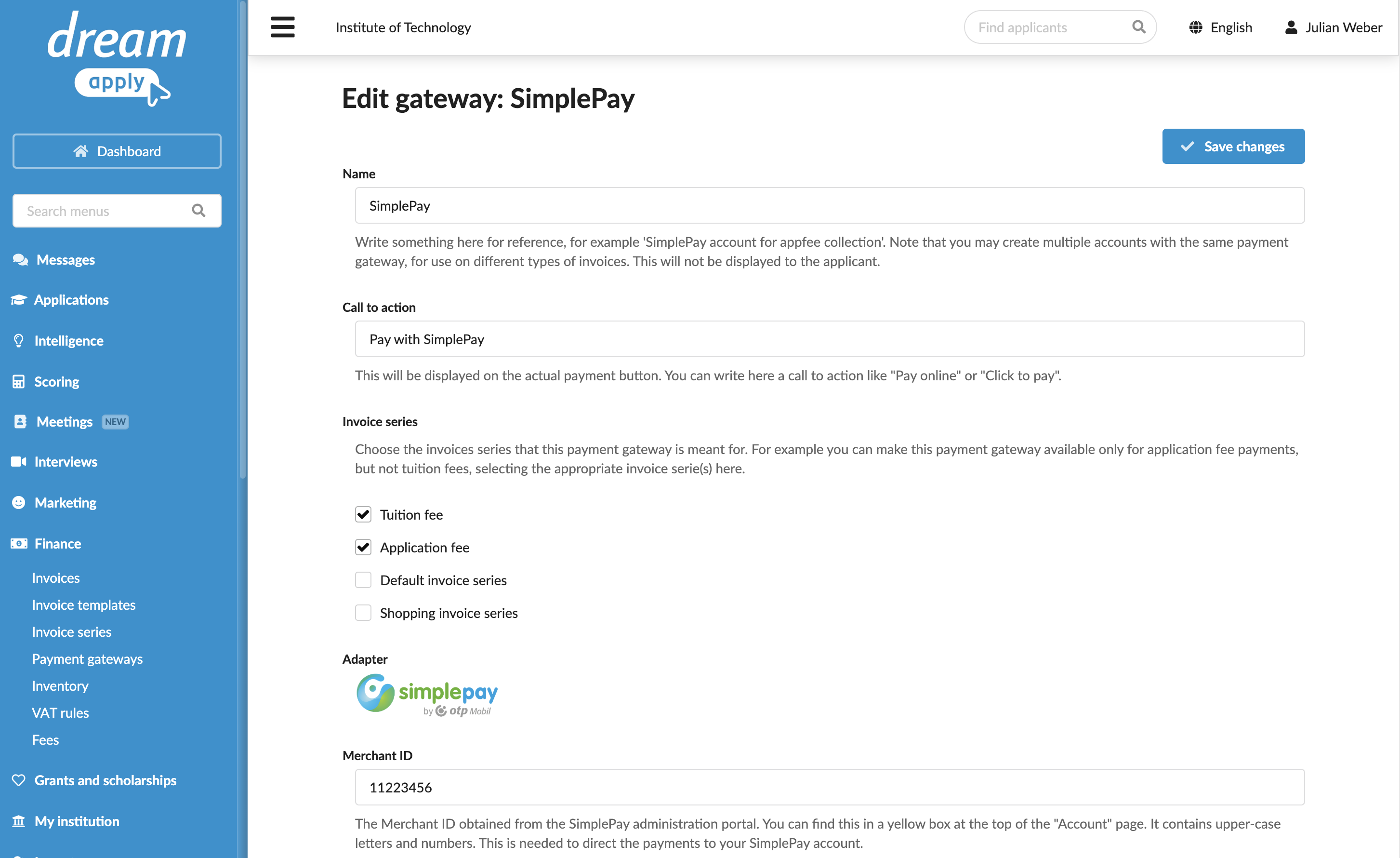
In the main menu, under Finance, select Payment gateways.
In the gateway list, select SimplePay.
Specify the gateway settings:
In the Name field, specify the gateway name. This name will be used for internal reference only and will not be displayed to applicants.
In the Call to action field, specify the text to display on the payment button on financial documents, for example, Pay with SimplePay.
In the Invoice series section, select check boxes next to the invoice series that must be processed through the SimplePay gateway. If a specific series is not selected, DreamApply will not display the payment button on documents that use this series.
You can link the same invoice series to several payment gateways to allow applicants to choose their preferred payment option.
In the Partial payments section, select the Allow making partial payments check box to enable partial payments through the gateway.
In the Merchant ID and Secret Key fields, specify the API credentials obtained from OTP Mobil.
From the Currency list, select the currency to be used with the SimplePay gateway.
At the top of the form, click Save changes.
Configure IPN settings
When a payment is successfully processed, SimplePay sends a notification about the transaction status to DreamApply. DreamApply uses this information to automatically update the payment status of the corresponding invoice in the portal.
To ensure payment results are synchronized between SimplePay and DreamApply, you need to configure the Instant Payment Notifications (IPN) settings within your SimplePay account:
Access the SimplePay partner portal.
In the Account section of your merchant profile, click Technical data.
In the Base data section, locate the IPN URL field and enter the following URL:
https://dream-pay.svcs.dreamapply.com/static-notify/simplepay.In the Merchant notification via IPN, enable the necessary options. At a minimum, the After finish option must be selected.
Save your settings.