Track referrer domains
Roles
These roles reflect the default DreamApply setup.
You can define custom roles based on your
institution's needs. Learn more →:
You can define custom roles based on your
institution's needs. Learn more →
To understand where users come from when they arrive at DreamApply, you can set up referrer domain tracking.
This method is useful when applicants arrive at DreamApply from other websites such as your main institutional website, specific faculty pages or partner portals. By tracking referrer domains, you can see which websites send users to DreamApply and measure which ones drive the most engagement and conversion.
How referrer domains work
To use referrer domain tracking, you must set up your websites to send the Referer HTTP header and create an entry point for the website domain in DreamApply.
When a user clicks a link to DreamApply from another website, the browser automatically includes a Referer HTTP header in the request. This header contains the URL of the page the user came from. DreamApply extracts this value and stores it for reporting and tracking purposes.
Most modern browsers limit the referrer data and default to Referrer-Policy: strict-origin-when-cross-origin. For this reason, DreamApply only reads the domain part from the Referer HTTP header, not the entire URL string.
Before you begin
To manage entry points, your account must have the Superuser or Marketing administrator role or the entry-points permission.
Configure websites to send the Referer HTTP header
To enable referrer domain tracking, ensure that external websites linking to DreamApply properly send the Referer HTTP header. You can do it in several ways, for example:
- Server-side: Set a
Referrer-policyheader on your web server to control what information is sent. - Client-side: Add a
<meta name="referrer" content="origin" />tag to the<head>section of web pages or use thereferrerpolicy="origin"attribute on individual links.
For details, see MDN Web documentation.
Create an entry point
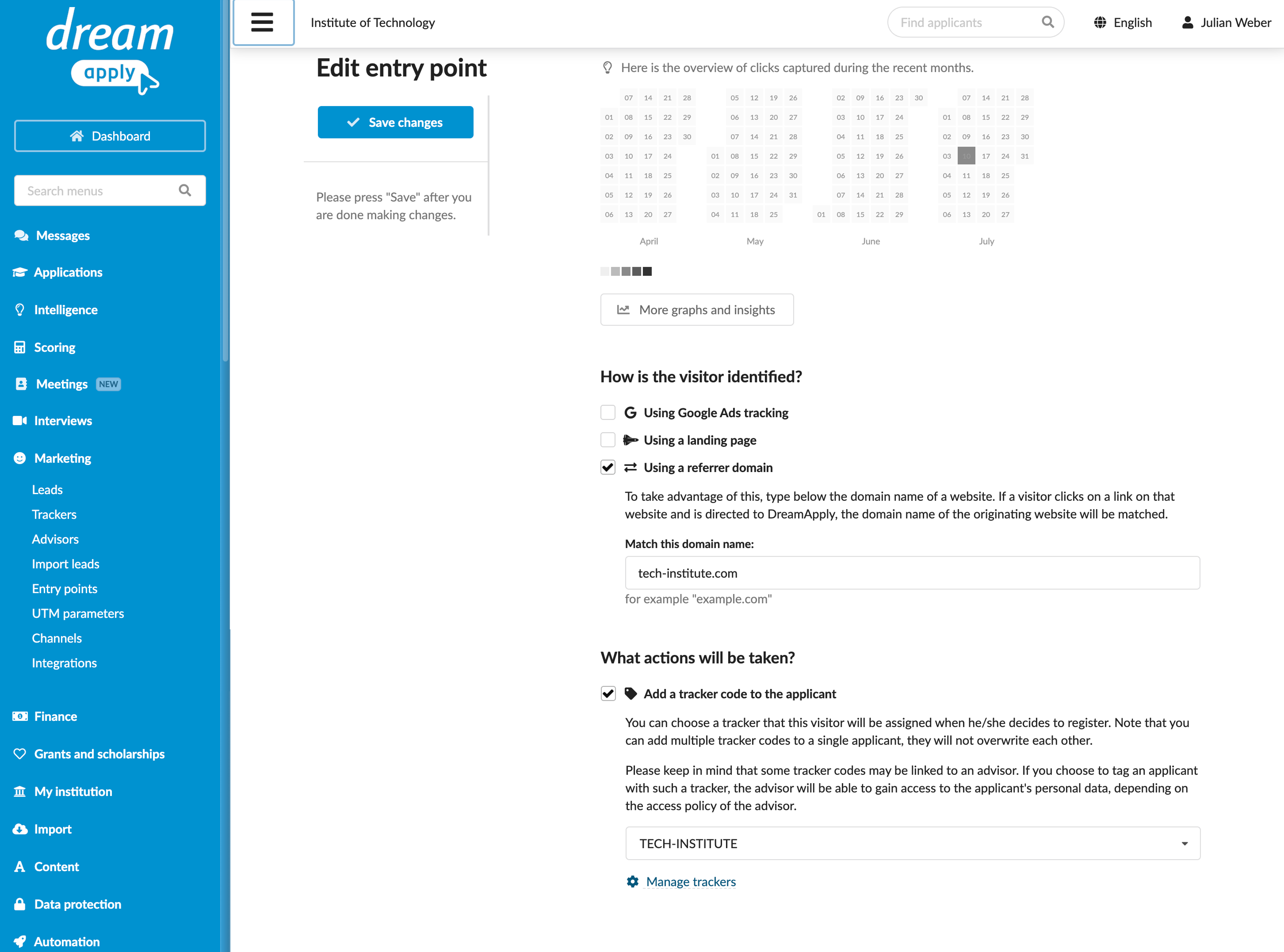
Once your external websites are set up to send the Referer HTTP header, you must create an entry point and register the referrer domain in DreamApply.
- In the main menu, under Marketing, select Entry points.
- At the bottom of the entry point list, click Add a new entry point.
- In the How is the visitor identified? section, select the Using using a referrer domain check box. In the field below, specify the domain name of the website linking to DreamApply.
- In the What actions will be taken? section, select the tracker to assign to leads.
- At the top of the form, click Save changes.