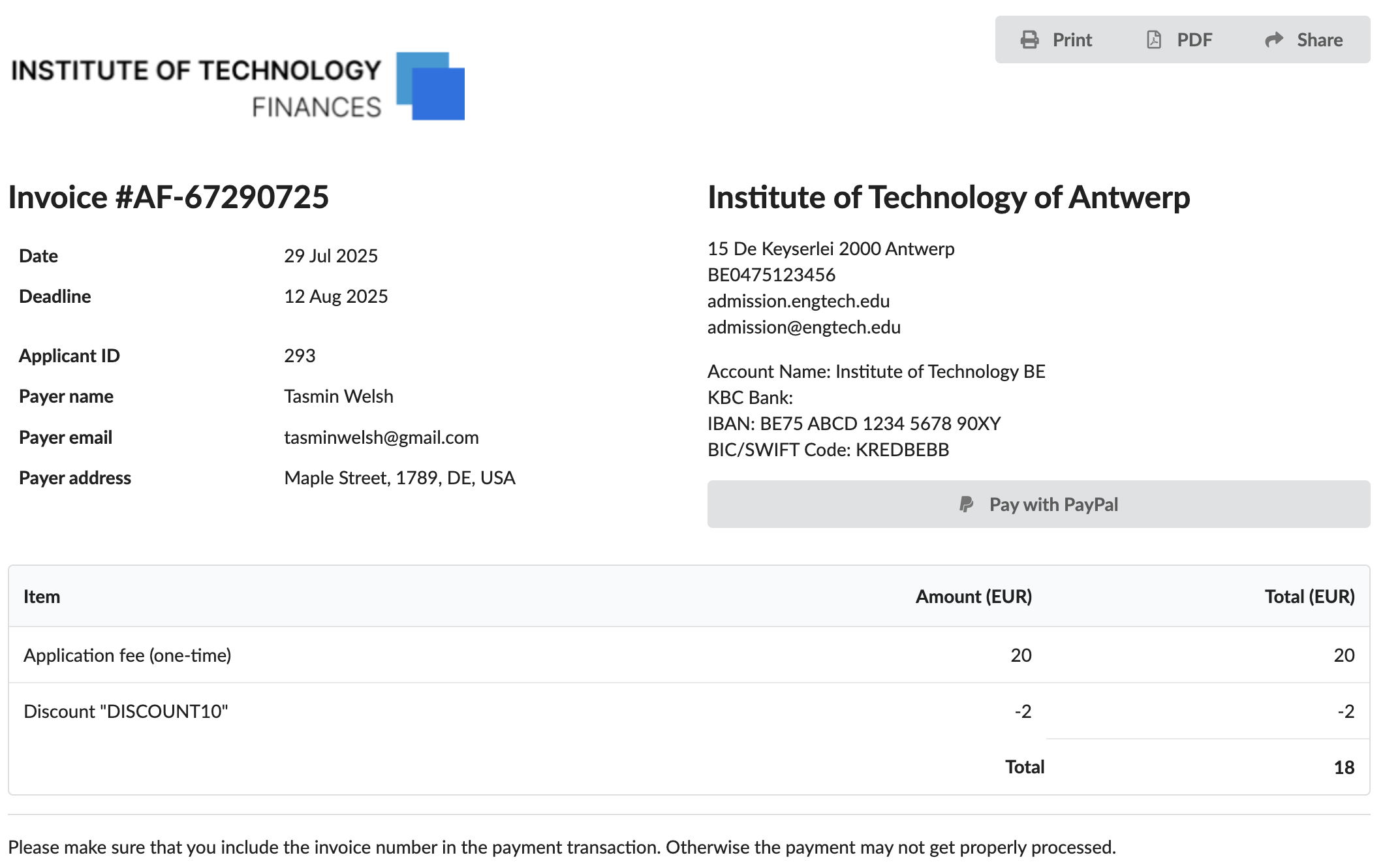
Offer discounts
Assume your institution wants to provide a 10% discount on the application fee as part of a promotional campaign.
To do this, we will create a tracker that will function as a reference code. When users enter this code during registration or application, DreamApply will automatically apply the discount and show it on their invoice.
Before you begin
- Make sure your account has the
Superuserrole. In a real case, roles can be configured differently. - Make sure at least one programme is properly set up in the programme catalog.
- Make sure at least one invoice template and invoice series are properly set up in the Finance module.
Step 1. Create a tracker with a discount
First, we will create a tracker that will function as a reference code.
- In the main menu, under Marketing, select Trackers.
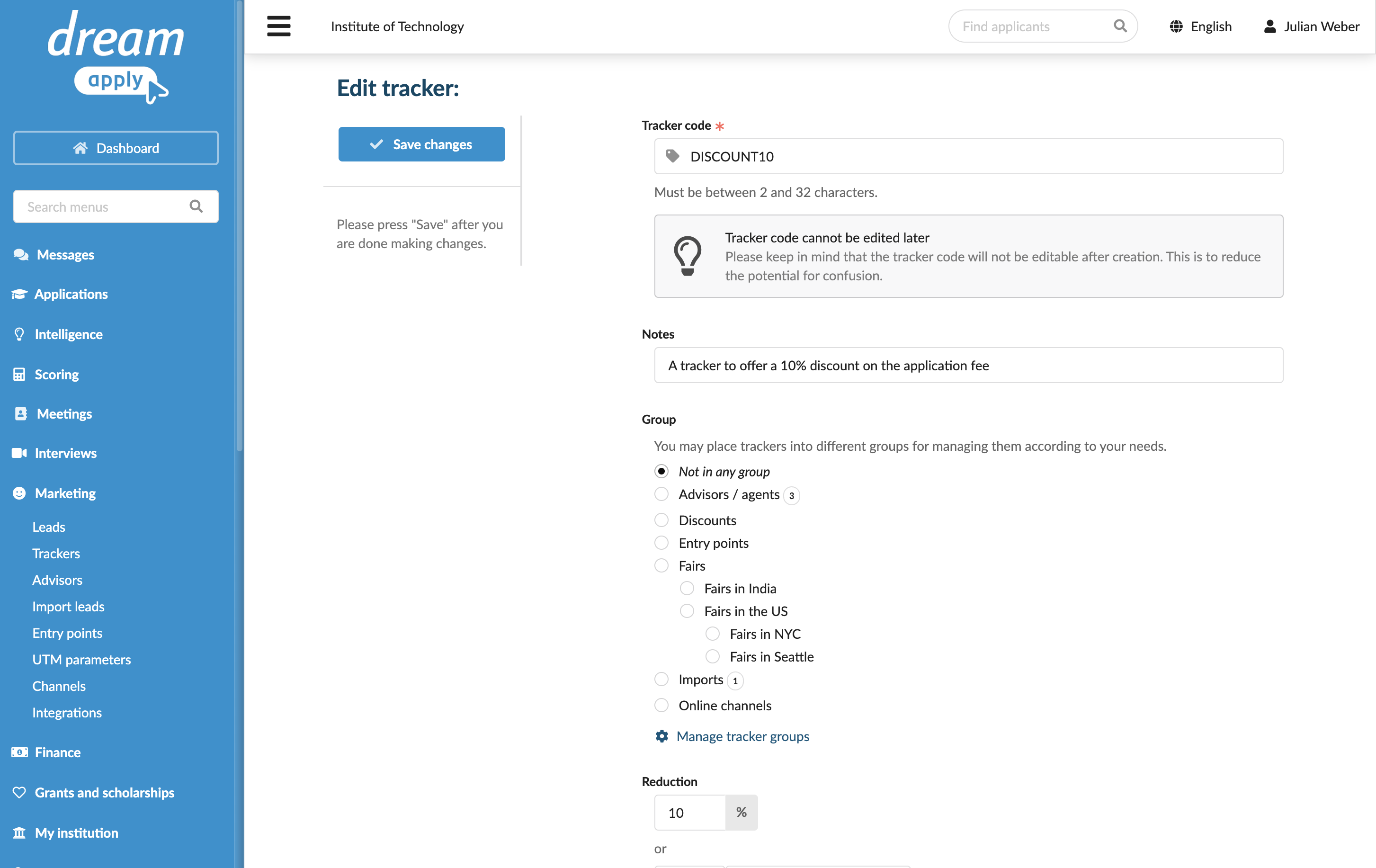
- Click New tracker and specify the tracker code — DISCOUNT10.
- In the Reduction section, set the discount to 10%.
- Save the changes.
Step 2. Create a fee with automated invoicing
Next, we will create an application fee that applies to specific programmes and uses the tracker to give the discount.
- In the main menu, under Finance, select Fees.
- Create a new fee of the Application Fee type.
- In the Visibility section, make the fee visible to applicants.
- In the Geographically set amount section, set a one-time fee of 20.00 EUR for the World.
- In the Automated invoicing section, select to apply the fee per application or per priority.
- In the Trigger event section, select to apply the fee when the programme is added to the application.
- Choose the invoice template and specify the invoice row value.
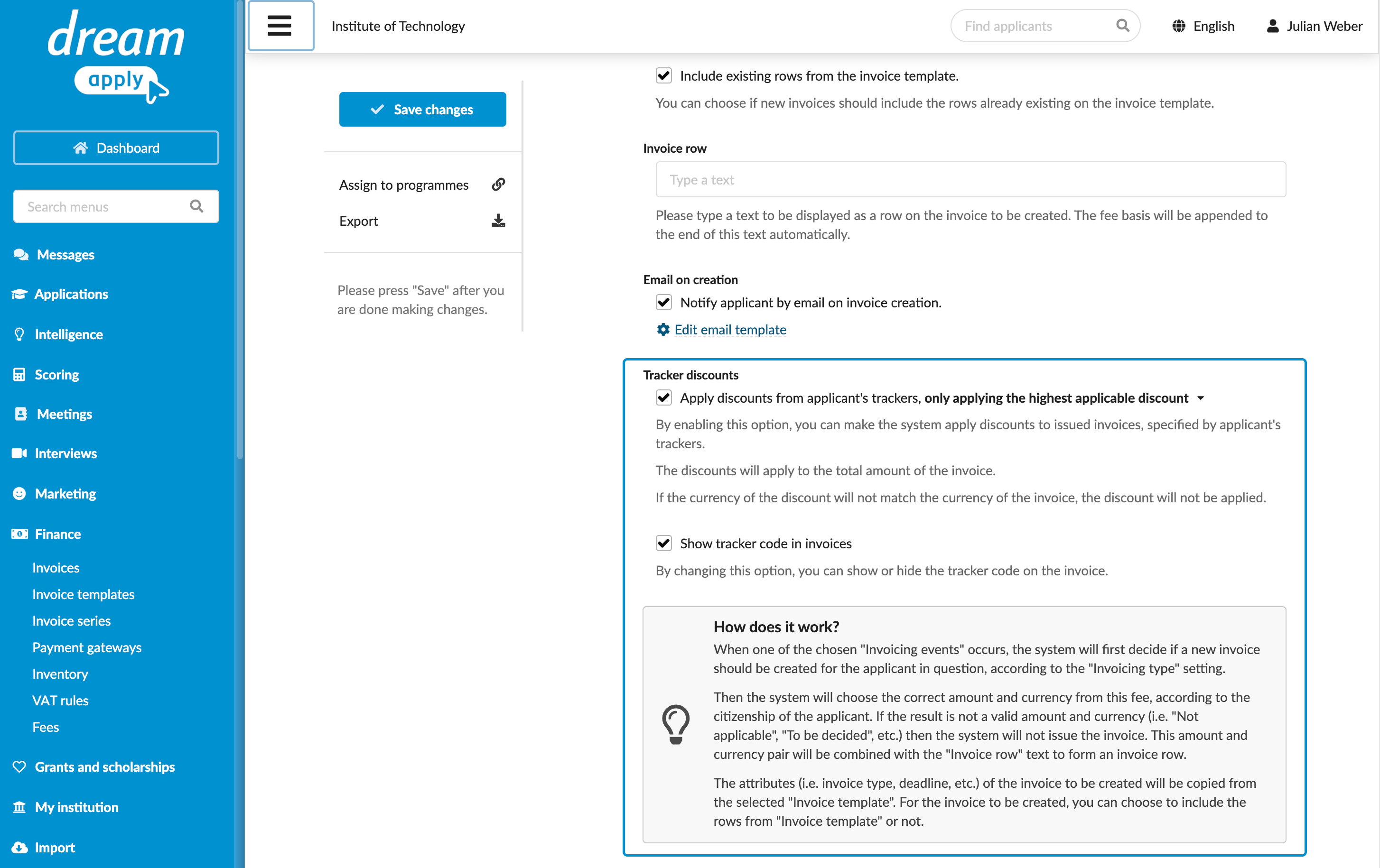
- In the Tracker discount section, select the Apply discounts from applicant’s trackers and Show tracker code in invoices check boxes.
- Save the changes.
- In the fee list, click Assign to programmes and select the programmes to which the fee must apply.
Step 3. Enter the reference code as an applicant
Now, let’s see how users would use the code.
- In a new browser window using Incognito mode, log in to DreamApply as an applicant.
- In the top right corner, click your name and select My profile.
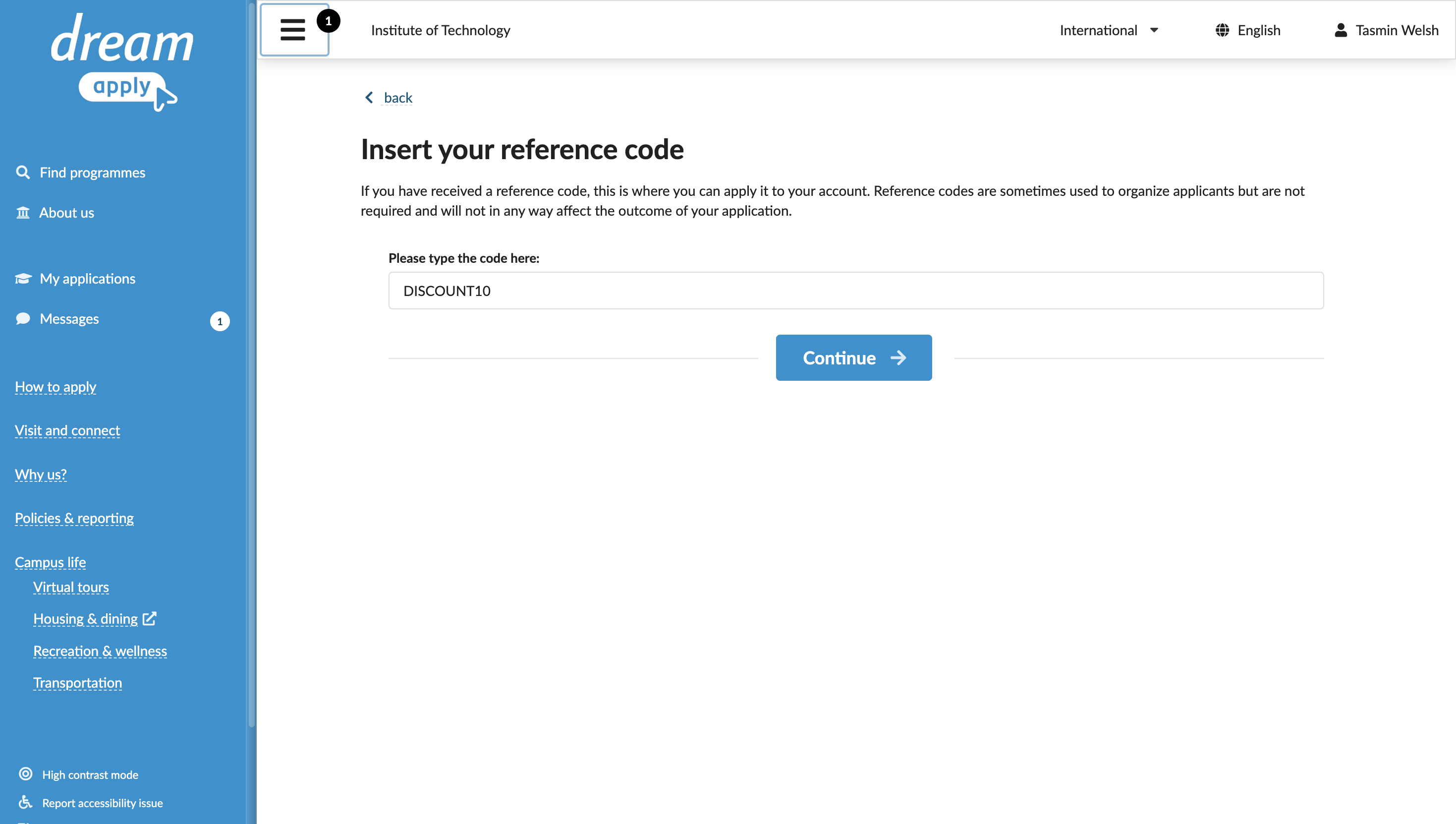
- In the Reference code section, click Have a reference code and enter the tracker code.
Step 4. Apply to a programme
Finally, apply to a programme.
In the programme catalog, select to apply to any of the programmes to which the fee applies. When you click Submit, DreamApply will automatically generate an invoice and apply the discount.