Use entry points (static redirects)
Assume that you are running a social media campaign for Fall admissions. Your goals are:
- Track how many applicants come from the Fall campaign materials
- When users click campaign links, send them to the Programme search page in DreamApply
- Attribute leads in DreamApply
Before you begin
Make sure your account has the Superuser role. In a real case, roles can be configured differently.
Step 1. Create a tracker
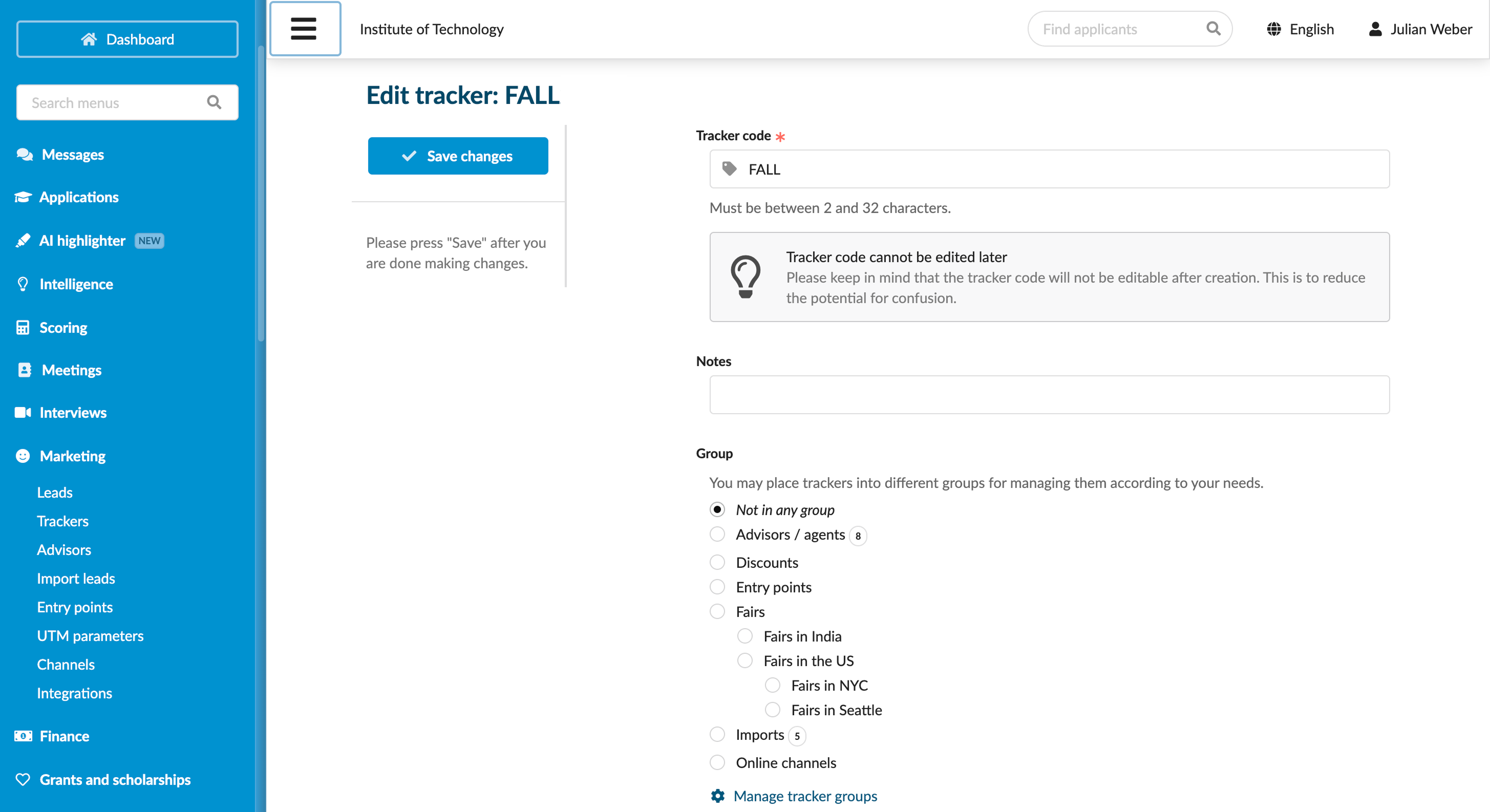
First, we will create a tracker in DreamApply to identify leads who register as part of the Fall campaign.
- In the main menu, under Marketing, select Trackers.
- Click New tracker.
- In the Tracker code field, specify the code — FALL. If needed, you can add a year to the tracker, for example, FALL2026.
- Save the changes.
Step 2. Create an entry point
Next, we will create an entry point for the Fall campaign in DreamApply. An entry point is a special URL that will capture user tracking data and then redirect users to their final destination — the Programme search page in the DreamApply portal.
In the main menu, under Marketing, select Entry points.
Click Add a new entry point.
Under How is the visitor identified?, select the Use a landing page check box.
From the Redirect the visitors to list, select Course search.
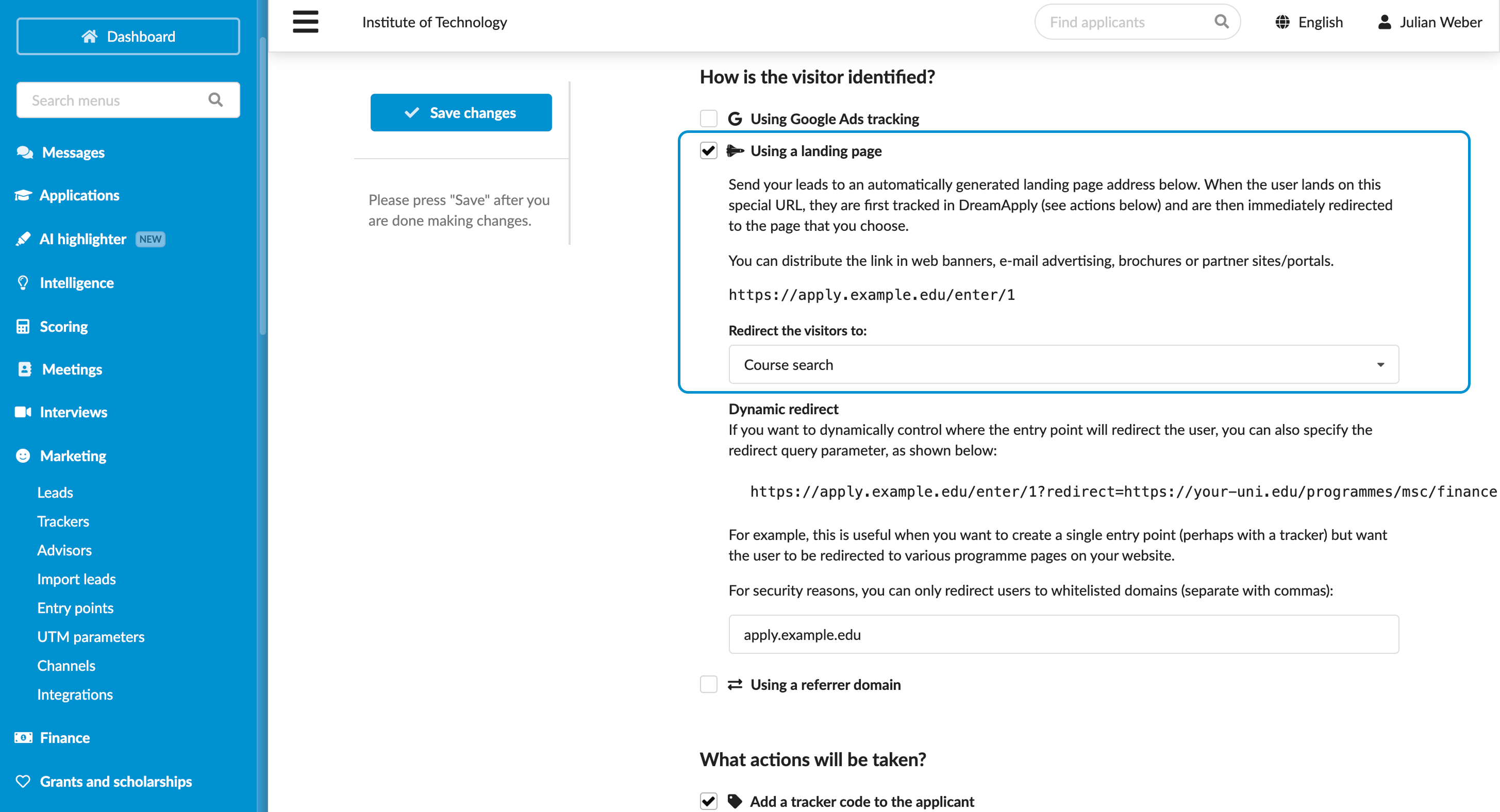
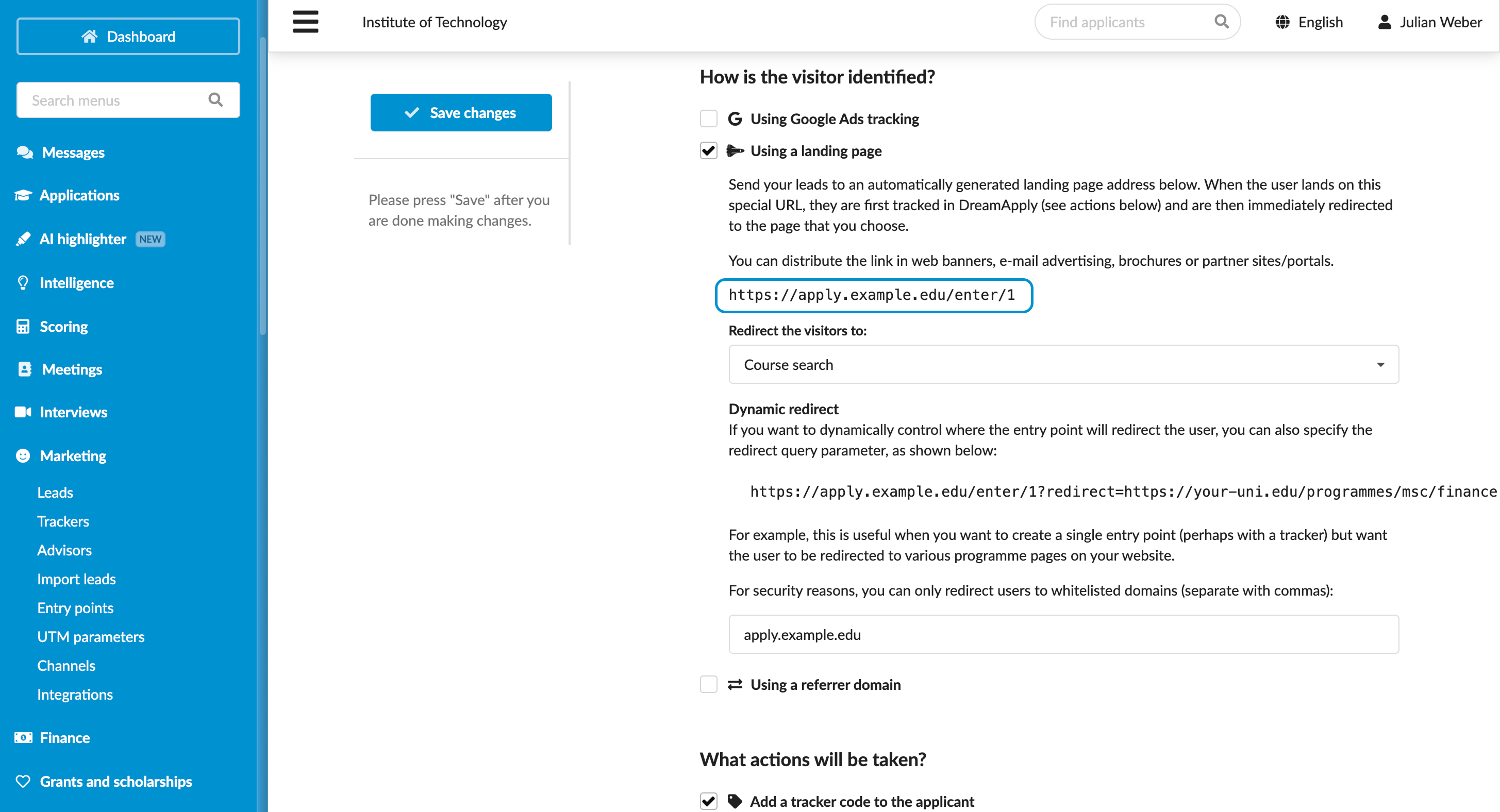
Copy the displayed entry point URL and save it for later.
Under What actions will be taken?, select the Add a tracker code to the applicant check box and select the created tracker.
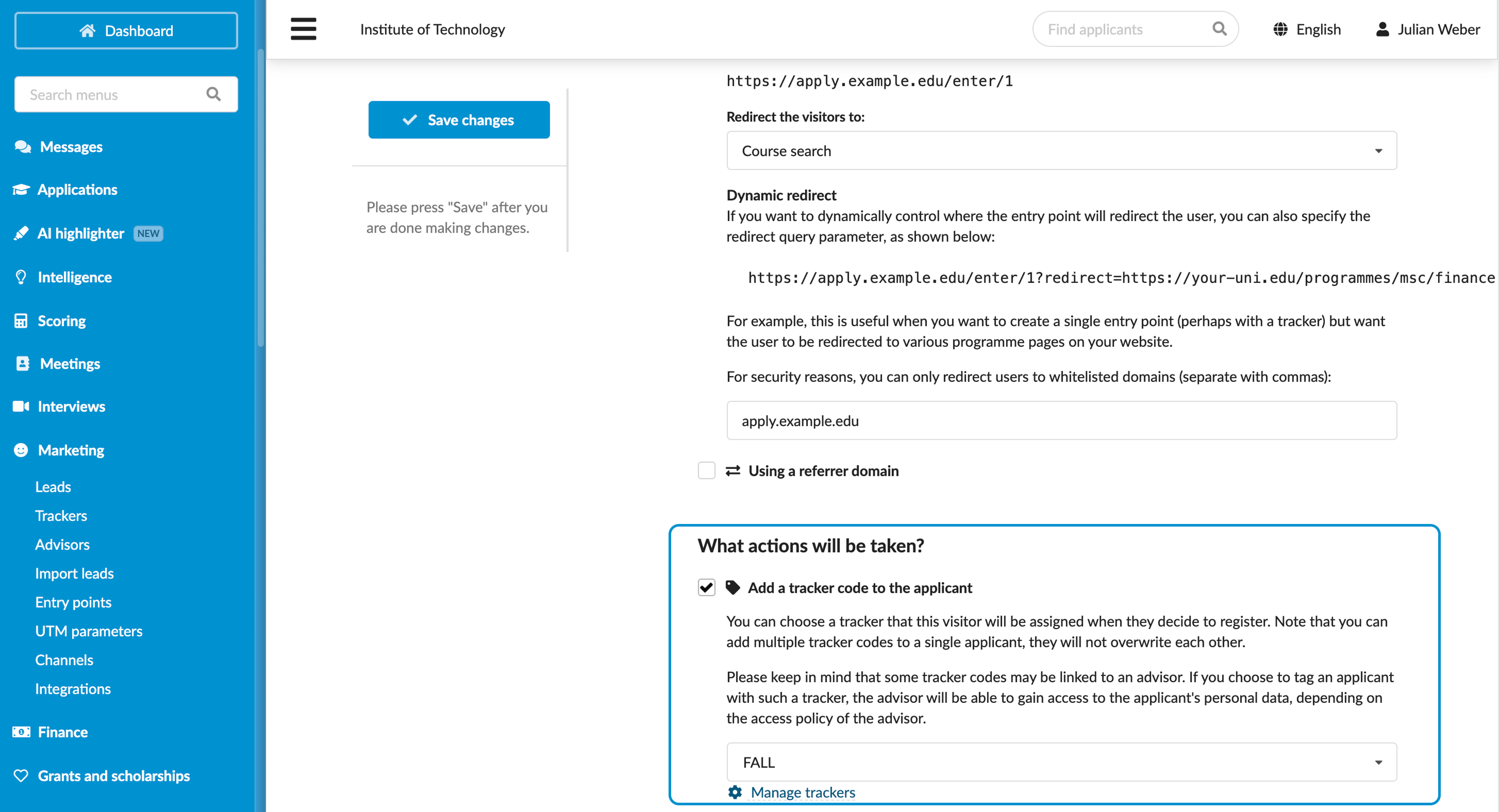
Save the changes.
Step 3. Test the entry point URL
In a real campaign, we would normally distribute the entry point link through marketing materials such as ads, banners or emails. In this scenario, we will use it in the browser to simulate a user clicking the link.
Copy the entry point URL created in the previous step:
https://apply.example.edu/enter/1Open a new browser window using Incognito mode.
Paste the link into the address bar and press Enter. DreamApply will redirect you to the Programme search page.
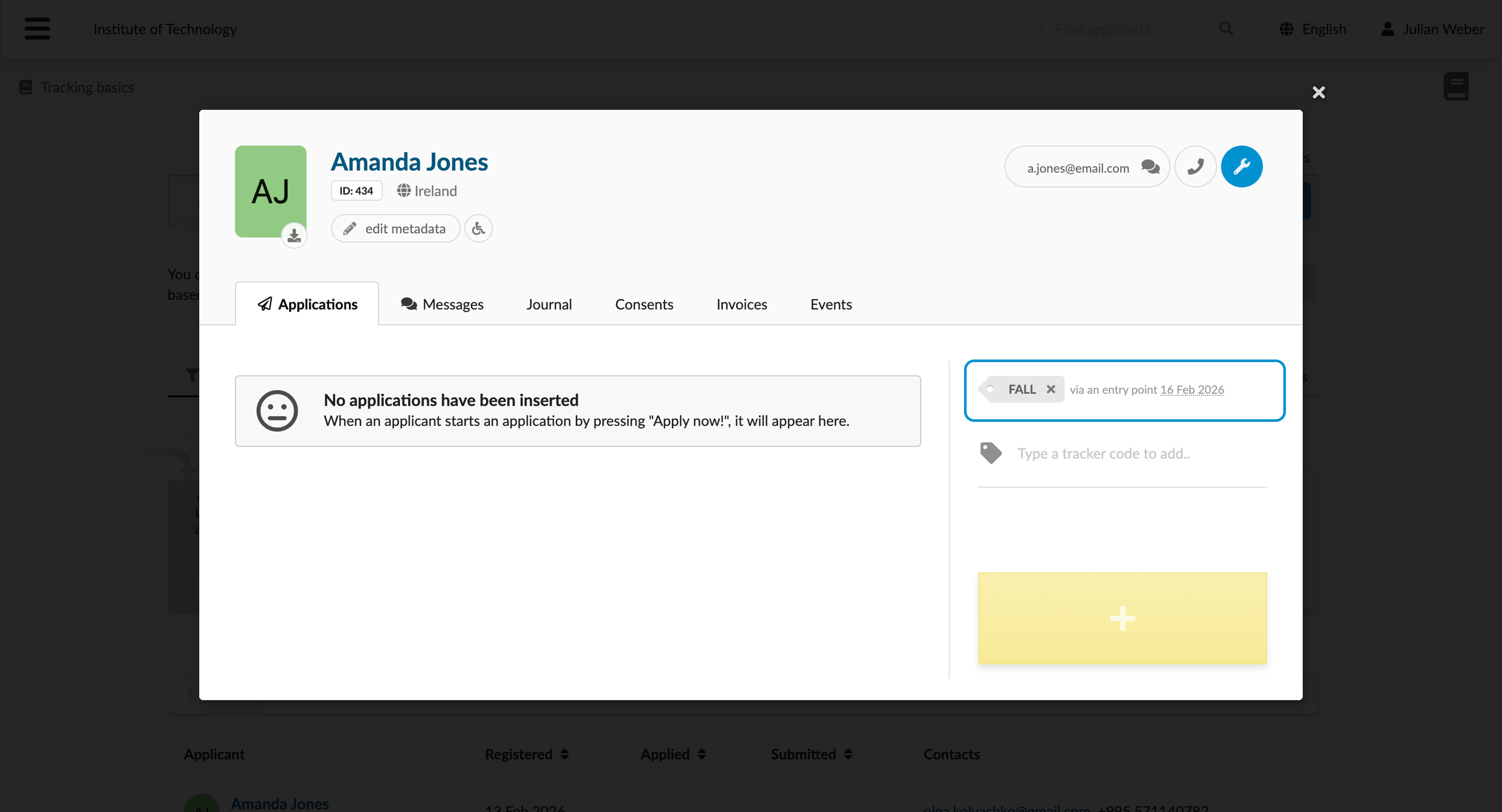
Register as a new applicant (lead) or log in using an existing applicant account. DreamApply will assign the FALL tracker to the account.
To review tracking data as an Administrator:
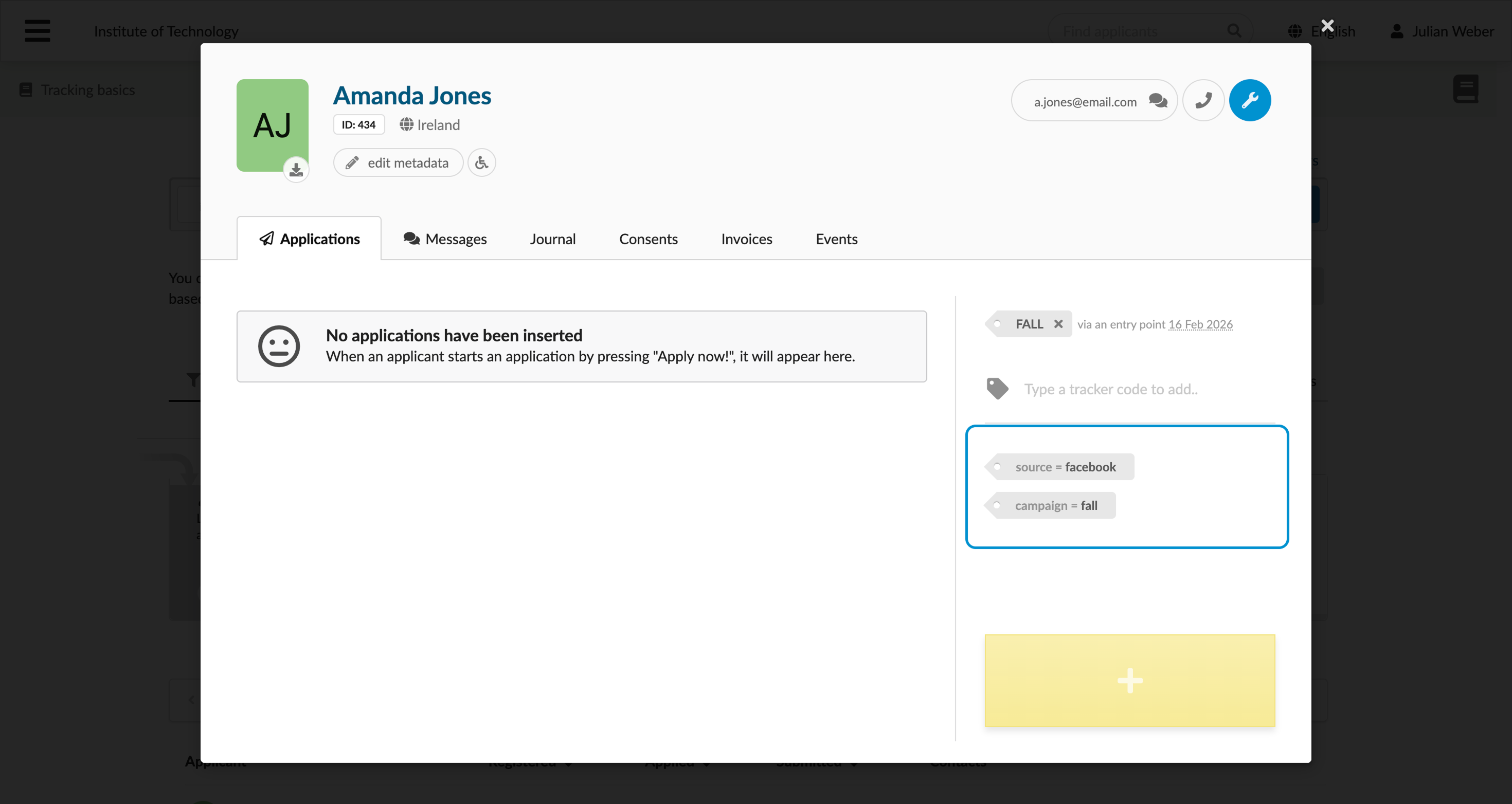
- For leads: In the main menu, under Marketing, select Leads, click the applicant’s name and check the right pane to see the assigned tracker.
- For existing applicants: In the main menu, under Applications, select Browse, click the applicant’s name and check the right pane to see the assigned tracker.
Step 4. Add UTM parameters to the entry point URL
To capture more detailed campaign context, we will append UTM parameters to the entry point URL. As a result, when users click the link, DreamAppy will store the following tracking data:
- utm_source: facebook
- utm_campaign: fall
Add UTM parameters to the entry point URL:
https://apply.example.edu/enter/1?utm_source=facebook&utm_campaign=fall
UTM values in the URL must be URL-safe. Avoid spaces and special characters in the URL or encode them properly:
| Name | Character | URL Encoded Value | Reason for Replacement |
|---|---|---|---|
| Space | %20 | Browsers do not allow literal spaces in URLs | |
| Ampersand | & | %26 | Used to separate different UTM parameters |
| Equals | = | %3D | Used to assign a value to a UTM key |
| Question mark | ? | %3F | Indicates the start of the query string |
| Hash/Fragment | # | %23 | Indicates the start of a URL anchor/fragment |
| Forward slash | / | %2F | Can be misinterpreted as a directory path |
| Percent | % | %25 | The escape character itself; must be encoded to be read literally |
| Plus | + | %2B | Often interpreted as a space in query strings |
| Colon | : | %3A | Used in protocol and port identification |
| At sign | @ | %40 | Used for user authentication in URLs |
For example, if you use the following UTM parameters:
- utm_source: Email & SMS
- utm_campaign: Fall campaign
The resulting URL will look like:
https://apply.example.edu/enter/1?utm_source=Email%20%26%20SMS&utm_campaign=Fall%20campaign
Step 5. Check the results again
To verify that DreamApply captures the UTM parameters correctly, we will test the entry point URL.
Copy the entry point URL created in the previous step:
https://apply.example.edu/enter/1?utm_source=facebook&utm_campaign=fallOpen a new browser window using Incognito mode.
Paste the link into the address bar and press Enter. DreamApply will redirect you to the Programme search page.
Register as a new applicant (lead) or log in using an existing applicant account. DreamApply will assign the
FALLtracker to the account and attribute the source and campaign parameters to it.
To review tracking data as an Administrator:
- For leads: In the main menu, under Marketing, select Leads, click the applicant’s name and check the right pane to see the assigned parameters.
- For existing applicants: In the main menu, under Applications, select Browse, click the applicant’s name and check the right pane to see the assigned parameters.