Import leads
Roles
These roles reflect the default DreamApply setup.
You can define custom roles based on your
institution's needs. Learn more →:
You can define custom roles based on your
institution's needs. Learn more →
You can import leads in bulk from files or external platforms. This method can be useful for leads collected through offline campaigns, partner programmes or other external marketing efforts.
Imported leads are registered as natural persons. Each lead receives a welcome email from DreamApply with a registration link they can use to set up their account and continue the application process.
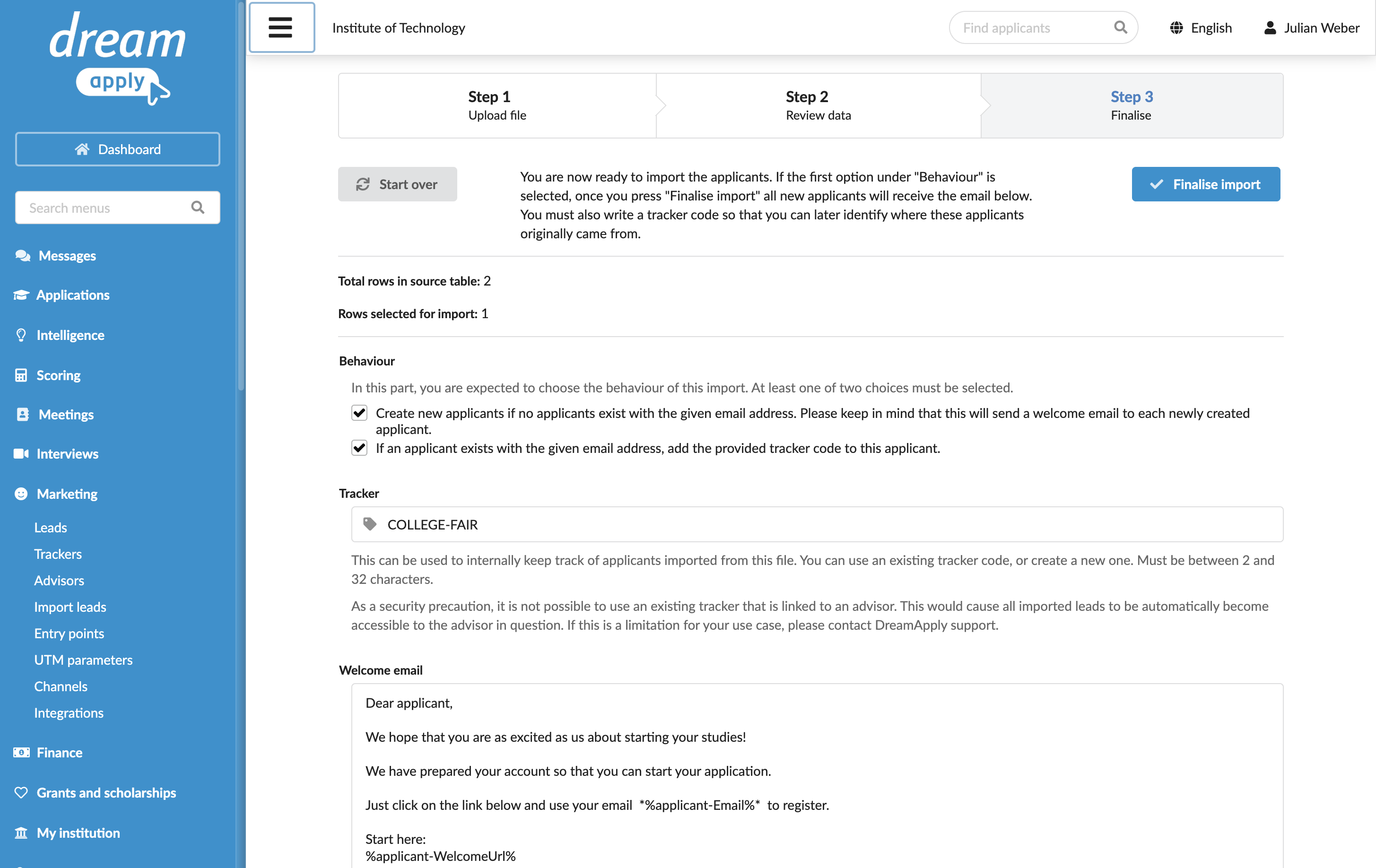
During the import process, you can assign a specific tracker to imported leads. This way, you can indicate and trace the original source of applicants.
If a lead with the same email address already exists in the system, DreamApply does not import it again. It only assigns the selected tracker to the existing lead.
Before you begin
To import leads, your account must have the Superuser, Admissions administrator or Marketing administrator role or the import-applicants permission.
Import leads from files
You can import leads from Excel or CSV files. To ensure successful import, the file must include at least the following information for each lead:
- The full name (either in a single column or split into the given and family name)
- The email address
To import leads from a file:
- In the main menu, under Marketing, select Import leads.
- Click Upload file and select the file to use.
- Review the imported data and select the heading for each imported column.
- Define the import behavior, a tracker to be assigned to imported leads and modify the welcome email if needed.
- Click Finalize import.
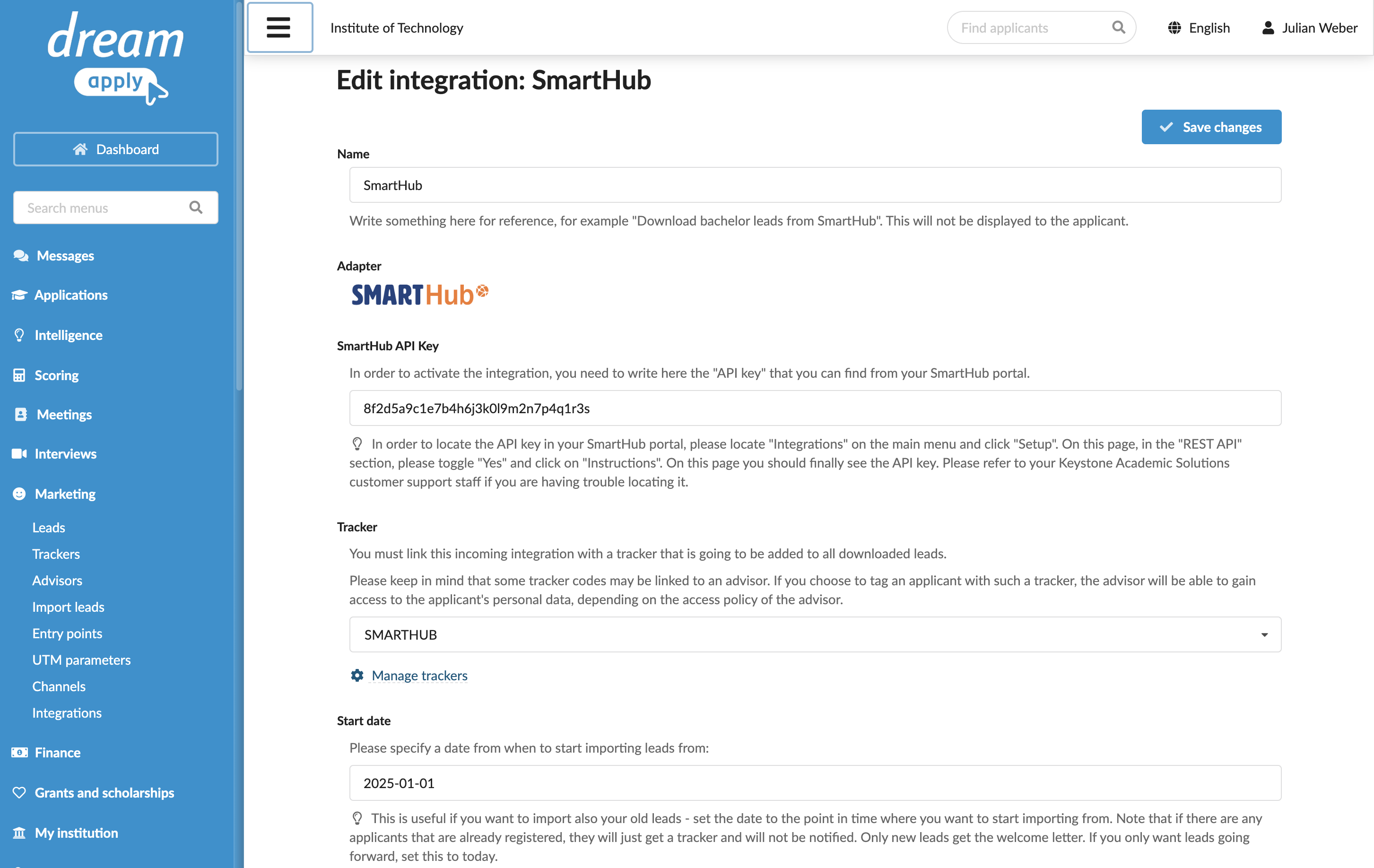
Import leads from external platforms
You can import leads from external platforms such as SmartHub, Microsoft Dynamics and Salesforce.
To import leads from an external system:
- In the main menu, under Marketing, select Integrations.
- Click the Incoming integrations tab and select the platform.
- Specify the credentials to connect to the platform, a tracker to be assigned to imported leads, the date from which leads must be imported and modify the welcome email if needed.
- At the top of the page, click Save changes.