Manage cookies
Roles
These roles reflect the default DreamApply setup.
You can define custom roles based on your
institution's needs. Learn more →:
You can define custom roles based on your
institution's needs. Learn more →
When users access the DreamApply portal for the first time or after cleaning their browser cookies, DreamApply displays the cookie consent window. The window informs about the cookies that the system uses and allows users to grant their consent for data collection.
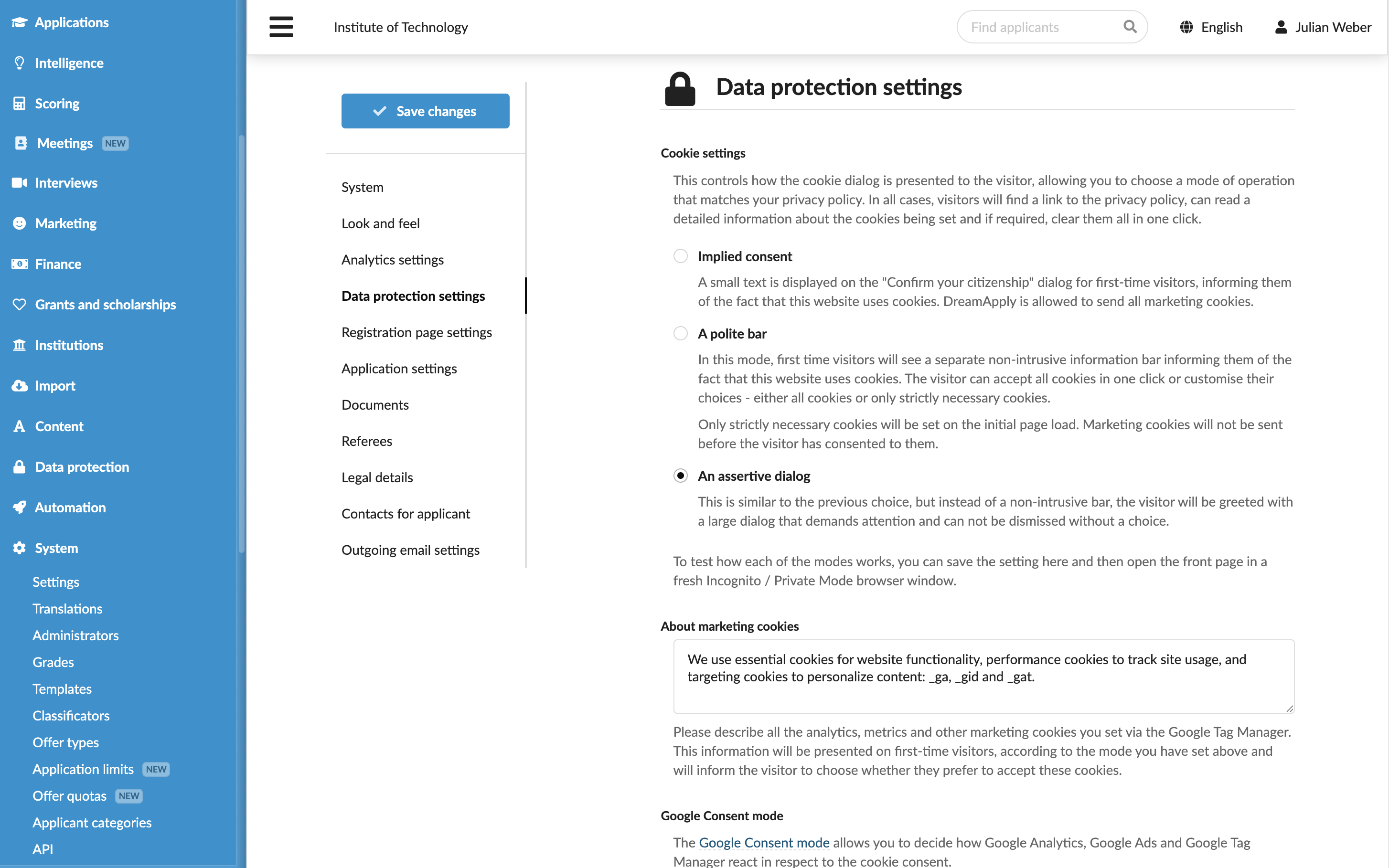
You can customize the cookie consent experience to ensure only necessary data is gathered. DreamApply offers the following options:
- Implied consent: DreamApply displays an informative message about cookies at the bottom of the Confirm your citizenship window displayed to first-time visitors. When users set their citizenship, DreamApply assumes the consent is granted and it is allowed to send all marketing cookies.
- Polite bar: DreamApply displays a consent bar at the bottom of the page. Users can accept all cookies or customize their settings.
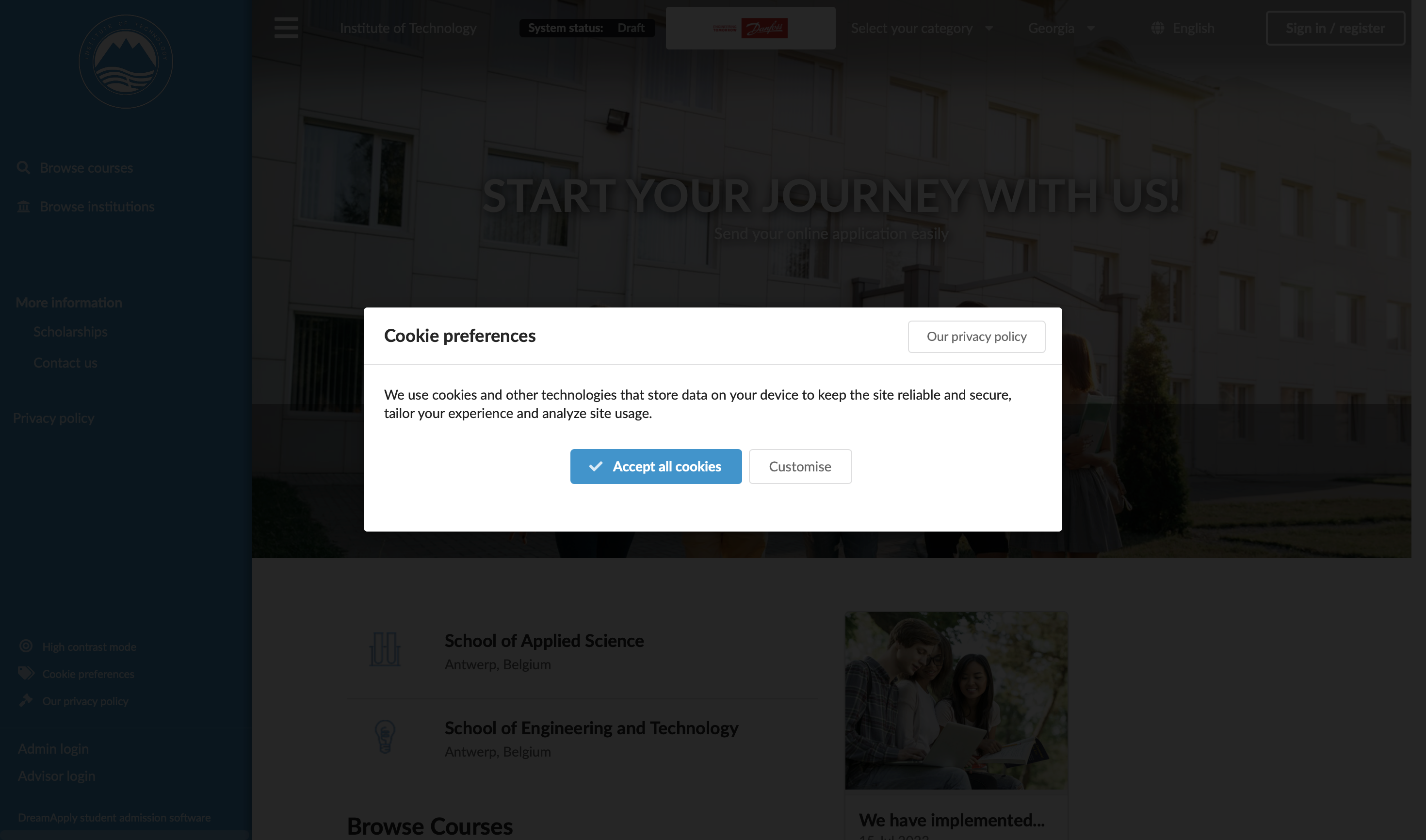
- Assertive dialog: DreamApply displays a consent window in the center of the page. Users can accept all cookies or customize their settings.
Users can change cookie settings at any moment using their browser.
Before you begin
To customize the cookie consent experience, your account must have the Superuser role or the instance permission.
Customize the cookie consent experience
To define cookie settings:
- In the main menu, under System, select Settings.
- In the Data protection section, select the mode for the cookie consent window.
- In the About marketing cookies field, describe how these cookies track user activity. DreamApply will display this message as additional information when a user clicks the Customize button in the consent window.
- Define how consent settings for Google analytics should be managed.
- To provide your own privacy policy, you can set up a dedicated page in the DreamApply portal and specify the link to it in the Privacy policy URL page. This link will be displayed as the Our privacy policy button in the consent window. For details, see Customize the portal menu.
- At the top of the form, click Save changes.