Assign trackers
Roles
These roles reflect the default DreamApply setup.
You can define custom roles based on your
institution's needs. Learn more →:
You can define custom roles based on your
institution's needs. Learn more →
DreamApply offers several ways to assign trackers:
- By Administrators
- By applicants
- By Advisors
- Through entry points
- Automatically through rules
- While importing leads
- Via the DreamApply API
Before you begin
- To assign trackers, your account must have the
SuperuserorAdmissions administratorrole or theapplicants-viewandapplicants-editpermissions. - To set up automatic rules, your account must have the
Superuserrole or therulespermissions. - To subscribe to journal events, your account must have the
SuperuserorAdmissions administratorrole or thejournal-viewandjournal-editpermissions.
Manually assign trackers (by Administrators)
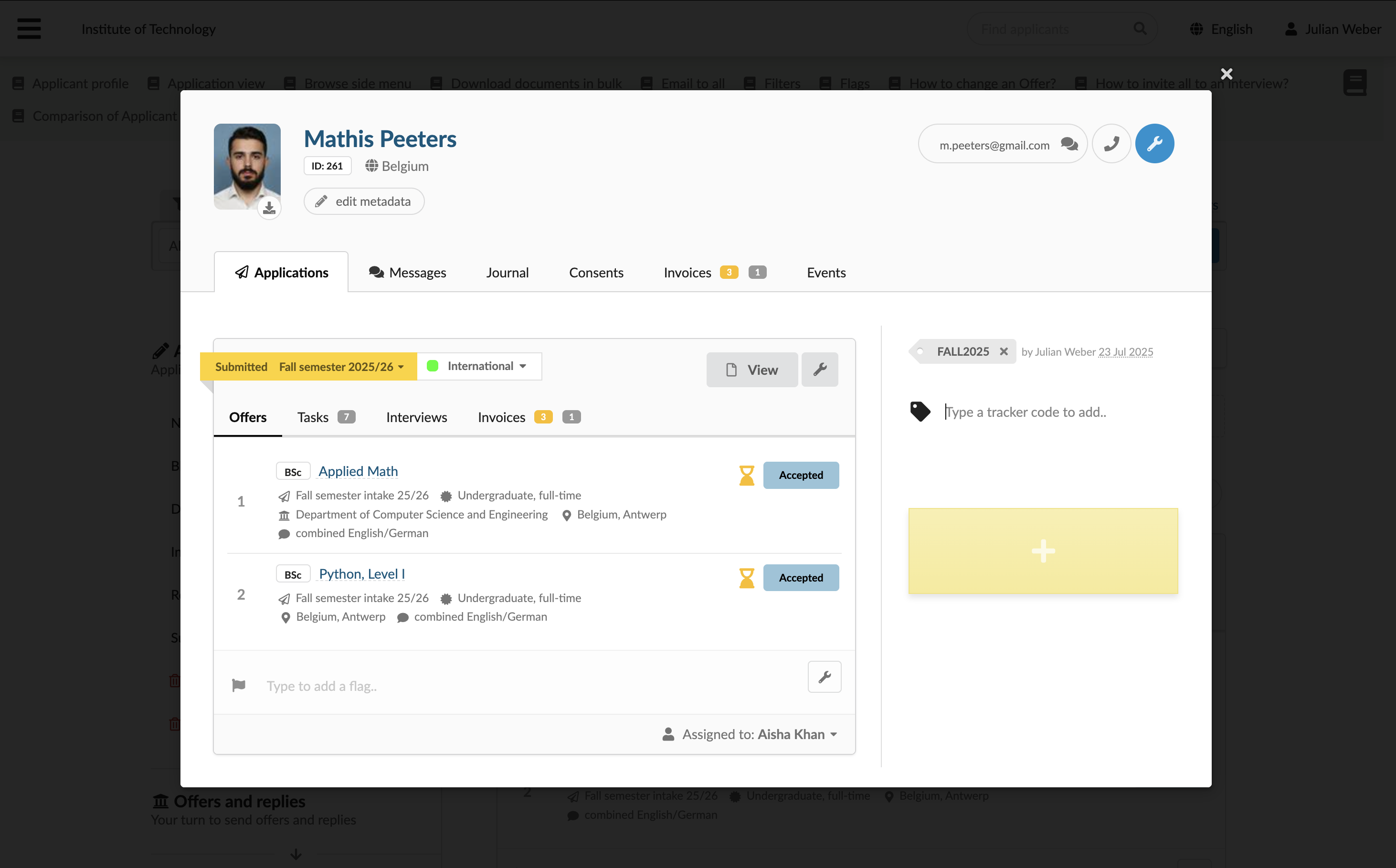
Administrators can manually assign trackers to applicants through applicant cards. This method is useful if Administrators are aware that an applicant is participating in a specific campaign or was referred by a particular Advisor.
To manually assign a tracker:
- In the main menu, under Applications, select Browse.
- Click the applicant’s name to open the applicant card.
- In the right pane, type the tracker code to assign.
Manually assign trackers (by applicants)
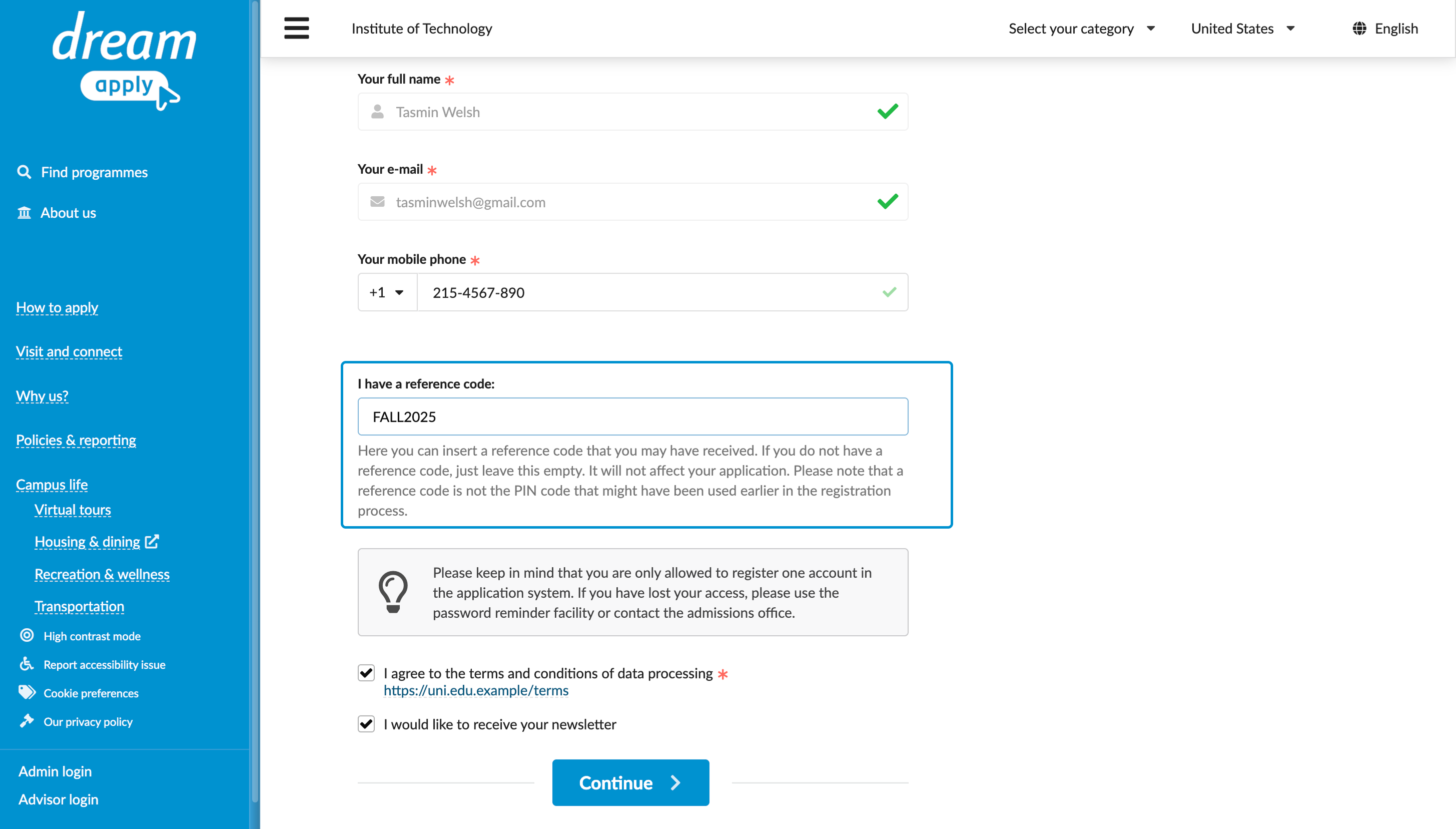
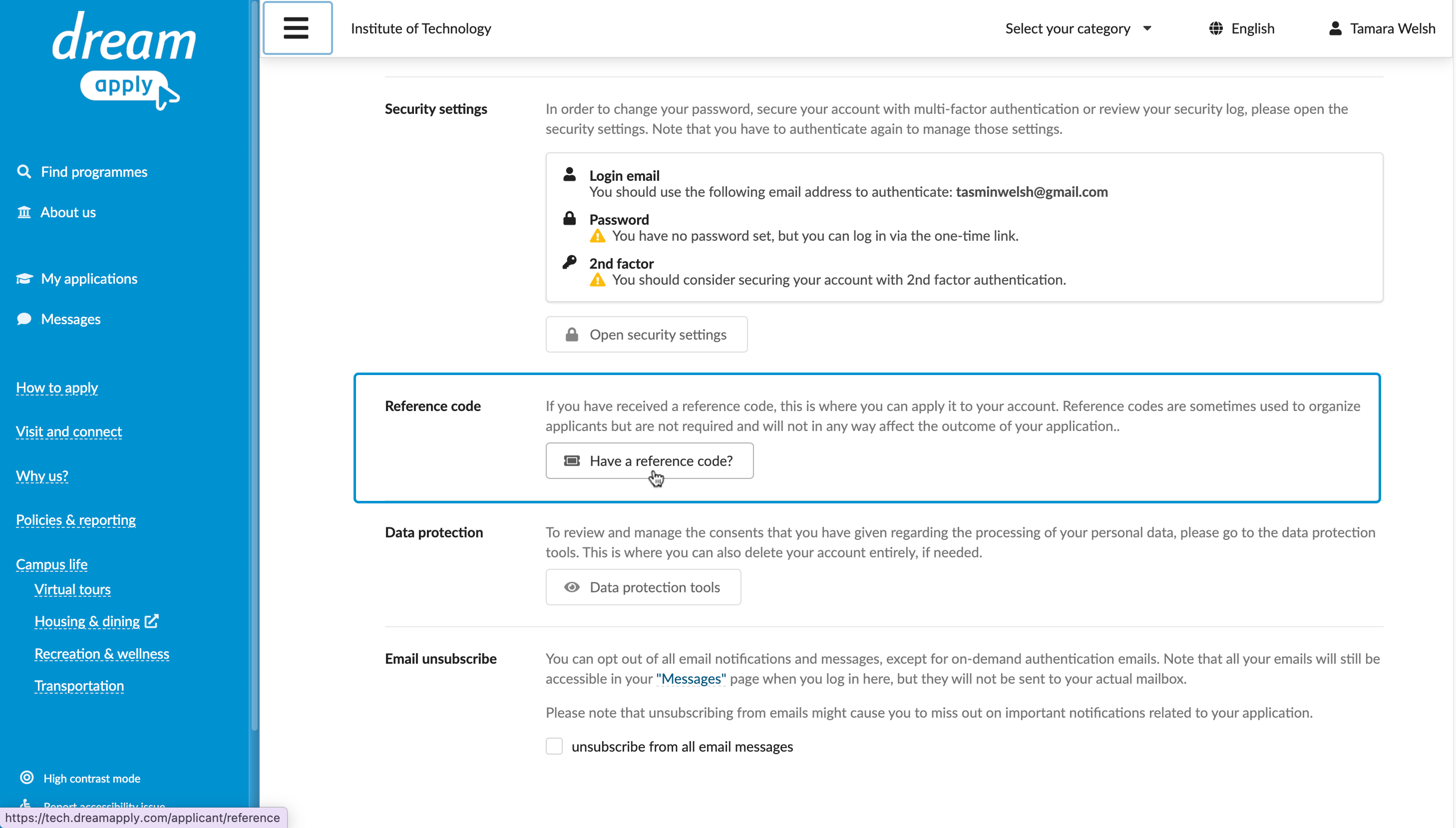
Applicants can assign trackers themselves. Such trackers must exist in the system before they can be used.
During the registration, applicants can enter the tracker code in the I have a reference code field, for example, to indicate that they participate in a specific campaign.
Applicants can enter the tracking code later in their profile settings.
Assign Advisor trackers
DreamApply allows institutions to register Advisors who bring in leads to the system. Each Advisor gets a unique tracker code that is automatically assigned to any applicants they register. You can use these trackers to trace the applicants’ progress and generate reports for the Advisor compensation.
For details, see Set up Advisor accounts.
Assign trackers through entry points
DreamApply can automatically assign trackers to applicants who access the system through entry points — special URLs published in campaign materials. When a user clicks a URL, DreamApply captures the tracking information and stores it for future use. If a user returns and registers, DreamApply assigns the tracker associated with the entry point to that applicant.
For details, see Set up entry points.
Assign trackers through rules
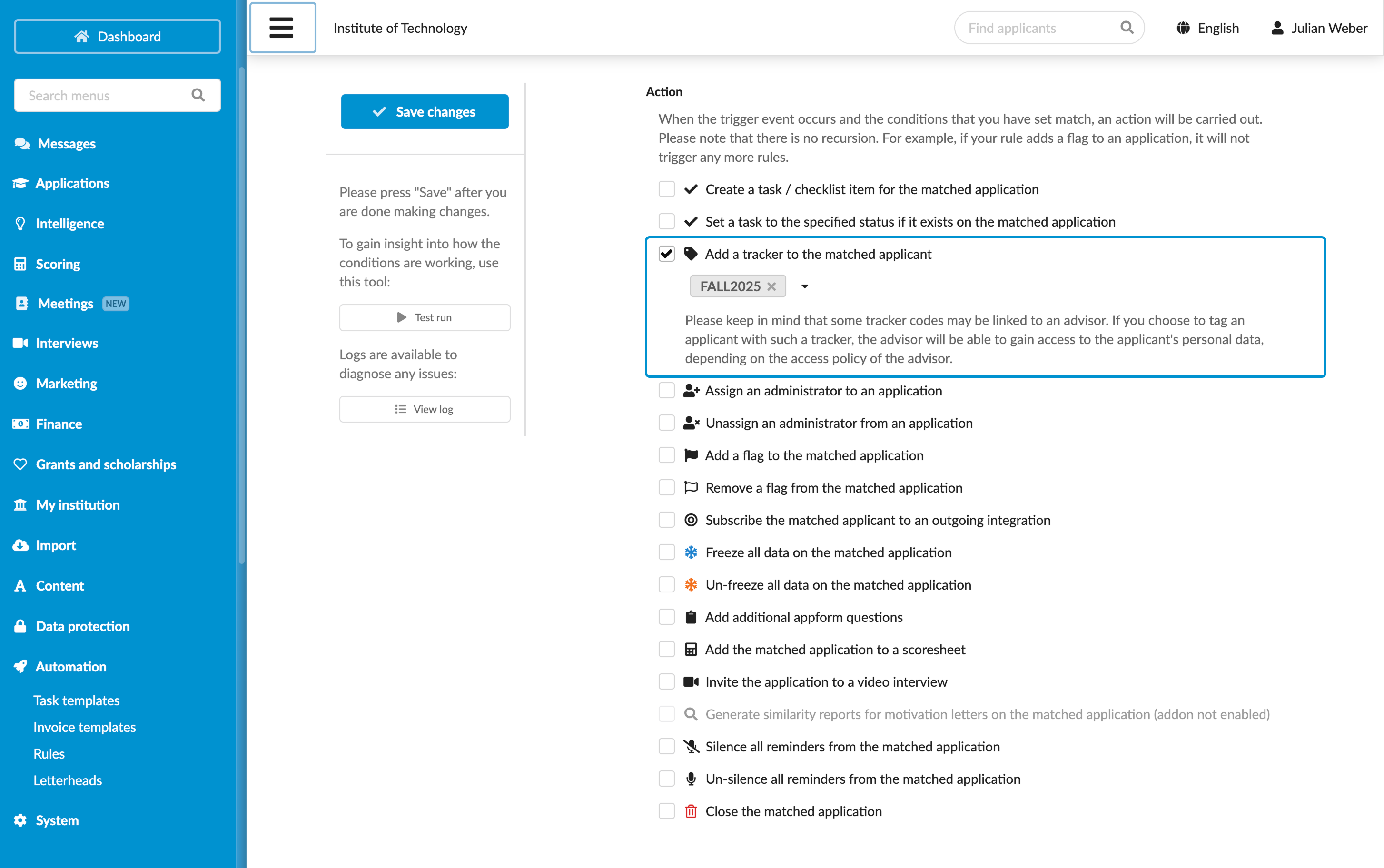
You can configure rules to automatically assign trackers to applicants based on specific conditions.
Rules can be used for automation scenarios that combine applicant accounts and applications. Because rules are triggered by application-related events, they cannot be applied to applicant accounts themselves during registration. However, you can configure rules to run when applicants submit their applications.
To set up rules to assign trackers:
- In the main menu, under Automation, select Rules.
- At the bottom of the rule list, click New rule and specify the rule name.
- In the Trigger events section, select events that must activate the rule. For example, you can choose to assign trackers to newly created applications.
- In the Conditions section, specify granular conditions for the rule.
- In the Action section, select the Add a tracker to the matched applicant check box and choose one or more trackers to assign.
- At the top of the form, click Save changes.
- In the rule list, set the rule status to Active.
Assign trackers at lead import
You can import leads from files or external platforms such as SmartHub, Microsoft Dynamics 365 and Salesforce. This method is useful for leads collected through offline campaigns, partner programmes or other external marketing efforts.
During the import process, you can assign a specific tracker to imported leads. This way, you can indicate and trace the original source of leads.
If a lead with the same email address already exists in the system, DreamApply does not import it again. It only assigns the selected tracker to the existing lead.
For details, see Import leads.
Assign trackers via the DreamApply API
You can programmatically create and assign trackers via the DreamApply API. This method is useful for integrations with third-party systems and external workflows.
- To create a new tracker, send a
POST/api/applicants/trackersrequest with the required tracker data. - To assign a tracker to a lead, send a
PUT/api/applicants/ID/trackers/IDrequest.
Use the Journal events
DreamApply records the following tracker management events in the journal:
- Tracker was added
- Tracker was removed
To track these events, subscribe to them using the Trackers event groups.