Create trackers
Roles
These roles reflect the default DreamApply setup.
You can define custom roles based on your
institution's needs. Learn more →:
You can define custom roles based on your
institution's needs. Learn more →
In most cases, you create trackers at the time you assign them — for example, when you import leads or assign trackers manually through applicant cards. In some cases, however, the tracker must already exist before you can use it. These applies to:
- Trackers assigned by applicants as reference codes
- Trackers linked to entry points
- Trackers used in rules
- Trackers assigned to leads imported from external systems
Before you begin
To manage trackers, your account must have the Superuser, Admissions administrator or Marketing administrator role or the trackers permission.
Set up trackers
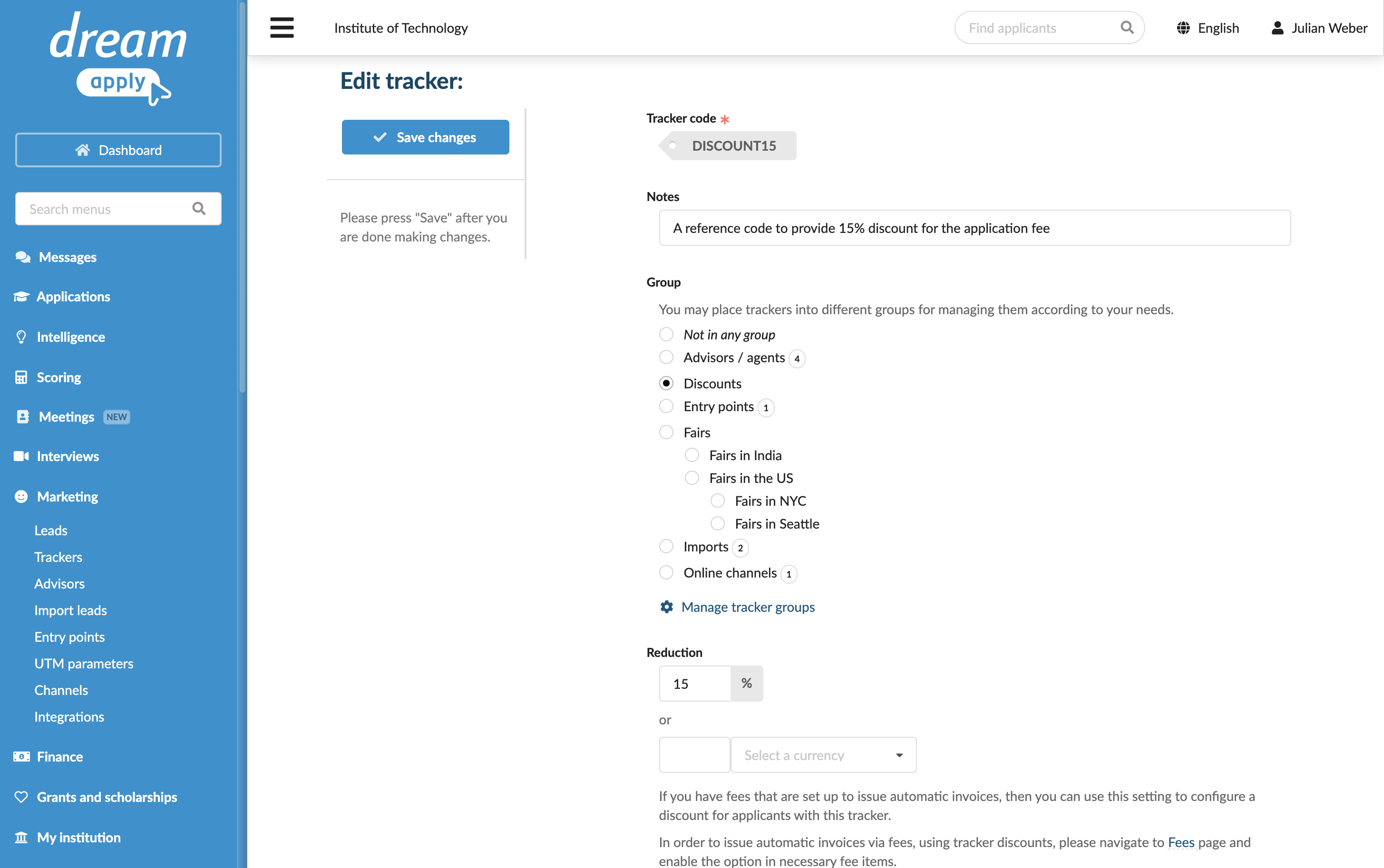
To set up a tracker:
In the main menu, under Marketing, select Trackers.
At the bottom of the tracker list, click New tracker.
Specify the tracker code. Note that you will not be able to edit the tracker code later.
In the Notes field, provide a tracker description. This description appears next to the tracker in the tracker list and below the tracker code when assigned through applicant cards.
Select the group to which the tracker belongs.
In the Reduction section, specify a discount for the tracker. If the tracker is assigned to an applicant, this discount will be automatically applied to fees that:
- Use automated invoicing
- Have the Tracker discounts option enabled
In the Costs field, specify costs associated with the tracker, for example, the Advisor compensation.