Use channels
Roles
These roles reflect the default DreamApply setup.
You can define custom roles based on your
institution's needs. Learn more →:
You can define custom roles based on your
institution's needs. Learn more →
To understand how applicants learned about your institution, you can use channels. Channels represent the sources through which applicants discover or access the admissions portal. Common channels include:
- University website
- Internet search engines
- Social media platforms
- Educational fairs
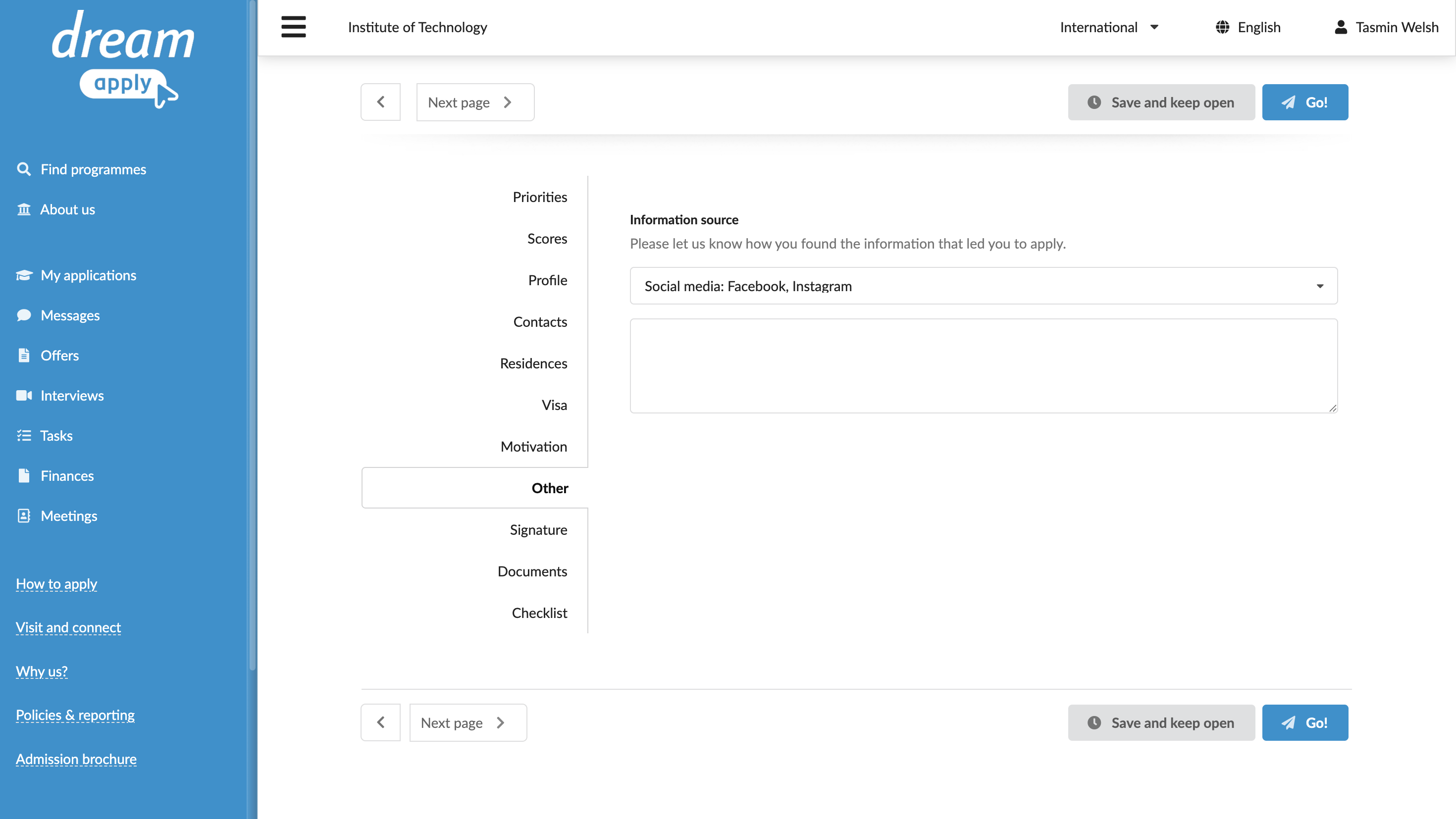
When an applicant submits an application, you can set up DreamApply to collect the channel information and automatically assign a channel flag that identifies the selected source to the application. Channel flags can then be used to filter and analyze applications during the admission process.
Before you begin
- To define channels, your account must have the
SuperuserorMarketing administratorrole or thetrackerspermission. - To manage appforms, your account must have the
SuperuserorCourses administratorrole or theappformspermission.
Define channel options
To set up channel options:
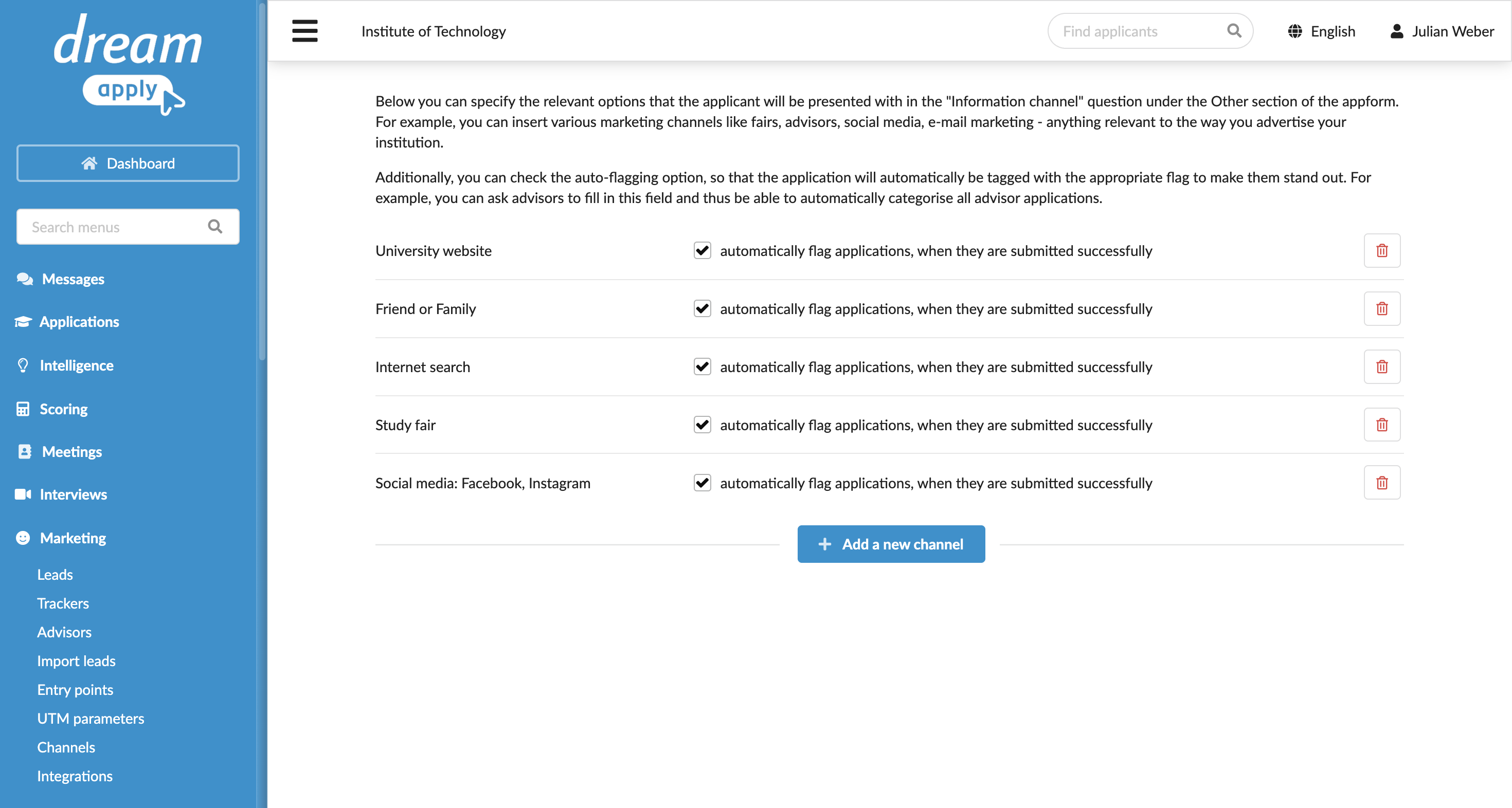
- In the main menu, under Marketing, select Channels.
- Add channel options to the list.
- To automatically assign a channel flag, select the automatically flag applications, when they are submitted successfully check box next to the channel name.
Include information source questions
To record how applicants learn about your institution, you must include the Information source fields in the appform.
- In the main menu, under My institution/Institutions, select Appforms.
- Select to create a new appform or edit an existing one.
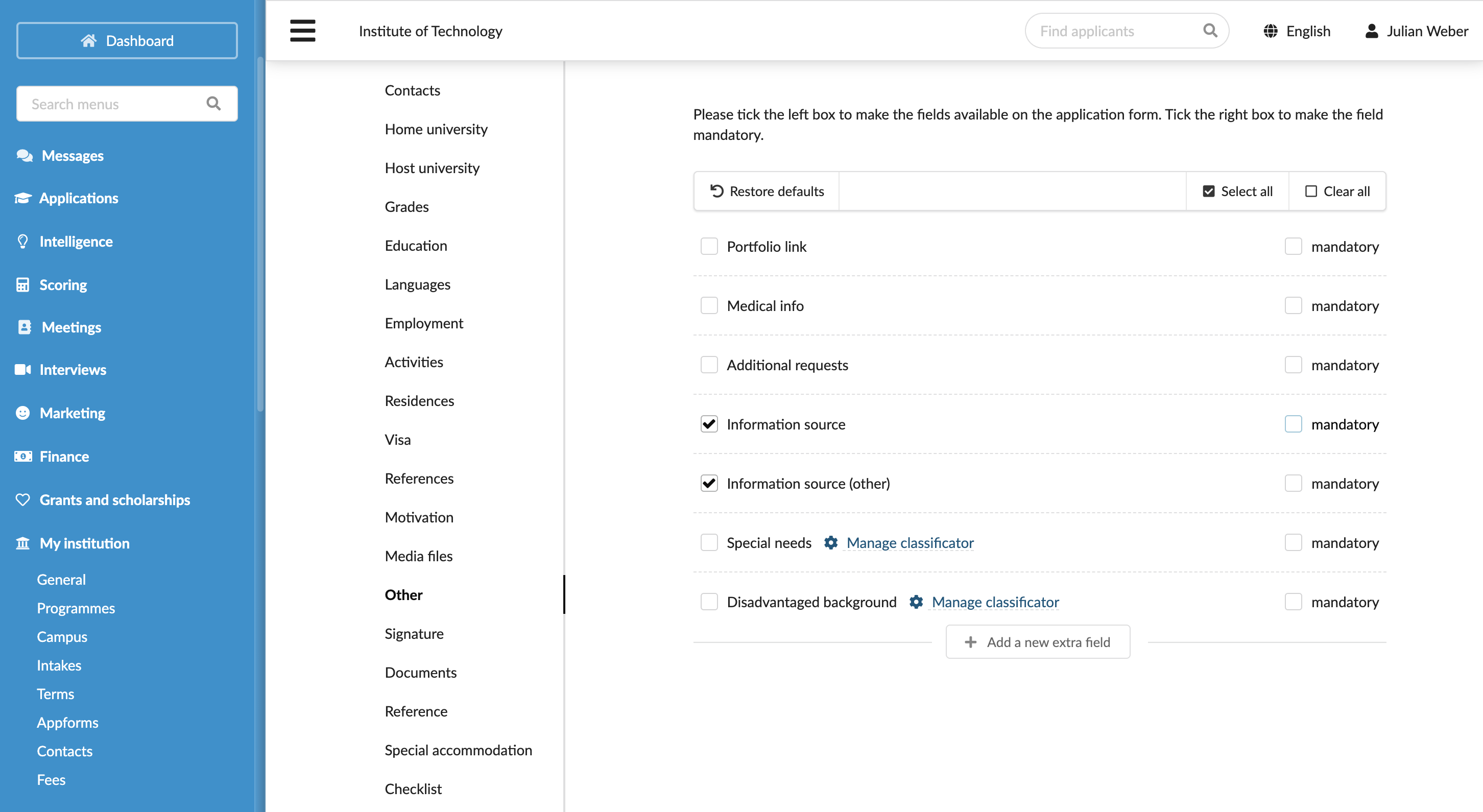
- In the Other section, enable the Information source and Information source (other) fields and set them as mandatory or optional.
- At the top of the form, click Save changes.