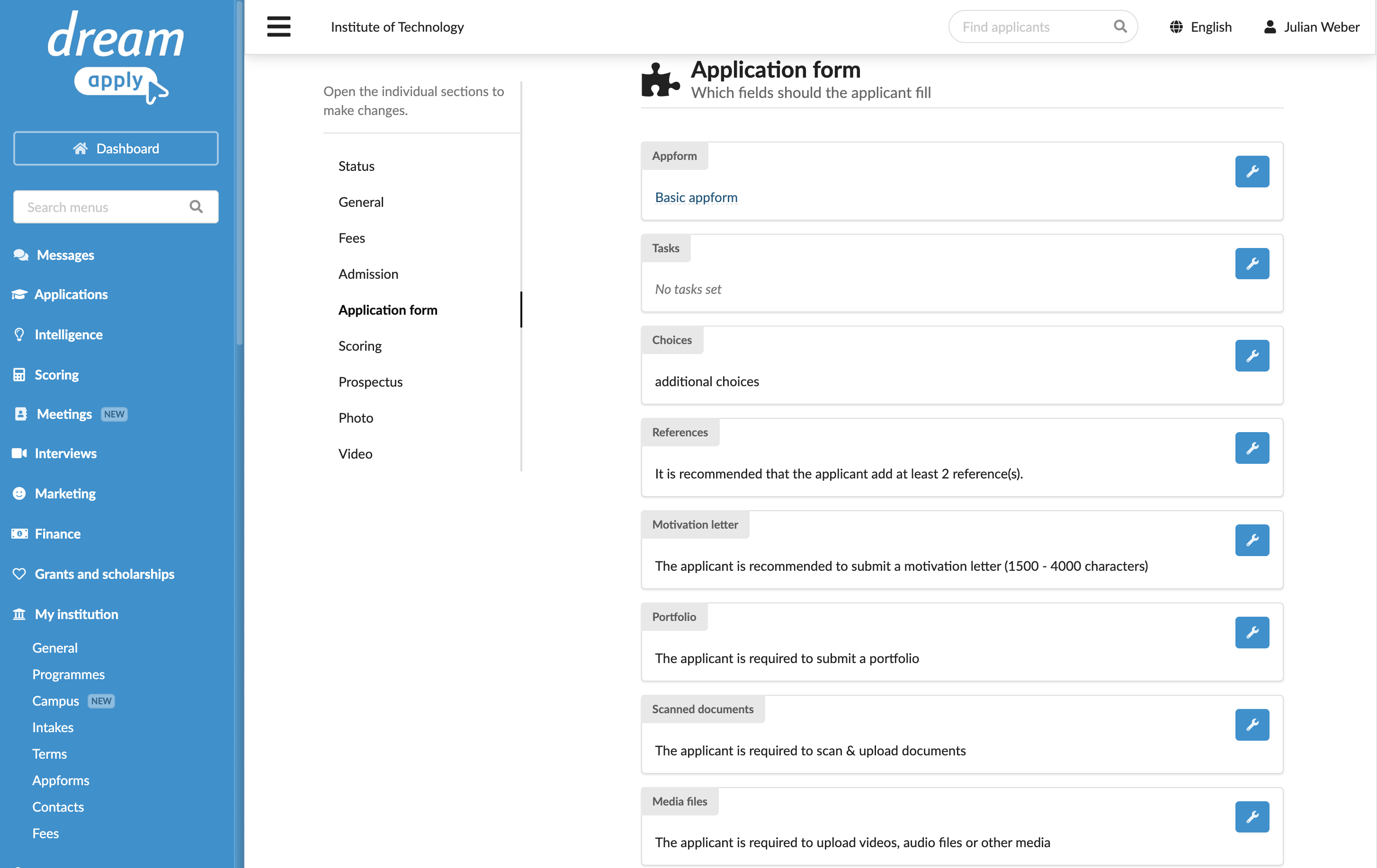
Define application form settings
Roles
These roles reflect the default DreamApply setup.
You can define custom roles based on your
institution's needs. Learn more →:
You can define custom roles based on your
institution's needs. Learn more →
To collect programme-specific information from applicants, you can configure application form settings at the programme level. This may be useful when a programme requires information not covered by programme-specific or additional appforms.
When these settings are enabled, DreamApply modifies the application edit page to include additional fields or sections based on the programme requirements, such as references, motivation letters and portfolios.
Each programme in the catalog can have its own configuration. As a result, the application edit page may vary depending on the selected programmes, and applicants will need to submit information specific to the requirements of these programmes.
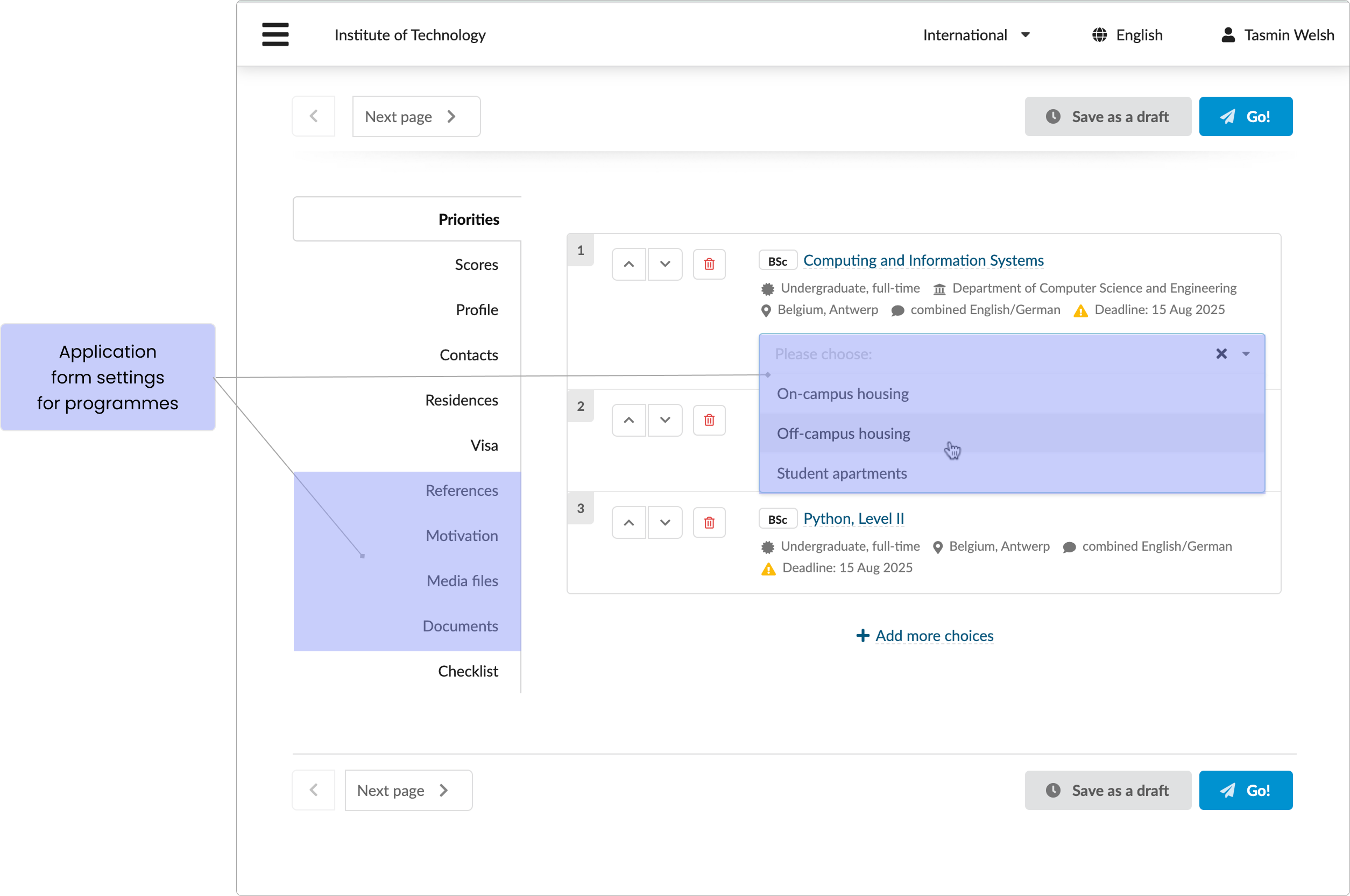
The table below shows how programme settings affect the structure and content of the application edit page:
| Programme setting | Application edit page section | Setting effect |
|---|---|---|
| Application form > Choices | Priorities | Adds a field with custom programme options or choices, for example, housing requirements. |
| Application form > References | References | Adds a section to collect reference information from an applicant. |
| Application form > Motivation letter | Motivation | Adds a section to collect the applicant’s motivation for applying to a programme. If an application contains several programmes, and each has different requirements for the motivation letter, DreamApply displays several data entry fields in the Motivation section, prompting an applicant to submit a unique letter for each programme. |
| Application form > Portfolio | Other, programme description page | Adds a requirement to upload a portfolio to the programme description page. To allow applicants to upload their portfolios through the application edit page, add the Other appform section to a relevant programme-specific appform, enable the Portfolio link option and make it mandatory if necessary. |
| Application form > Scanned documents | Documents | Adds a requirement to upload scanned copies of documents. If the Scanned document setting is not enabled, the Documents section is still displayed on the application edit page. In this case, DreamApply prompts an applicant to check if any documents must be uploaded through assigned tasks. |
| Application form > Media files | Media files | Adds a section that requests an applicant to submit media files. |
Before you begin
To edit programmes, your account must have the Superuser or Courses administrator role or the courses-view and courses-edit permissions.
Configure application form settings
To configure application form settings:
In the main menu, under Institutions/My institution, select Programmes.
Select to create a new programme or edit an existing one.
In the Application form section, specify the settings for the application edit page:
- Choices
- References
- Motivation letter
- Portfolio
- Scanned documents
- Media files
At the top of the form, click Save changes.