Define territory requirements
Roles
These roles reflect the default DreamApply setup.
You can define custom roles based on your
institution's needs. Learn more →:
You can define custom roles based on your
institution's needs. Learn more →
In some cases, institutions may need to restrict access to specific programmes based on the applicant’s citizenship. These restrictions help institutions stay compliant with security policies, sanctions and funding conditions.
DreamApply offers two ways to manage territory requirements:
Territory requirements are displayed on the programme page, in the Territory requirements section, and are applied based on the citizenship applicants select during application. If an applicant selects a citizenship associated with a denied territory, the following restrictions apply:
- The programme will not appear in the catalog for that applicant.
- If an applicant opens the programme page using a direct link and applies from it, DreamApply will block the application.
DreamApply checks for restrictions starting from the most specific territory and moves up to more general levels, for example: country → region → subregion or part of the world → continent.
Before you begin
To define territory requirements, your account must have the Superuser or Courses administrator role or the courses-view and courses-edit permissions.
Define territory requirements at the programme level
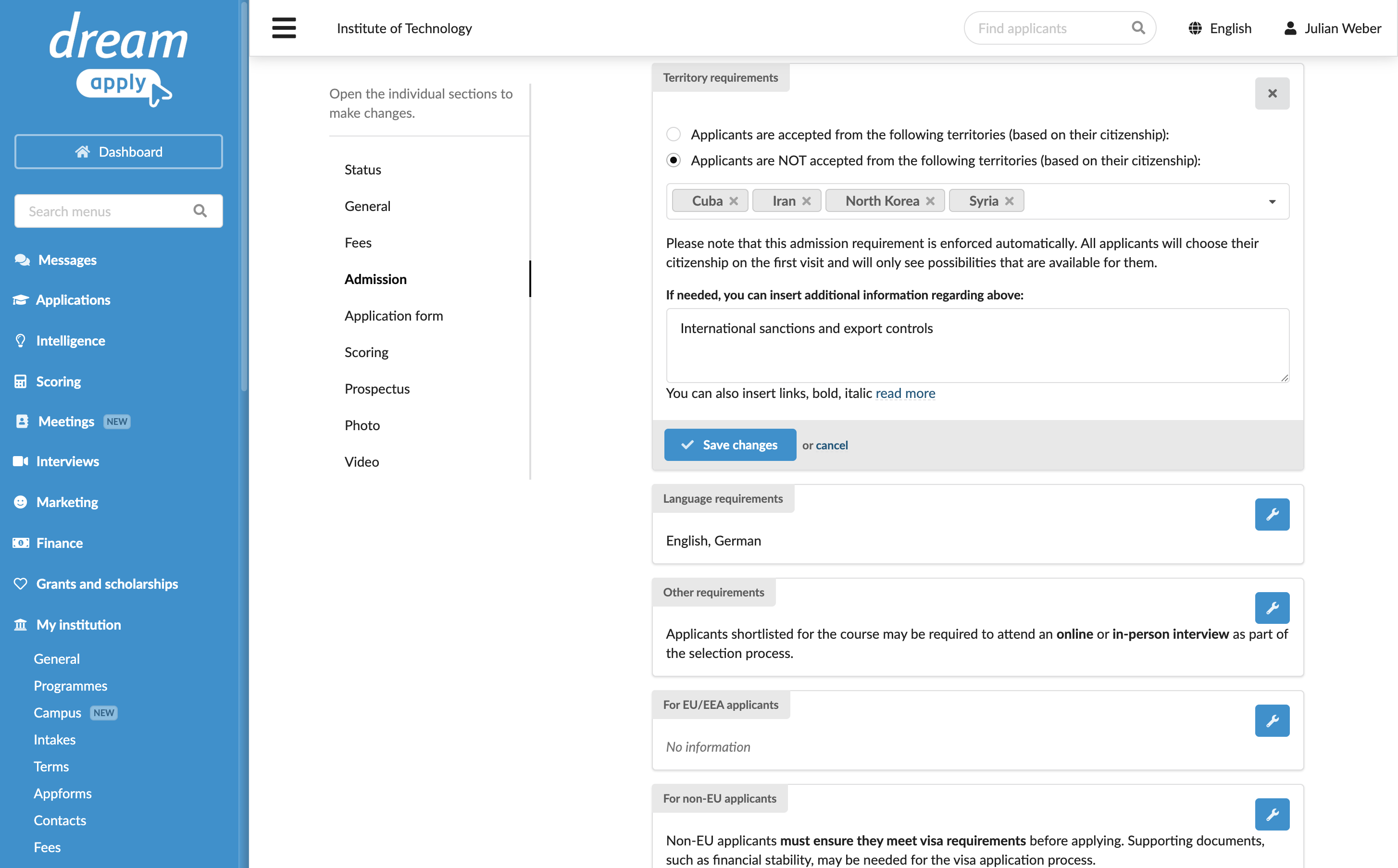
You can define a list of denied or allowed territories specific to each programme. This method can be used when different programmes have unique eligibility rules.
To define territory requirements:
- In the main menu, under Institutions/My institution, select Programmes.
- Create a new programme or select to edit an existing programme.
- In the Admission section, under Territory requirements, set up a list of allowed or denied territories and save the programme settings.
Define territory requirements in bulk
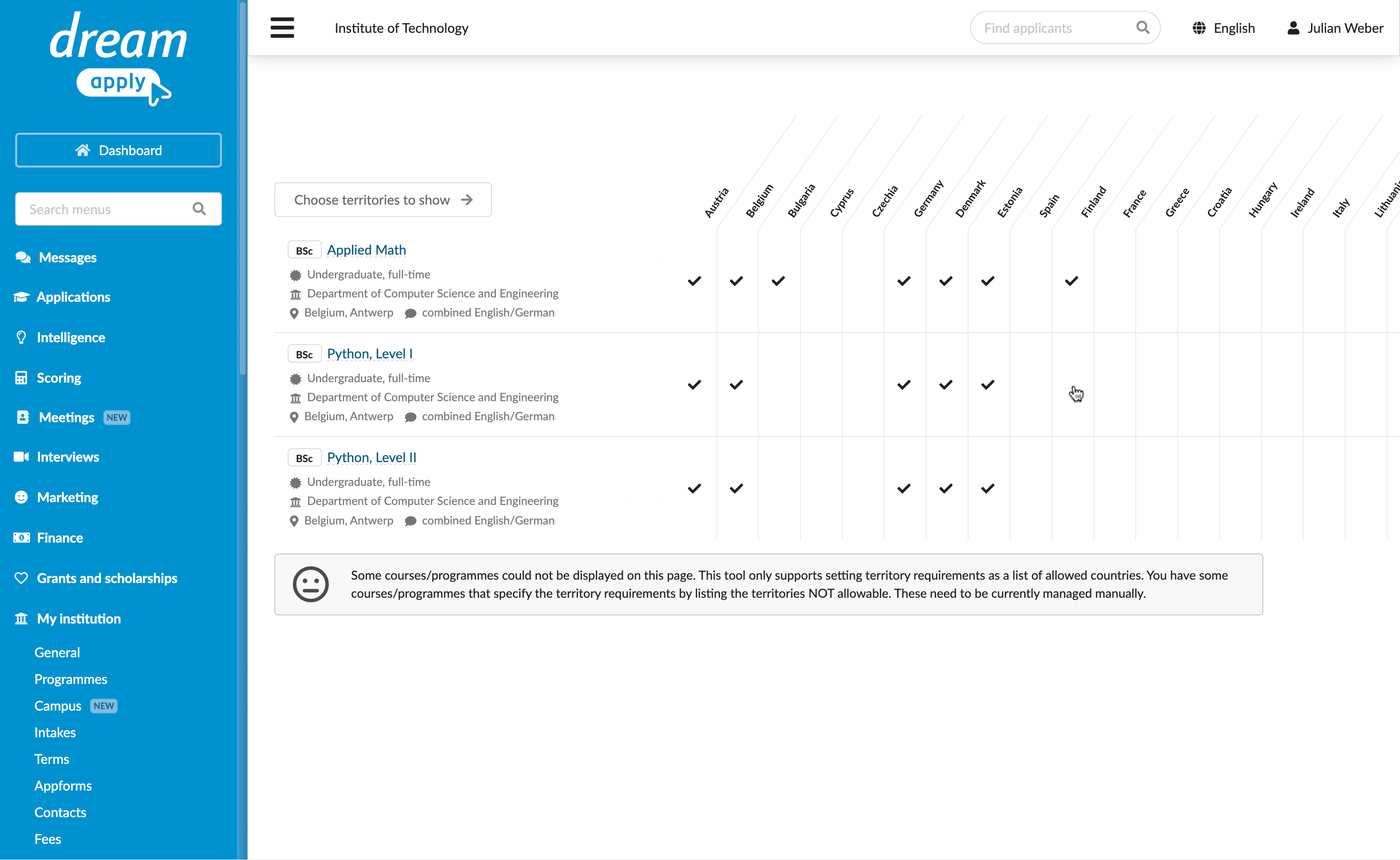
You can use the Territory requirements tool to set up a list of allowed territories for several programmes in the catalog in bulk.
To define territory requirements in bulk:
- In the main menu, under Institutions/My institution, select Programmes.
- If necessary, use filters at the top of the page to narrow down the programme list.
- At the top of the page, click Bulk actions > Edit territory requirements.
- Click Choose territories to show and select the territories — regions or individual countries — to work with.
- In the table, click the territory cell to allow it for a specific programme.
DreamApply automatically sorts programmes in the list to display those with the most allowed territories at the top. This helps Administrators quickly identify programmes with broader availability.