Create Administrator roles
Roles
These roles reflect the default DreamApply setup.
You can define custom roles based on your
institution's needs. Learn more →:
You can define custom roles based on your
institution's needs. Learn more →
DreamApply comes with a set of built-in roles for admission team members. Depending on the needs of your institution, you can create new Administrator roles to control access levels.
If necessary, you can also customize security policy settings for built-in roles. However, the scope of permissions for built-in roles cannot be changed.
Before you begin
To set up Administrator accounts, your account must have the Superuser role or the administrator permission.
Administrators cannot create new Administrator roles with privileges that exceed their own access level. They can grant only the roles, permissions and resource access that they personally possess.
Add Administrator roles
To add a new Administrator role:
- In the main menu, under System, select Administrators.
- Under the Admin roles filter, click Manage administrator roles.
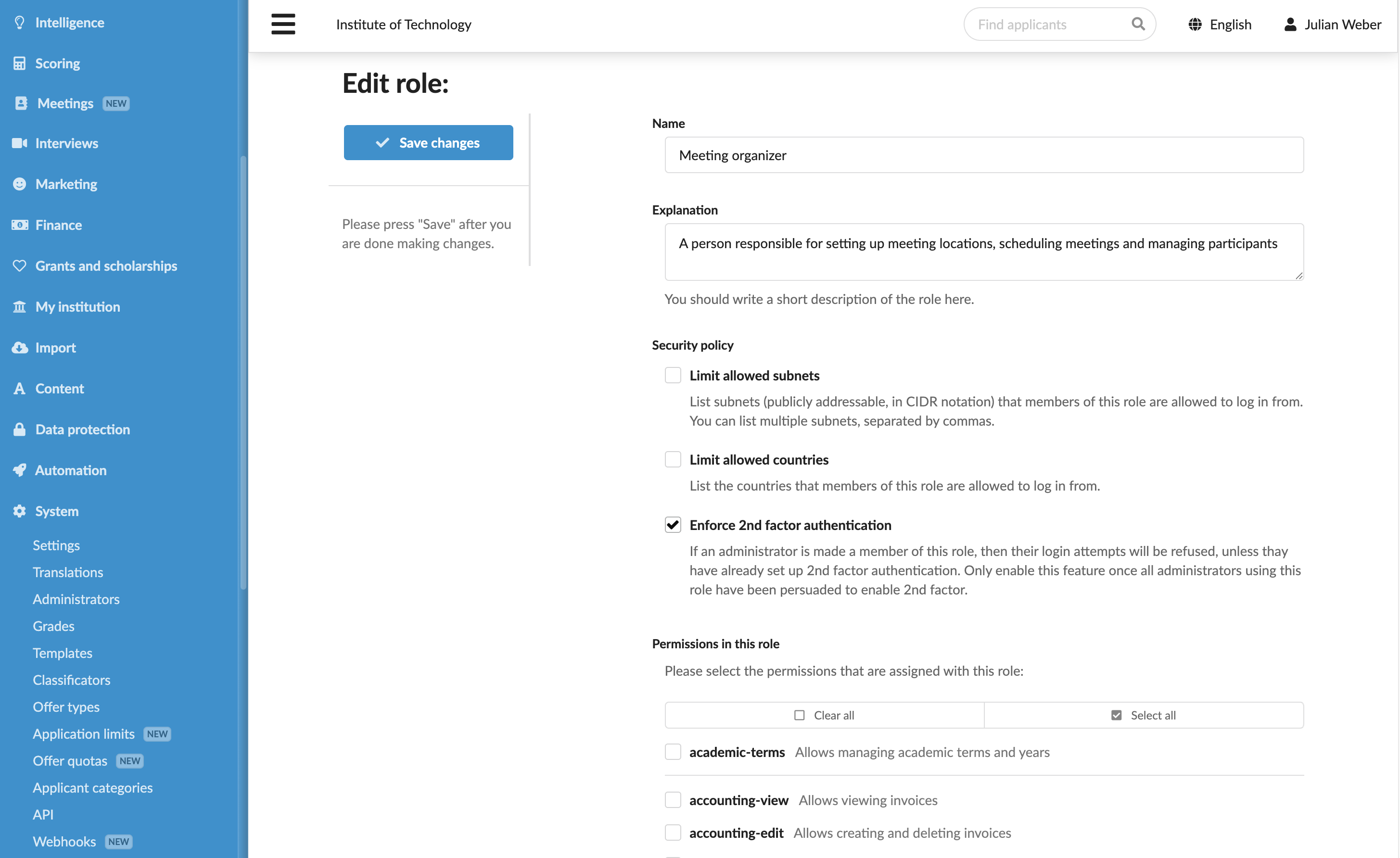
- Click Add a new administrator role and configure the role settings: role name, description, security policies and permissions.
- At the top of the form, click Save changes.