Manage Administrator accounts
Roles
These roles reflect the default DreamApply setup.
You can define custom roles based on your
institution's needs. Learn more →:
You can define custom roles based on your
institution's needs. Learn more →
You need to set up an Administrator account for each member of the admission team. Each Administrator must be granted appropriate roles, permissions and resource access policies.
Before you begin
- To set up Administrator accounts, your account must have the
Superuserrole or theadministratorpermission. - To change the login email address for Administrator accounts, your account must have the
Superuserrole.
Administrators cannot assign privileges that exceed their own access level. They can grant only the roles, permissions and resource access that they personally possess.
Add Administrator accounts
To add a new Administrator:
- In the main menu, under System, select Administrators.
- At the bottom of the Administrator list, click New administrator.
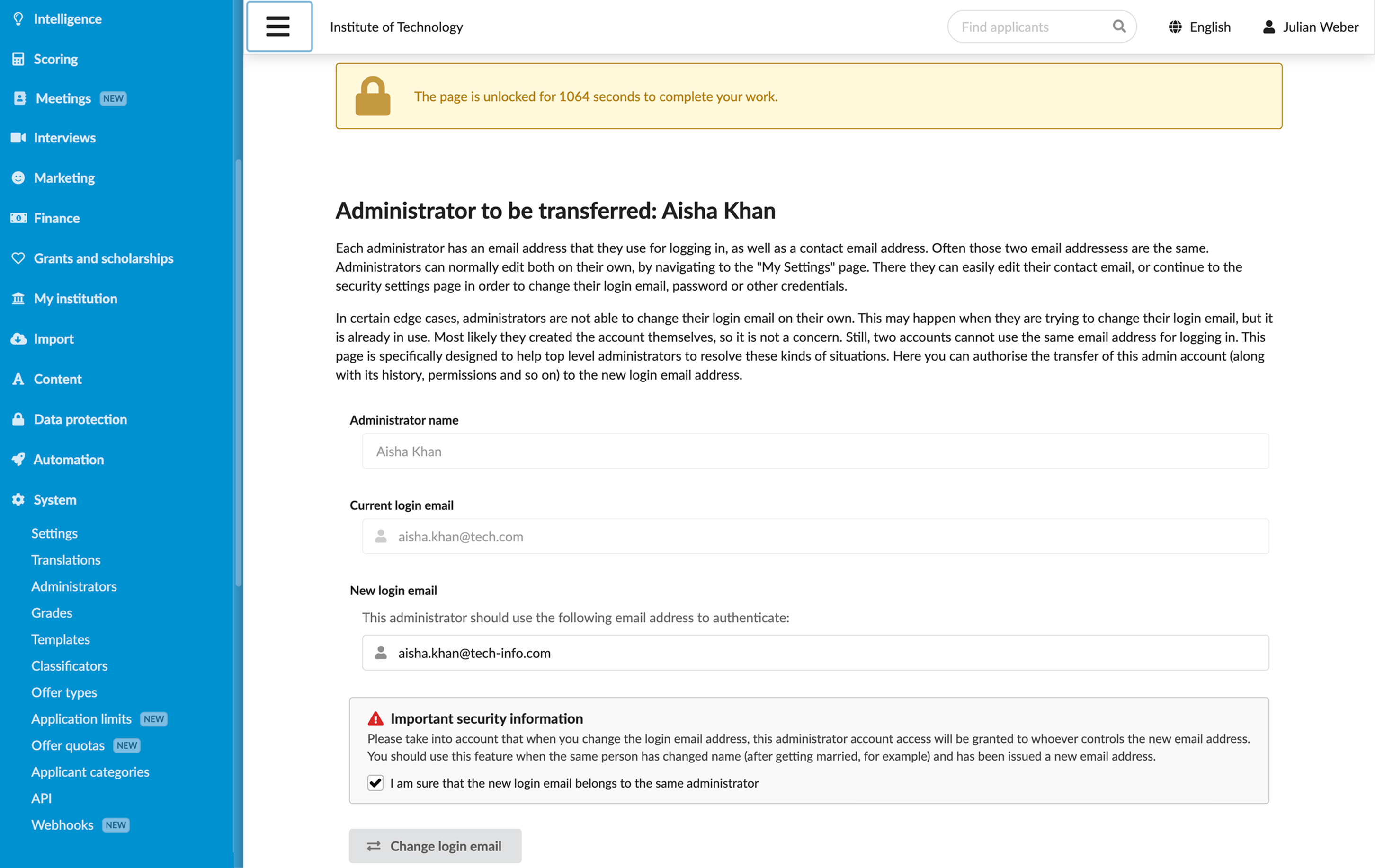
- In the Personal details section, specify personal information for the Administrator such as name, contact email address and phone number. DreamApply will use the contact email address to generate a new DreamID and send a welcome email.
- In the Resource access policies section, specify to which resources the Administrator must have access.
- In the Roles and permissions section, select which roles the Administrator must have and assign additional permissions if needed.
- To create an account with temporary access, in the Validity period section, specify the account start and end dates.
- At the top of the form, click Save changes.
- In the Access credentials section, click Send out administrator access to send a welcome email to the Administrator’s contact email address.
Re-send a welcome email
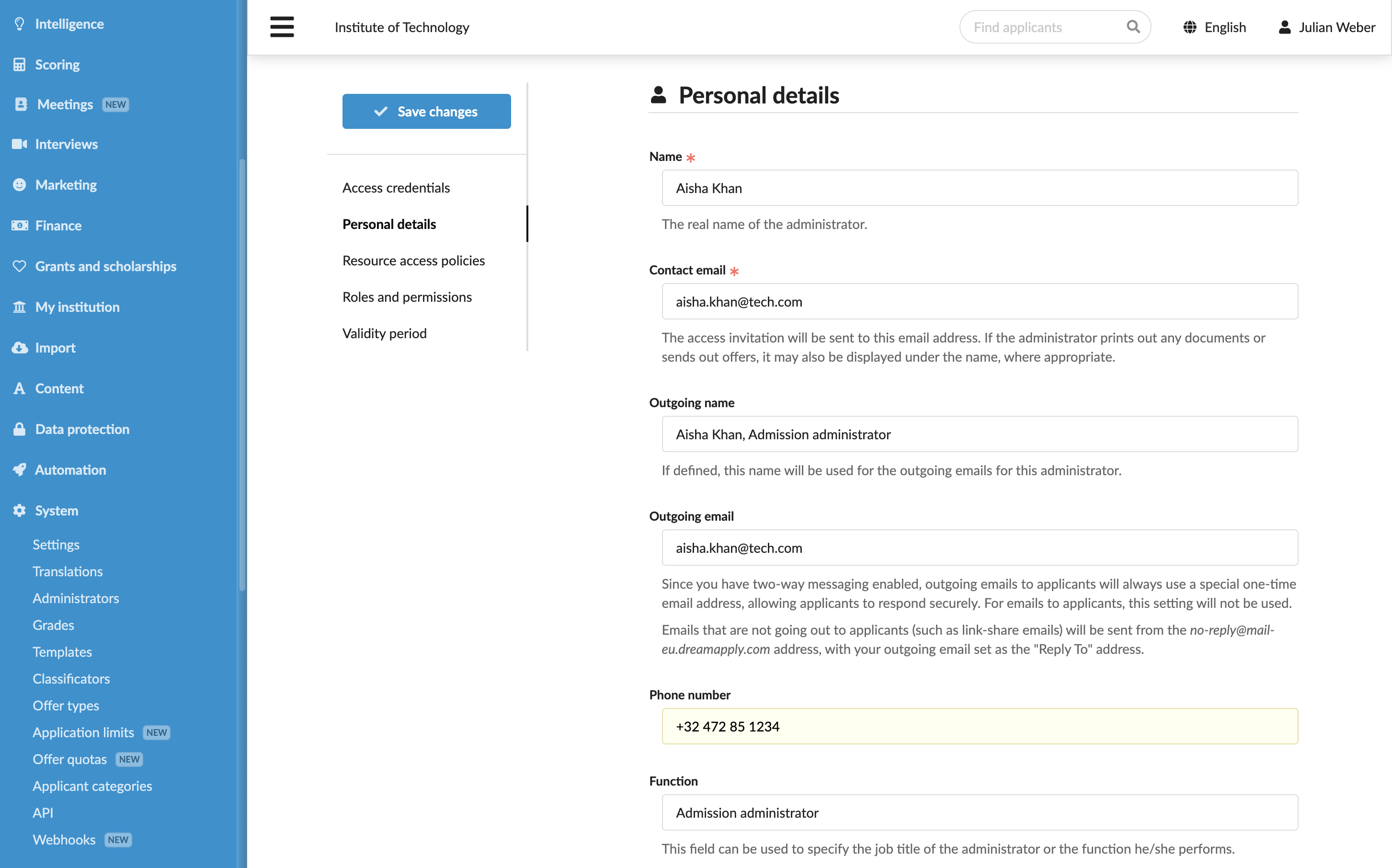
If an Administrator has missed or lost a DreamApply welcome email, you can resend a reminder with joining instructions to allow them to access the portal and activate their account.
- In the main menu, under System, select Administrators.
- Select to edit the Administrator account.
- In the Access credentials section, click Send a reminder.
Update the login email address
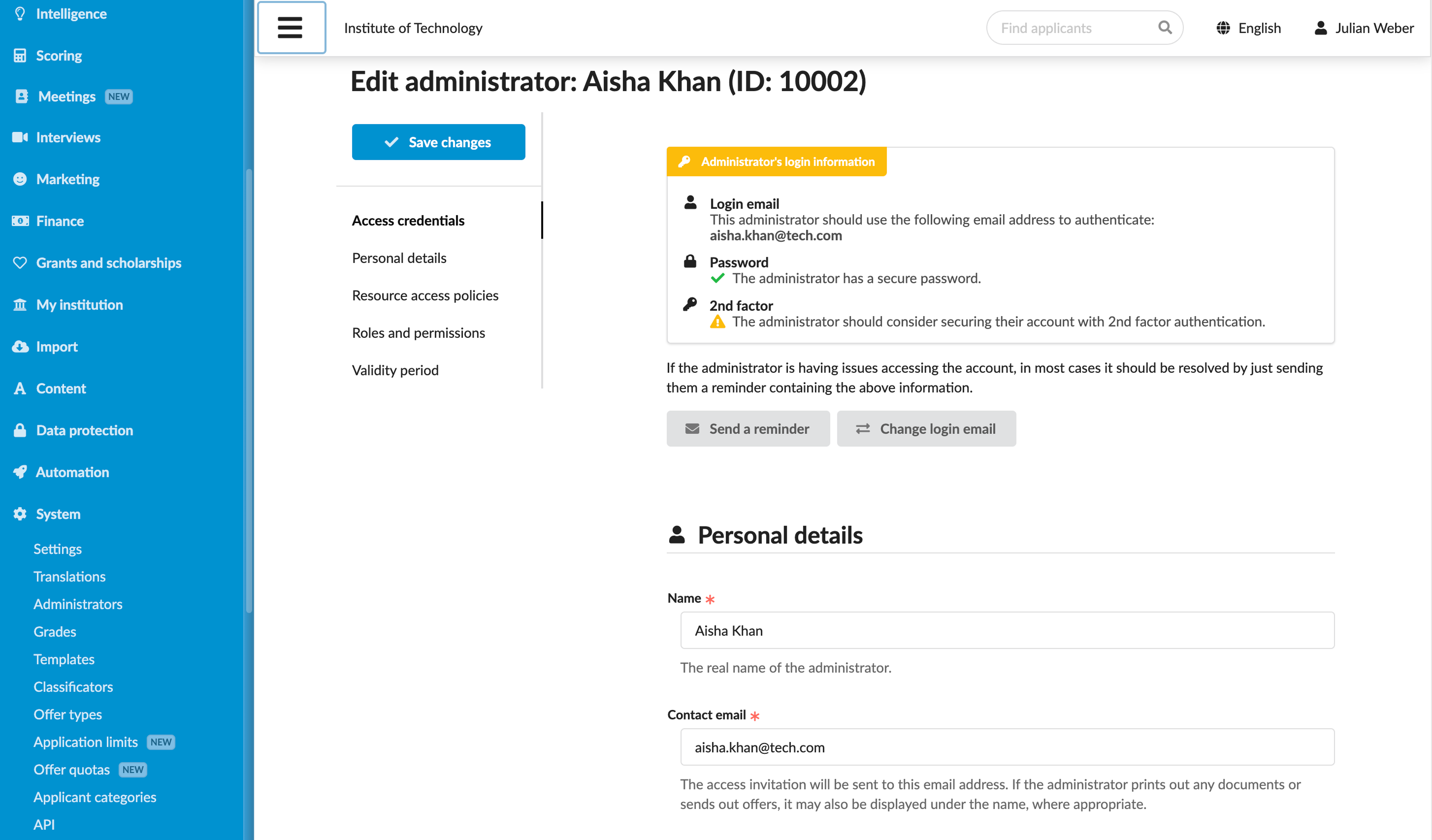
Each Administrator account uses a unique login email address provided during account setup. In some cases, Administrators may need to change their login email address, for example, if their current address is no longer in use and they want to switch to a new one.
When an email address is changed, DreamApply transfers the account history, permissions and other data to a new address.
To change the login email address:
- In the main menu, under System, select Administrators.
- Select to edit the Administrator account.
- In the Access credentials section, click Change login email and enter your password to confirm the account update.
- In the New login email field, specify the new email address for the Administrator account, confirm data transfer and click Change login email.