User roles
The DreamApply portal is designed for different types of users that take part in the admission process:
Each user role controls which functional areas users can access, what data they can view and edit and what actions they can take.
DreamApply does not offer a separate mechanism for managing user roles. All website users are considered website visitors until they log in to the system. Once logged in, DreamApply dynamically assigns users one of roles based on their credentials and actions.
In DreamApply, a user can have only one active role at a time during a single website session. However, the same user can access the system with different roles in separate sessions. For example, an Administrator can log in as an applicant in a separate browser window to experience how DreamApply behaves from that perspective.
Website visitors
A website visitor is a user who interacts with the DreamApply portal without logging in.
In DreamApply, certain system resources and functions are accessible without logging in via the link sharing mechanism. For example, applicants may invite referees to submit references using shared links. Similarly, Administrators may share scoresheets with reviewers to let them score applicants. This approach simplifies collaboration and allows users to access necessary materials without the need to create accounts in DreamApply.
Applicants
In DreamApply, an applicant is a logged in user who expresses their interest in applying for programmes published on the DreamApply portal.
An applicant can create a DreamApply account on their own by signing up to the portal. DreamApply generates a new DreamID using the applicant’s email address and sends an email invitation to activate the account. When the applicant logs in with their DreamID for the first time, DreamApply asks them to provide additional information and consent to data protection and usage.
Once registered, applicants get access to their personal section in DreamApply to manage their applications and view relevant information.
Applicant types
An applicant can register an account under different types:
- Natural persons: The applicant is acting on their own behalf
- Child: The applicant is represented by a parent or guardian
- Legal persons: The applicant is acting on behalf of an organization
In the two latter cases, a registered user serves as a delegate who handles all interactions with the system on behalf of their child or organization. The child or organization does not have access to the application data; only the delegate can view, manage and submit the necessary information.
To define which applicant types registered users can select, institutions can customize the registration page settings.
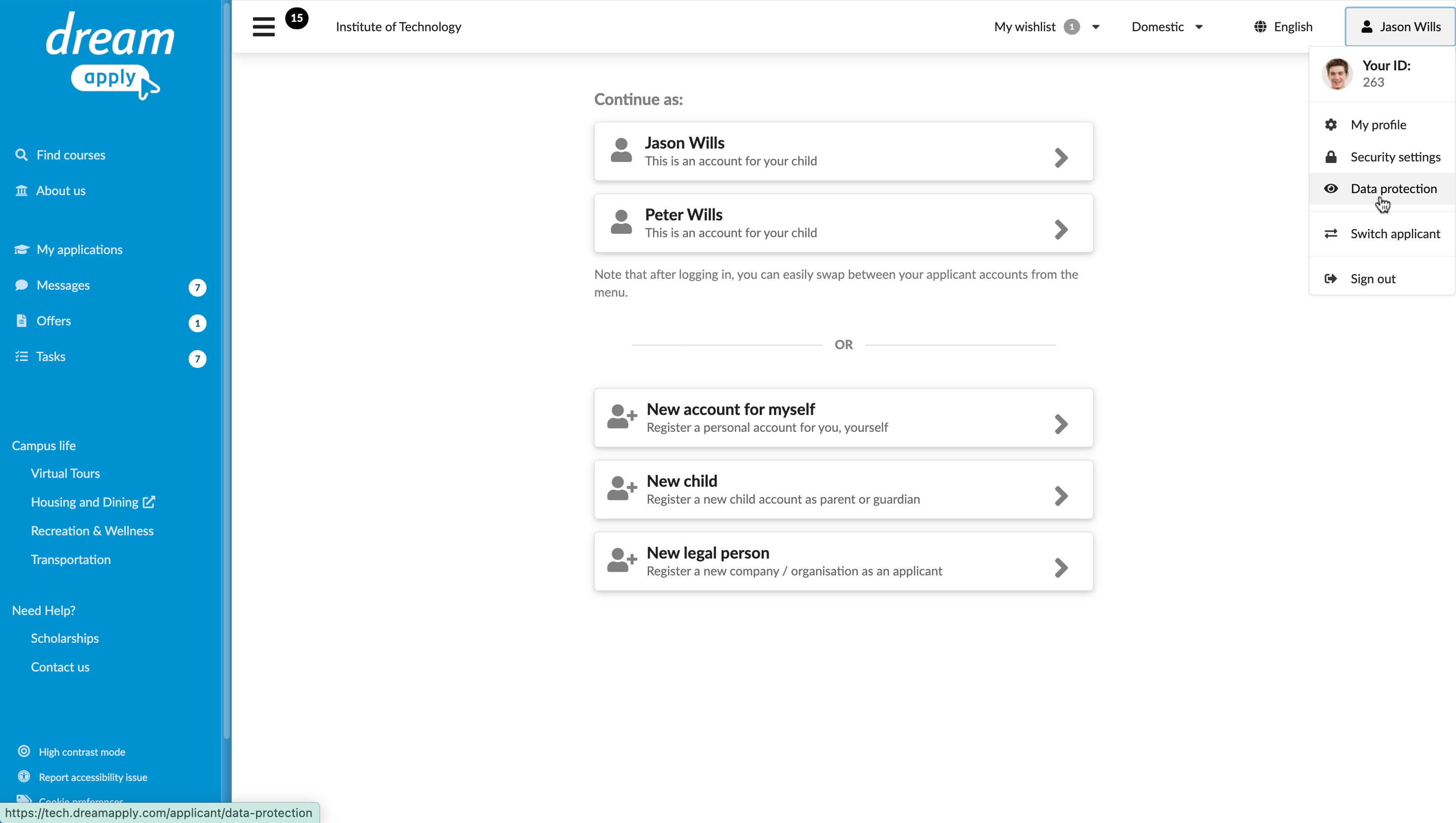
A single registered user can manage multiple applicant accounts. For example, a parent can manage several accounts for their children, or a user can handle accounts for different organizations in addition to their natural person account. Users can switch between applicant accounts using the Switch account option in the menu.
Administrators
Administrator roles can be assigned to various members of the admission team, including professors, evaluators, management, marketing and accounting staff.
Each team member requires different levels of access to system functions and resources, depending on their responsibilities. DreamApply combines several elements to secure access in the portal:
- Administrator roles
- Permissions
- Resource access policies
As a result, each team member has access only to the resources and tools necessary for their role.
To create an Administrator account, an Administrator with the necessary permissions sets up an account with appropriate roles, permissions and resource access policies. DreamApply uses this information to generate a DreamID record and sends a welcome email with joining instructions. When the Administrator logs in with this DreamID for the first time, they confirm their email ownership and gain access to the portal.
Superusers
A Superuser is a specialized type of Administrator with full access to all system functions and data. This role is primarily intended for performing configuration and high-level administrative tasks that impact the entire instance.
During the setup phase, DreamApply pre-provisions one or more Superuser accounts. Institutions can add more Superuser accounts later if needed.
Administrator accounts with a validity period
DreamApply allows institutions to create Administrator accounts with a validity period. Accounts of this type remain active only within a specified timeframe. To limit the account lifetime, institutions can define an account start date, end date, or both.
Administrator accounts with a validity period can be useful for seasonal staff or temporary workers assisting with document processing or other tasks. They can also be used to pre-provision accounts for newly recruited staff who start work on a specific date or team members whose contracts are ending soon.
DreamApply checks the account validity period when an Administrator logs in to the system, and periodically performs additional checks during a session. When the account reaches the expiration date, it is locked, and the Administrator is automatically logged out.
A locked account remains in the system and can be reactivated later. To permanently remove an Administrator account and all data associated with it, use the Delete option.
Advisors
Some institutions involve Advisors in the admission process. Advisors are users who work with prospective applicants individually and offer personalized guidance and support. They review materials submitted by applicants, provide feedback and make sure that all required steps are completed.
Depending on their role, Advisors may be able to submit applications on behalf of applicants. Alternatively, they may have view-only access to application data and provide guidance without directly managing applications.
To create an Advisor account, an Administrator with the necessary permissions sets up an Advisor account with appropriate access policies and contact details (name and email). DreamApply uses this information to generate a DreamID record and sends a welcome email with joining instructions. When the Advisor logs in with this DreamID for the first time, they confirm their email ownership and gain access to the portal.